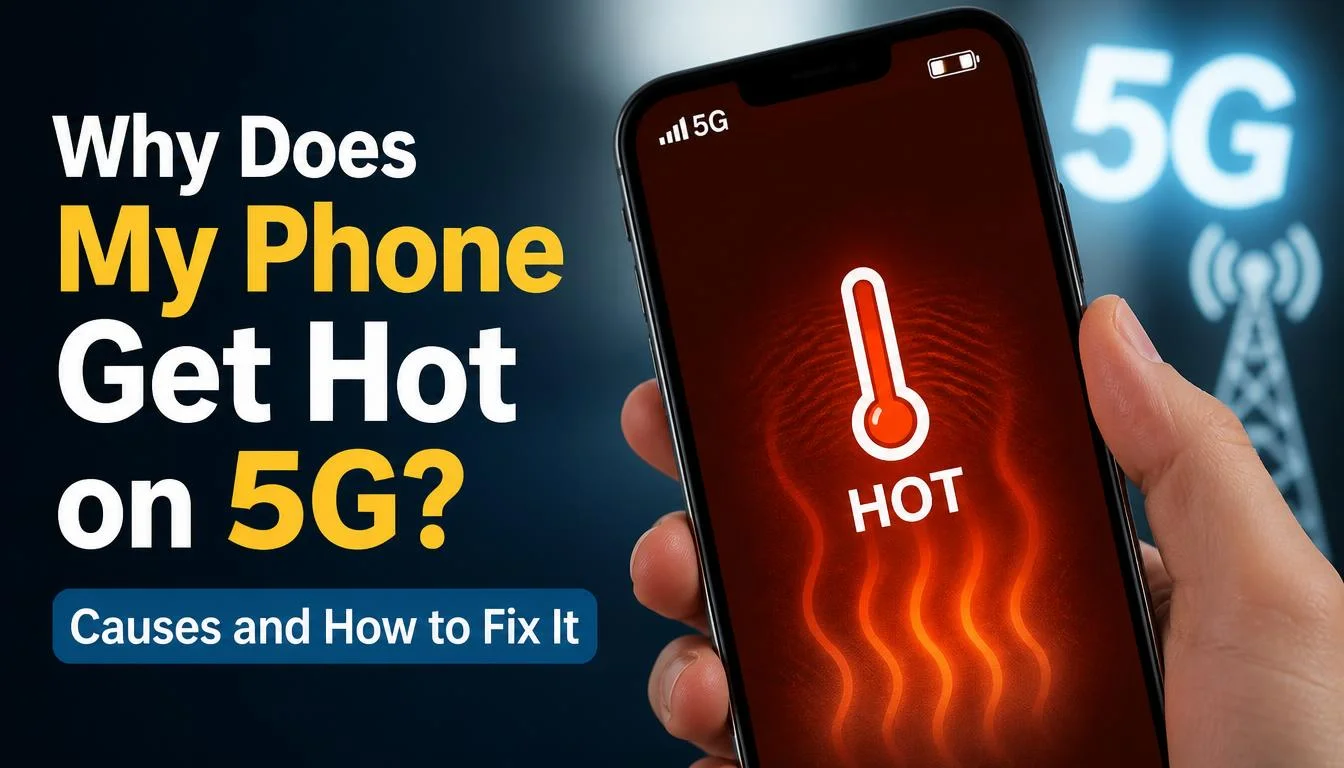
Does your phone get hot whenever you use 5G? You might notice it while browsing the internet, watching videos, playing games, or even when your phone is sitting in your pocket. If the heat comes with faster battery drain, the problem can become even more frustrating.
The good news is that a warm phone does not always mean something is wrong. Your phone can naturally heat up when it processes large amounts of data, searches for a weak mobile signal, runs demanding apps, or charges its battery. However, persistent or excessive heat deserves attention.
If your phone gets hot on 5G, start by reducing demanding activities, moving it away from direct sunlight, and testing whether switching to 4G LTE makes a difference. These simple steps can help you identify the cause without immediately replacing your phone or disabling 5G permanently.
In this guide, you will learn why 5G phones overheat, how to fix the problem on iPhone and Android, and when it is time to seek professional help.
Is It Normal for a Phone to Get Hot on 5G?
Yes, a phone can become warm while using 5G, especially during activities that require significant processing power or continuous data transfer. Modern smartphones generate heat through their processors, cellular radios, displays, batteries, and other internal components.
For example, downloading a large file over mobile data while streaming a video or charging your phone can create more heat than checking messages for a few minutes.
However, your phone should not remain excessively hot during ordinary use or repeatedly display temperature warnings.
When Is a Warm Phone Normal?
Some temporary warmth is usually expected in situations such as:
- Streaming high-quality videos over 5G.
- Downloading large files or installing apps.
- Playing graphics-intensive mobile games.
- Using GPS navigation for an extended period.
- Recording high-resolution videos.
- Charging your phone while using demanding apps.
- Setting up a new phone or restoring a backup.
According to Google’s official Pixel overheating guide, these activities can raise a phone’s temperature. Similar guidance appears in Apple’s explanation of iPhone temperature management.
The phone should generally cool down after the demanding activity ends.
When Is Phone Overheating a Concern?
Pay closer attention if your phone:
- Becomes uncomfortably hot during light use.
- Gets hot even when you are not using it.
- Loses battery power unusually quickly while idle.
- Repeatedly displays a temperature warning.
- Slows down, stops charging, or shuts down because of heat.
These symptoms do not automatically mean your battery is damaged. They can also result from a software issue, unstable network connection, faulty charging accessory, or another hardware problem.
If you receive a temperature warning, stop using the phone and allow it to cool before continuing.
Why Does My Phone Get Hot on 5G? 8 Common Causes
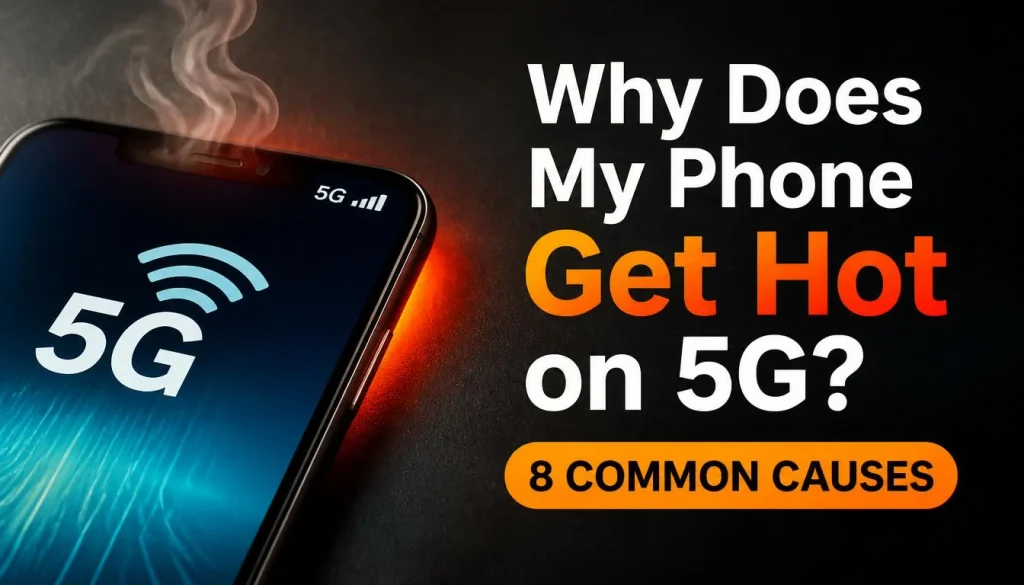
There is no single explanation for every overheating problem. The best way to find the cause is to consider what your phone is doing, where you are using it, and whether the heat appears only when 5G is enabled.
1. Weak or Unstable 5G Signal
A weak 5G signal is one possible reason your phone gets hot while using mobile data.
When reception is poor, your phone may need to work harder to maintain its connection or switch between available network conditions. This can increase power consumption, particularly when the connection is unstable.
You may notice the problem when using your phone:
- Inside a building with thick walls.
- In a basement or underground car park.
- In rural areas with limited coverage.
- While travelling through areas with inconsistent reception.
- Near the edge of your carrier’s 5G coverage.
A 5G icon does not necessarily mean you have a strong connection. Signal quality, network congestion, and the network technology available in your area can all affect performance.
How to fix it: Move to a location with better reception and see whether the phone becomes cooler. You can also temporarily switch to 4G LTE to test whether the mobile network is contributing to the heat.
Samsung discusses weak-signal areas and other possible causes in its official Galaxy phone overheating guide.
2. High Data Usage and Continuous Network Activity
A 5G connection can transfer large amounts of data quickly, but the phone still needs to process that data. Depending on the activity, this can increase heat generation.
For example, you might download a large game, install several apps, upload videos to cloud storage, or restore files from a backup while connected to 5G.
The important distinction is that 5G does not automatically use more data simply because it is faster. Downloading the same file generally consumes a similar amount of data on either network. Heat depends more on the workload, connection conditions, and how the phone handles the task.
You can learn more about the differences in network performance and battery consumption in our guide to what a 5G phone is and how it works.
How to fix it: Pause large downloads, cloud backups, and unnecessary uploads until your phone cools down. Use Wi-Fi for large transfers when a reliable connection is available.
3. Streaming, Gaming, Video Calls, and Camera Use
If your phone becomes hot while watching videos or playing games on 5G, the cause may be the combination of network activity and processor usage.
Streaming an HD or 4K video requires data transfer and video processing. Games can put additional pressure on the processor and graphics hardware. Video calls use the camera, microphone, network connection, and display simultaneously.
Other activities that may increase heat include:
- Recording high-resolution video.
- Using navigation apps while driving.
- Sharing your connection through a mobile hotspot.
- Editing videos on your phone.
- Using demanding applications for long periods.
These activities can produce heat even when your phone is connected to Wi-Fi or 4G rather than 5G.
How to fix it: Pause the demanding activity and let your phone cool. Lower the game’s graphics settings, reduce streaming quality where practical, or take breaks during long gaming sessions. If you are using GPS navigation, avoid recording video or running other demanding apps unnecessarily at the same time.
4. Using 5G While Charging Your Phone
Charging creates heat naturally, and using 5G at the same time can add to the workload.
For example, your phone may become noticeably warmer if you stream videos, play games, or use a hotspot while fast charging. Wireless charging can also generate heat.
A damaged cable, unsuitable charger, or poorly functioning charging accessory may introduce additional problems.
How to fix it:
- Stop demanding activities while charging.
- If the phone becomes uncomfortably hot, disconnect the charger.
- Let the device cool naturally before charging again.
- Inspect the cable and charger for visible damage.
- Use a compatible charger and cable recommended by your phone manufacturer.
Samsung provides further advice about charging-related heat and accessories in its Galaxy device support guide.
If the phone repeatedly overheats while charging under otherwise normal conditions, have the device and charging accessories checked.
5. Hot Weather and Direct Sunlight
Environmental temperature matters more than many people realise.
Your smartphone produces heat internally, but it also needs to release that heat into its surroundings. In hot weather, the process becomes less effective.
This is particularly relevant when using your phone for navigation in a car, recording videos outdoors, or spending long periods in direct sunlight.
For readers in the USA, UK, Canada, and Australia, the problem can be particularly noticeable during summer weather or while using a phone in a parked vehicle.
How to fix it: Move your phone into a cooler environment, away from direct sunlight and other heat sources. Avoid leaving it in a parked car, especially on a hot day.
If you are using navigation, position the phone away from direct sunlight when it is safe and practical to do so.
Do not put a hot phone in a refrigerator or freezer to cool it quickly. Sudden temperature changes and condensation can create additional risks.
6. Background Apps and Fast Battery Drain
Sometimes your phone gets hot even when you are not actively using it.
An app may be repeatedly syncing data, uploading files, checking location, or running a process that consumes excessive power. A temporary software problem can also cause unexpected processor activity.
If the phone stays connected to a weak 5G signal while this is happening, the combined power consumption may contribute to heating.
You may notice that the battery percentage drops quickly even when the screen is off.
How to fix it:
On iPhone:
- Open Settings.
- Tap Battery.
- Review battery usage by app.
- Look for apps consuming unusually high amounts of power.
- Update or temporarily stop using a suspicious app and see whether the problem improves.
On Android:
- Open Settings.
- Go to Battery or Battery Usage.
- Review which apps have consumed the most battery.
- Restrict unnecessary background activity for apps that appear to be causing problems, using the options available on your device.
Menu names vary by manufacturer and software version.
For Samsung Galaxy devices, the manufacturer’s support guidance also recommends optimising the phone and limiting unnecessary background activity. You can read more in its official overheating troubleshooting instructions.
7. GPS Navigation, Mobile Hotspot, and Other Demanding Features
Some phone activities create more heat because several components work together for extended periods.
For example, using your phone as a 5G hotspot means the device receives cellular data and redistributes it to connected devices. Long navigation sessions may involve GPS, mobile data, the display, and location-processing features. Recording video while uploading it can also increase the workload.
These situations are easy to overlook because users often blame 5G alone.
How to fix it: Turn off your mobile hotspot when you no longer need it. Close navigation or camera apps after finishing the task, and avoid leaving demanding applications running unnecessarily.
If you regularly use a hotspot for a laptop or tablet, consider using a dedicated router when practical. That can reduce the workload on your phone, although the exact benefit depends on your equipment and usage.
8. Software Updates, New Phone Setup, or Battery Problems
A phone may become warm shortly after a software update, a factory reset, or the restoration of a backup. During these processes, it may download files, install applications, organise data, and perform tasks in the background.
Temporary warmth may also occur when setting up a new phone.
However, heating that persists well after these activities have finished deserves further investigation. An outdated app, software bug, ageing battery, or hardware fault may be responsible.
How to fix it:
- Restart your phone to clear temporary software issues.
- Install available operating system and app updates.
- Check battery health or available device diagnostics.
- Review whether the heat started after installing a particular app.
- Seek professional help if the problem continues during light use.
Avoid repeatedly factory-resetting your phone without first backing up your data and considering simpler troubleshooting steps.
How to Fix a Phone That Gets Hot on 5G
If your phone is getting hot right now, do not start by changing every network setting. First, reduce the heat safely. Then test individual causes so you can identify which change makes a difference.
1. Let Your Phone Cool Down First
If the phone feels excessively hot, stop demanding activities immediately.
Disconnect the charger if it is connected, close the apps you are using, and move the device away from sunlight or other heat sources. Place it in a cooler, well-ventilated location and allow it to cool naturally.
Do not continue gaming, streaming, or running diagnostic tests while the phone is uncomfortably hot.
Once it has cooled, continue with the remaining troubleshooting steps.
2. Switch from 5G to 4G LTE and Test Again
One of the most useful troubleshooting steps is to compare your phone’s behaviour on 5G and 4G LTE.
If the phone consistently gets hot on 5G but remains cooler on LTE under similar conditions, the network connection or the way the device uses that connection may be contributing to the issue.
To test this:
- Open your phone’s mobile network settings.
- Select LTE or 4G, if the option is available.
- Use your phone normally in the same location.
- Observe the temperature and battery consumption.
- Compare the results with your previous 5G experience.
Keep the test conditions as similar as possible. For example, do not compare 5G gaming with LTE messaging and assume the network is the only difference.
If LTE helps, you can use it temporarily in areas where 5G causes excessive heating. If the phone remains hot on LTE, investigate other causes.
3. Use Wi-Fi When Available
A reliable Wi-Fi connection can help reduce reliance on mobile data during large downloads, software updates, and video streaming.
Connect to a trusted Wi-Fi network when practical, particularly for activities that require transferring large files.
However, Wi-Fi does not guarantee that your phone will remain cool. Gaming, high screen brightness, background apps, and charging can still generate heat.
The goal is to reduce unnecessary workload rather than assume that one connection type will always solve the problem.
4. Stop Heavy Apps and Reduce Background Activity
If your phone becomes hot during a particular activity, stop that activity and check whether the temperature begins to fall.
Close or pause unnecessary demanding apps, stop hotspot sharing when it is not needed, and review your battery usage settings.
If a specific app repeatedly causes abnormal battery drain, update it or temporarily uninstall it if appropriate.
Do not automatically force-close every app all day. Focus on apps that are using excessive resources or behaving unusually.
5. Avoid Using Your Phone While Charging
Give your phone a break during charging, especially if it is already warm.
Avoid intensive gaming, extended video calls, or large downloads while fast charging. If the device becomes excessively hot, disconnect the charger and let it cool.
Check for damaged cables or connectors, and use compatible charging accessories. For wireless charging, follow your manufacturer’s instructions and keep the charging surface clear of foreign objects.
6. Reduce Screen Brightness and Heat Exposure
Your display can contribute to overall power consumption, particularly when brightness remains high for a long time.
Lower the brightness when practical and enable adaptive brightness if your phone supports it.
Also avoid leaving the phone under pillows, inside tightly packed bags, or in other places where heat can accumulate.
A suitable phone case generally does not need to be removed during ordinary use. However, if your device becomes unusually hot, removing the case while it cools may help it release heat more effectively, provided you can do so safely.
7. Restart Your Phone and Install Updates
Restarting can help resolve temporary software issues, while updates may correct bugs affecting background activity, battery usage, or network performance.
After restarting, observe whether the phone becomes hot during light use or when idle.
If the issue began immediately after an update, allow any legitimate setup or restoration processes to finish. If overheating continues, check the device manufacturer’s troubleshooting instructions instead of assuming it will resolve automatically.
8. Check Battery Usage and Device Diagnostics
Battery statistics can help you identify apps that are consuming unusually high amounts of power.
Some devices also offer built-in diagnostics.
For supported Google Pixel devices, you can check the estimated device temperature by opening Settings and navigating to Battery, Battery diagnostics, and Phone is very warm. Availability and wording depend on the model and software.
Samsung Galaxy users may be able to check battery status through the Samsung Members app and its Phone Diagnostics feature.
You can find more information in Google’s phone temperature guide and Samsung’s diagnostic and overheating guidance.
If diagnostics indicate a battery issue or the phone continues to overheat, contact the manufacturer or an authorised repair provider.
How to Tell Whether 5G Is Really Causing the Heat
Before permanently disabling 5G, it is worth checking whether it is actually responsible for your phone’s overheating.
You can do this with a simple comparison test.
Test 5G and LTE Under Similar Conditions
First, let your phone cool down completely.
Then follow these steps:
- Use 5G in your normal location and perform a typical task, such as browsing or streaming a video.
- Note whether the phone becomes warmer and whether battery usage seems unusually high.
- Allow the phone to cool before testing again.
- Switch to LTE and repeat the same task for a similar period.
- Compare the results while keeping brightness, apps, charging status, and surrounding temperature as consistent as possible.
Do not intentionally keep the phone running if it becomes excessively hot during the test.
If the device consistently stays cooler on LTE, its 5G connection may be contributing to the issue. Weak coverage or frequent changes in network conditions could be part of the explanation.
However, a single comparison is not conclusive. Different signal strengths, background processes, and environmental conditions can influence the result.
What If Your Phone Gets Hot Even on Wi-Fi?
If your phone heats up on Wi-Fi as well as 5G, the cellular network may not be the main cause.
Check whether you are using demanding apps, charging the device, recording videos, restoring a backup, or running unnecessary background processes.
If the phone also gets hot while idle, review battery usage and investigate whether a recently installed app or persistent software issue could be responsible.
How to Stop 5G Overheating on iPhone and Android
The exact fix depends on your phone model and operating system. These settings can help you test whether network usage is part of the problem.
How to Reduce 5G Heating on an iPhone
If you use an iPhone 12 or later model that supports 5G, you can compare the available cellular network settings.
- Open Settings.
- Tap Cellular or Mobile Data.
- Select Cellular Data Options or Mobile Data Options.
- Tap Voice & Data.
- Select 5G Auto or LTE if available.
5G Auto allows the iPhone to switch between 5G and LTE depending on network conditions and whether 5G provides a noticeably better experience. Selecting LTE restricts the phone to LTE rather than 5G where the setting is supported.
Apple notes that choosing 5G On may reduce battery life compared with 5G Auto in some circumstances. You can read more in the official guide to using 5G with your iPhone.
If your phone continues to overheat, check Settings → Battery for unusual app activity and install available software updates.
For further guidance, read Apple’s instructions on what to do when an iPhone gets too hot.
How to Reduce 5G Heating on Android
Android settings vary across manufacturers and software versions, but the general process is similar.
- Open Settings.
- Select Network & Internet, Connections, or Mobile Network.
- Open the mobile network settings for your SIM.
- Look for Preferred Network Type or Network Mode.
- Choose LTE or a suitable automatic network mode if your phone provides these options.
Some carriers restrict the available network choices, so you may not see every option.
On Samsung Galaxy phones, you can also review battery usage, restrict unnecessary background activity, and use available device optimisation features.
On supported Pixel phones, check Battery diagnostics to review the device’s temperature state.
If the relevant network setting is missing or greyed out, consult the manufacturer’s documentation or your mobile carrier rather than using unofficial tools to force a network mode.
Should You Turn Off 5G Permanently?
Not necessarily.
Switching to LTE can be a sensible temporary workaround if it clearly reduces heating or battery drain. However, permanently disabling 5G may not be necessary once you identify the underlying problem.
For some users, 5G Auto or an automatic network mode offers a reasonable balance between connectivity and power consumption.
Our guide on whether 5G is worth it on a phone explains when 5G makes a practical difference and why a reliable connection matters more than the network icon alone.
When Should You Be Concerned About Phone Overheating?
Occasional warmth during demanding tasks is different from persistent overheating.
Stop using your phone and let it cool if it displays a temperature warning or becomes uncomfortably hot. If it repeatedly shuts down, stops charging because of heat, or overheats during light use, investigate the problem rather than continuing to use it normally.
Watch for Battery Damage
A swollen battery, a separating screen or back cover, unusual chemical smells, or visible battery damage requires urgent attention.
Stop using and charging the device if you suspect battery swelling. Do not press the battery, attempt to open the phone, or try to repair it yourself. Contact the manufacturer or a qualified repair service for safe handling.
When to Contact a Repair Centre
Seek professional help if:
- The phone repeatedly overheats after basic troubleshooting.
- It gets excessively hot while idle.
- You notice unexpected shutdowns or persistent charging problems.
- Battery diagnostics report a fault.
- You suspect physical damage to the battery or charging port.
A technician can check whether the issue involves the battery, charging hardware, software, or another internal component.
Do not assume the phone needs a new battery until the underlying problem has been assessed.
Frequently Asked Questions
Why Does My Phone Get Hot Only on 5G?
Your phone may use more power to maintain an unstable 5G connection, particularly when signal strength is poor. Other factors, including heavy data usage and the way your phone manages its network connection, may also contribute. Compare 5G and LTE under similar conditions to determine whether the network is part of the problem.
Does 5G Make Your Phone Hotter Than 4G?
Not always. Heating depends on the phone, network conditions, signal strength, workload, and environment. A weak 5G connection may consume more power in some situations, while a strong 5G connection may complete a download quickly. Neither network technology guarantees a cooler phone in every situation.
Why Is My Phone Getting Hot and Losing Battery on 5G?
Excessive network activity, weak reception, background apps, video streaming, and hotspot use can increase power consumption and heat. Check your battery usage settings, pause demanding activities, and compare battery drain on LTE. If the problem continues during light use, consider checking the battery’s condition.
Why Does My Phone Get Hot on 5G When I’m Not Using It?
An app may be syncing files, using location services, uploading data, or running a process in the background. Weak network reception can also contribute to power consumption. Check your battery usage history, restart the phone, and temporarily restrict suspicious apps to see whether the problem improves.
Should I Turn Off 5G if My Phone Gets Hot?
You can temporarily switch to 4G LTE to test whether 5G contributes to the heating. If the phone consistently runs cooler on LTE under similar conditions, using LTE may be a practical workaround. However, if the device overheats on every network or while idle, investigate other possible causes.
Can Phone Overheating Damage the Battery?
Repeated exposure to excessive heat can accelerate battery ageing and may shorten its useful lifespan. Modern phones include protective mechanisms that can reduce performance or pause charging when temperatures become too high. If you repeatedly receive temperature warnings, stop demanding activities and investigate the cause.
Final Thoughts: Keep Your Phone Cool While Using 5G
If your phone gets hot on 5G, do not assume that the device is faulty or that 5G itself is always the problem. Weak reception, demanding apps, charging, background activity, and hot weather can all contribute to overheating.
Start by letting the phone cool, reducing unnecessary activity, and comparing its behaviour on 5G and LTE. Check battery usage and available diagnostics if the problem continues.
Most importantly, do not ignore repeated temperature warnings or signs of battery damage. A little troubleshooting can help you identify the cause, but persistent overheating deserves professional attention.

“The right smartphone can make a bigger difference than you think.”
Hi, I’m Ethan Collins, a technology writer and smartphone enthusiast at PhoneProSolve.com.
My interest in smartphones started with a simple question: How do you know which phone is actually right for your needs?
With so many brands, models, features, specifications, operating systems, accessories, and price ranges available today, choosing the right phone can quickly become confusing. And when a phone starts overheating, charging slowly, draining its battery, running slowly, or developing other problems, finding a clear solution can be just as frustrating.
I created PhoneProSolve.com to make that process easier.
Through this website, I share practical smartphone guides, product comparisons, buying advice, troubleshooting tips, how-to guides, accessory information, and solutions to common phone problems.
I focus on turning complicated technical information into clear, practical, and easy-to-understand guidance that everyday readers can actually use.
Whether you’re searching for a smartphone with better battery life, a powerful device for gaming, a reliable camera phone, useful accessories, or simply trying to figure out why your current phone isn’t working properly, my goal is to help you find the information you need before making a decision.
I believe good recommendations should be based on careful research, real-world considerations, honest pros and cons, and the specific needs of the user—not simply marketing claims.
Through PhoneProSolve.com, I’m committed to helping readers understand their smartphones, solve common phone problems, choose useful products, and make smarter purchasing decisions with confidence.
— Ethan CollinsAuthor & Technology WriterPhoneProSolve.com