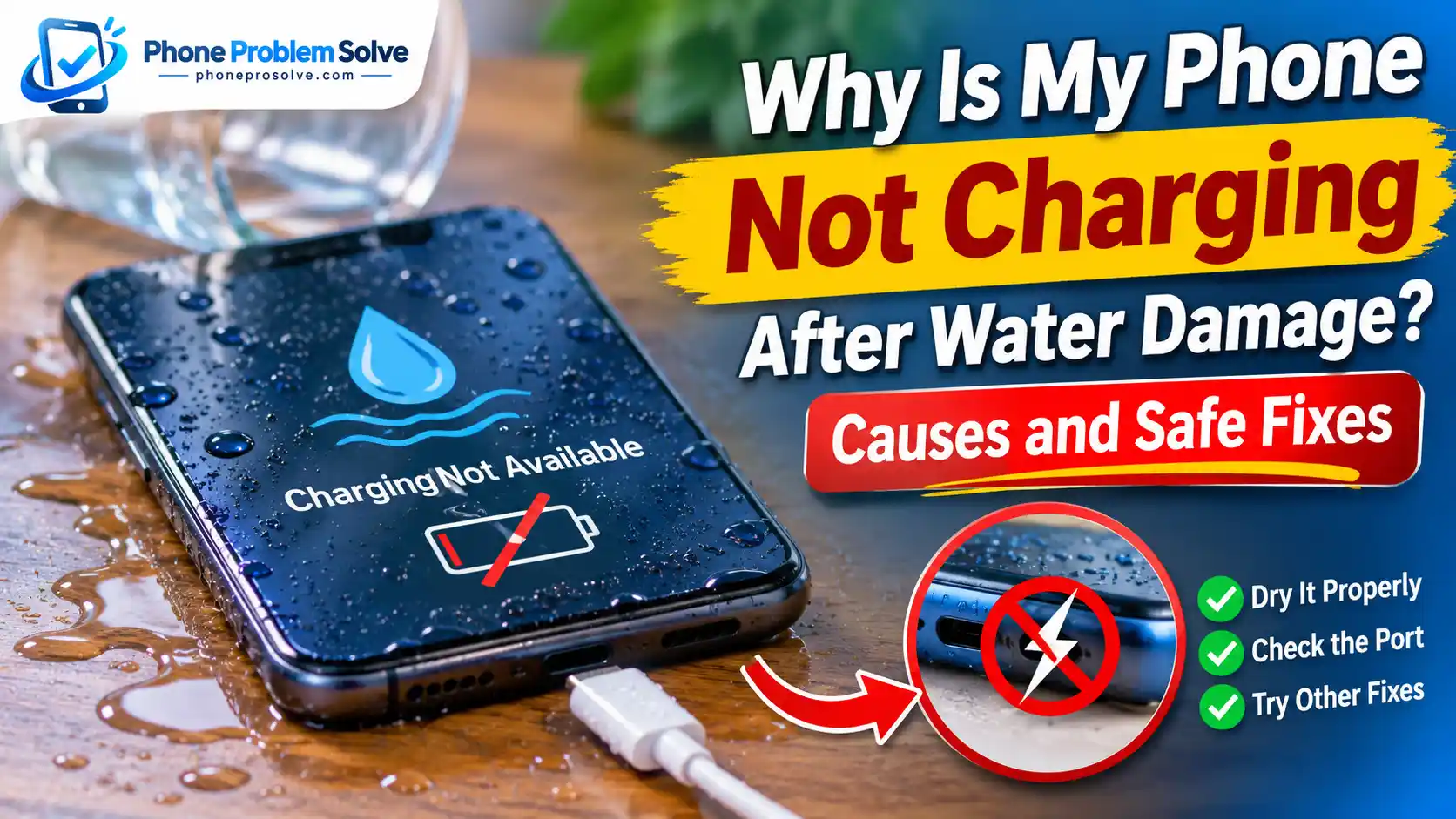
Getting your phone wet is stressful enough. The situation becomes even more frustrating when you connect it to a charger afterward and nothing happens. Perhaps the phone shows a moisture warning, refuses to recognise the charging cable, or displays a charging icon without increasing the battery percentage.
So, why is your phone not charging after water damage?
The problem could be as simple as moisture inside the charging port. However, if liquid has reached the phone’s internal components, it may also affect the charging connector, battery, or motherboard. Some smartphones automatically disable wired charging when they detect moisture to prevent further damage.
The most important thing is not to rush into charging your phone again. Connecting a wet phone to a power source can make the damage worse.
In this guide, you’ll learn why phones stop charging after water exposure, what to do immediately, how to dry your device safely, and when professional repair is necessary. The steps cover iPhones, Samsung Galaxy devices, Google Pixel phones, and other Android models.
Why Is My Phone Not Charging After Water Damage?
A phone can stop charging after getting wet for several reasons. Sometimes the charging system temporarily blocks the connection as a safety measure. In other cases, the liquid has already affected a physical component.
Here are the most common causes.
1. Moisture Inside the Charging Port
This is one of the most common reasons a phone refuses to charge after water exposure.
Even a small amount of moisture inside a USB-C or Lightning port can interfere with the electrical connection. Your phone may recognise the moisture and temporarily disable wired charging.
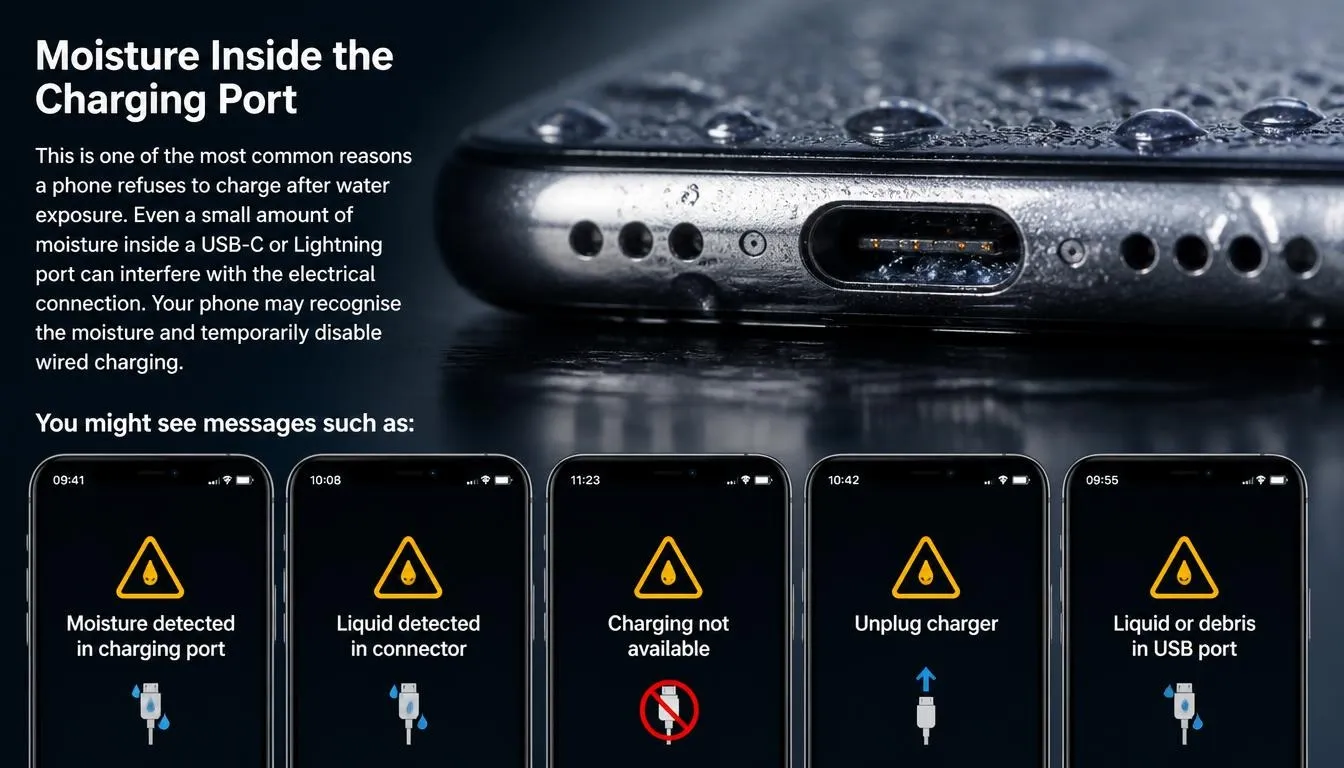
You might see messages such as:
- Moisture detected in charging port
- Liquid detected in connector
- Charging not available
- Unplug charger
- Liquid or debris in USB port
These warnings are designed to help protect your phone and charging accessories. Do not ignore them or keep reconnecting the cable to see whether charging starts.
2. Liquid-Detection Protection Has Disabled Charging
Many modern smartphones include moisture-detection systems.
When the device detects liquid in the charging port or on a connected accessory, it may stop wired charging until the connection is considered safe.
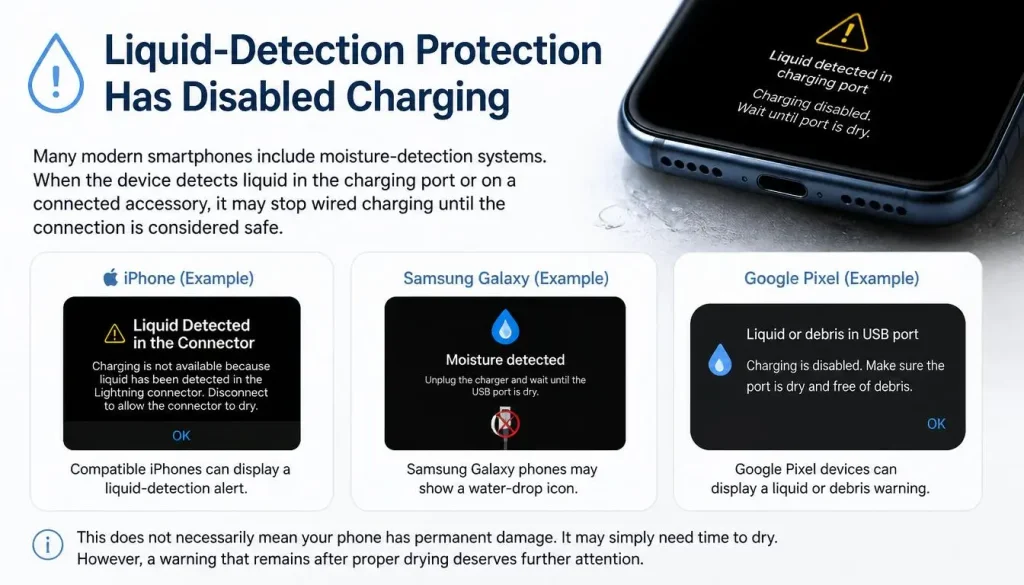
For example, compatible iPhones can display a liquid-detection alert, while Samsung Galaxy phones may show a water-drop icon. Google Pixel devices can display a liquid or debris warning.
This does not necessarily mean your phone has permanent damage. It may simply need time to dry. However, a warning that remains after proper drying deserves further attention.
3. Corrosion on Charging Port Connectors
Water damage does not always disappear when the phone looks dry.
Mineral deposits, salt, and other contaminants can remain around the charging contacts. Over time, these residues may contribute to corrosion and interfere with the electrical connection.
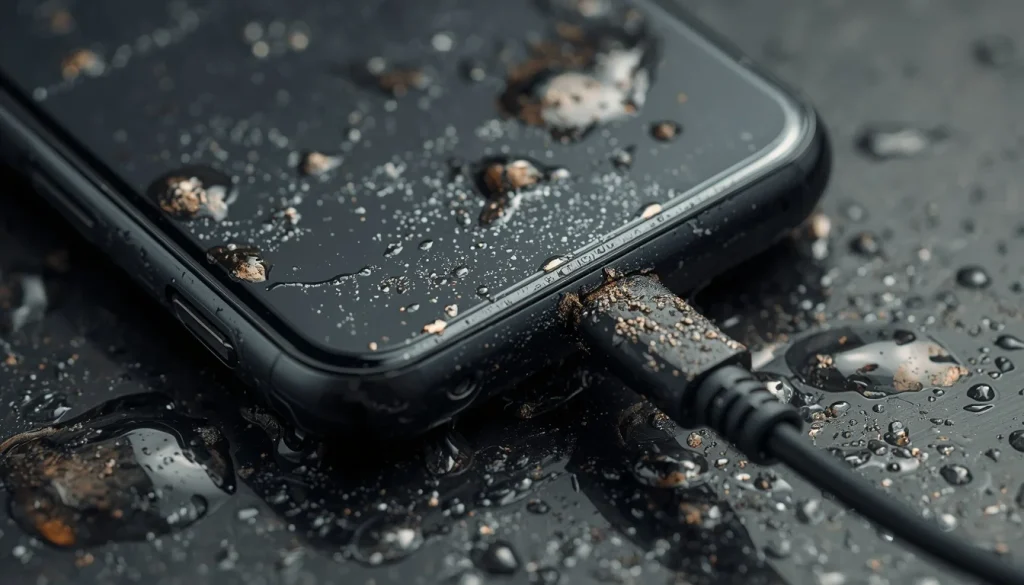
You might notice:
- The charging cable no longer fits properly.
- Charging starts and stops unexpectedly.
- The phone charges only at certain cable angles.
- The charging port looks discoloured.
- The phone fails to recognise multiple working cables.
If you can see corrosion or damaged contacts, stop trying to clean the port yourself. A qualified technician should inspect it.
4. Water Has Reached Internal Charging Components
Liquid can sometimes travel beyond the charging port and reach internal components.
Depending on the phone’s design and the extent of exposure, it may affect internal connectors, the charging circuit, or the motherboard.
This is more concerning than a temporary moisture warning because drying the outside of the phone may not solve the problem.
If your phone was submerged, exposed to salt water, or stopped working immediately after getting wet, arrange a professional inspection rather than repeatedly testing the charger.
5. The Battery Has Been Affected by Water Damage
A phone that gets wet may develop battery-related problems as well as charging issues.
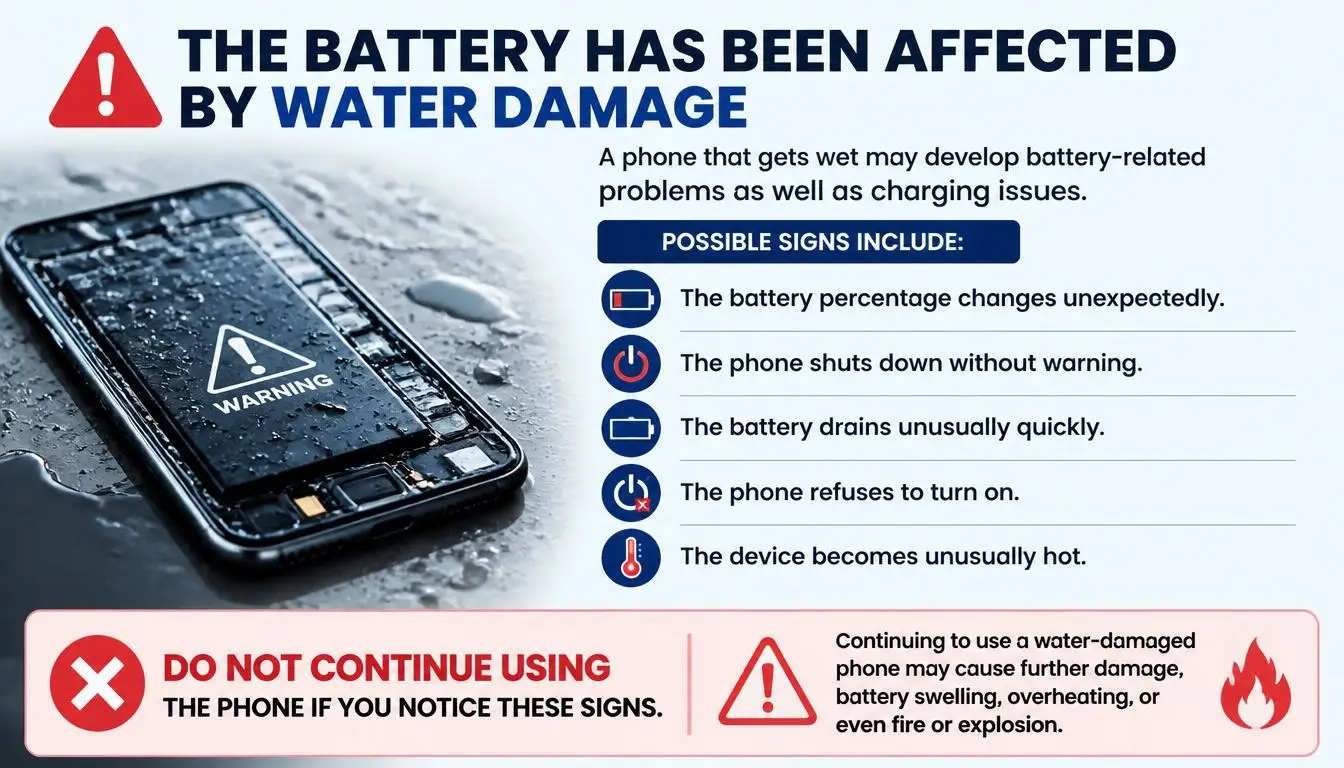
Possible signs include:
- The battery percentage changes unexpectedly.
- The phone shuts down without warning.
- The battery drains unusually quickly.
- The phone refuses to turn on.
- The device becomes unusually hot.
Do not continue using or charging a phone with a swollen battery, unusual heat, smoke, or a burning smell. Stop handling it and seek professional assistance.
6. Your Charging Cable or Adapter Is Also Wet
Sometimes the phone is not the only affected component.
Water may remain inside the charging cable’s connector or the adapter connection. Connecting a wet accessory can trigger a moisture warning or create another charging problem.
Check the phone, cable, and charging accessories separately. Do not reuse an accessory that is wet, corroded, melted, or otherwise damaged.
What to Do Immediately If Your Phone Gets Wet
What you do in the first few minutes matters. Avoid experimenting with different chargers or trying random drying methods.
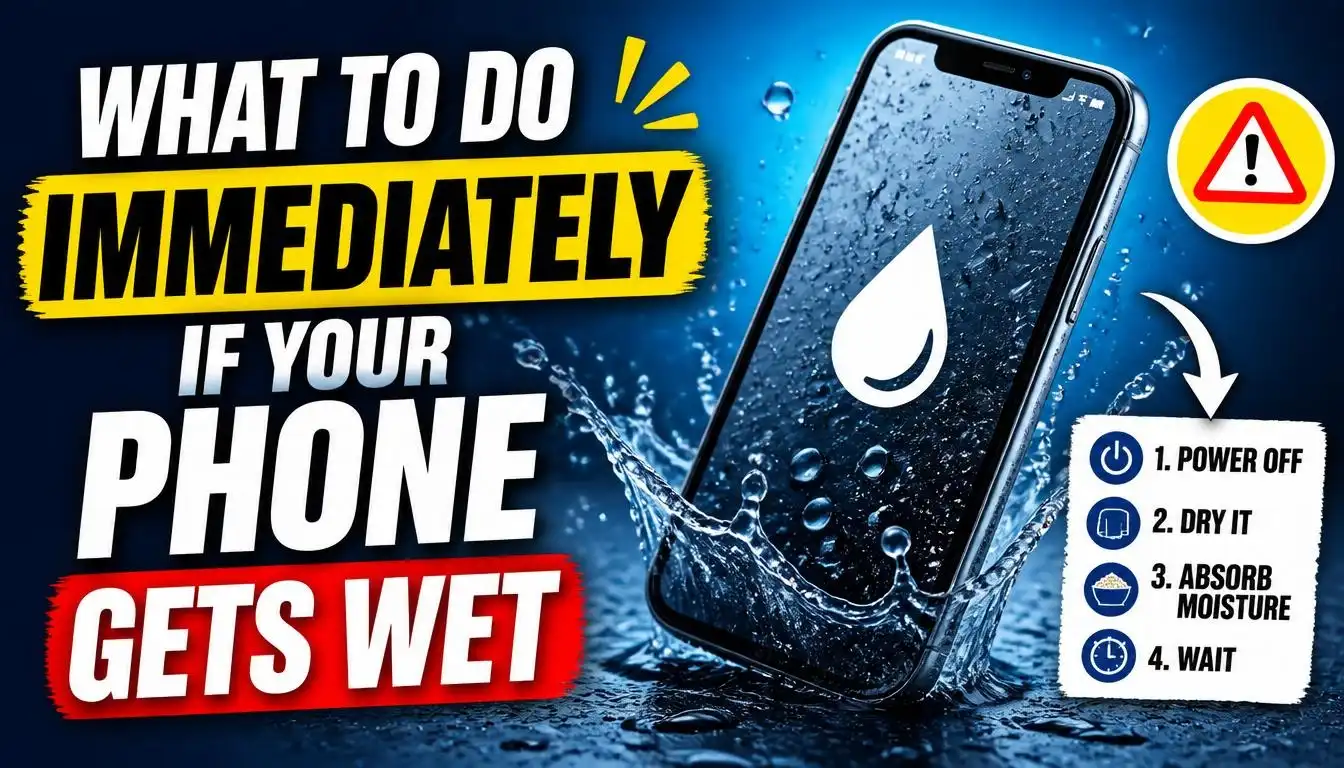
Follow these steps instead.
1. Disconnect the Charger Immediately
If your phone is connected to a charger, stop charging immediately.
If the charger is connected to a wall outlet, switch off the power at the outlet first when it is safe to do so. Never handle electrical connections with wet hands.
Disconnect the charging cable and any other connected accessories. Do not reconnect them just to check whether the phone still works.
2. Turn Off Your Phone If It Is Safe
If the phone is still on and responding normally, power it off.
Keeping a wet electronic device powered on can increase the risk of electrical damage. Avoid repeatedly pressing buttons, restarting the phone, or trying to force it to turn on.
If the phone is extremely hot, swollen, smoking, or making unusual sounds, stop handling it and seek urgent professional assistance.
3. Remove the Phone Case and Accessories
Take off the phone case and remove external accessories that may trap moisture.
This may include:
- A protective case
- Wired headphones
- Charging cables
- External battery accessories
- Other connected USB devices
Do not open the phone or remove internal components unless you are a qualified repair professional.
4. Wipe Away Visible Moisture
Use a clean, soft, lint-free cloth to gently dry the outside of the phone.
Pay attention to the back, sides, screen, and areas around the charging port.
Do not push the cloth into the connector. The goal is to remove moisture from the exterior without damaging the delicate contacts inside.
5. Keep the Charging Port Facing Down
Hold the phone with the charging port facing downward.
You can gently tap the phone against your hand to help release excess moisture. Avoid aggressive shaking or hitting the device against a surface.
Samsung and Google also recommend gentle handling when removing moisture from compatible charging ports.
6. Keep the Phone Away From Additional Moisture
Place the device in a dry, well-ventilated area away from sinks, bathrooms, direct sunlight, heaters, and other sources of moisture.
Do not attempt to charge it while the port or phone may still be wet.
Does the Type of Liquid Matter?
Yes. Not all liquids affect smartphones in the same way.
A small amount of clean water in a charging port is different from exposure to seawater, swimming pool water, or a sugary drink.
Phone Exposed to Fresh Water
Fresh water can still cause problems if it enters the charging port or internal components.
Even when the phone appears to work normally, moisture may remain in places that are not visible from the outside.
Disconnect the charger, power off the phone when safe, and follow the manufacturer’s drying instructions.
Phone Exposed to Salt Water or Seawater
Salt water is especially concerning because it can leave conductive and corrosive residue behind.
Simply wiping the outside may not remove contamination from the charging port or internal components.
Do not reconnect the charger to test the phone. Arrange professional inspection as soon as possible, particularly if the phone was submerged.
Phone Dropped in Swimming Pool Water
Swimming pool water may contain chlorine and other chemicals.
These substances can leave residue on a phone’s exterior and may cause problems if they reach the charging connector or internal parts.
Follow the cleaning guidance for your exact device model. Do not assume that a water-resistant rating makes the phone safe after pool-water exposure.
Phone Exposed to Soap, Juice, or Soft Drinks
Sugary drinks, soap, and other liquids can leave sticky or conductive deposits.
These residues may interfere with the charging contacts even after the visible moisture has evaporated.
A device exposed to these liquids may need professional cleaning and inspection. Avoid inserting anything into the charging port to remove the residue.
Apple also lists salt water, soapy water, pool water, and several other liquids among exposures users should avoid. You can read its guidance on iPhone splash, water, and dust resistance.
How to Dry a Water-Damaged Phone Safely
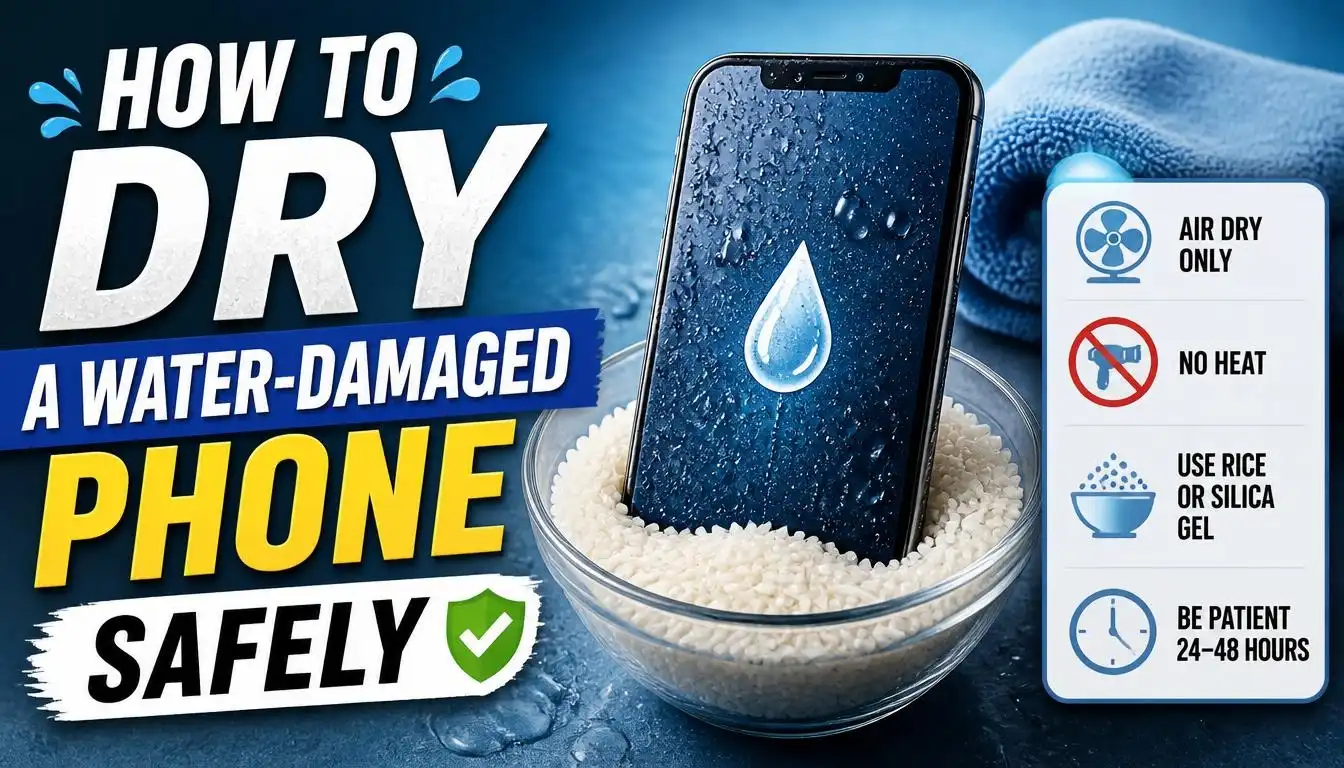
Drying your phone properly is important, but some popular methods can cause additional damage.
Here is what you should and should not do.
1. Use a Soft, Lint-Free Cloth
Gently wipe visible moisture from the phone’s exterior.
A clean microfibre or other lint-free cloth is suitable for drying the outside. Avoid rubbing liquid further into openings.
2. Allow the Phone to Air-Dry
Place the phone in a dry area with natural airflow.
Keep the charging port unobstructed and avoid exposing the phone to heat. Drying the exterior does not guarantee that moisture inside the device has disappeared.
3. Avoid Hair Dryers and External Heat
Never use a hair dryer, heater, oven, or direct sunlight to speed up drying.
Excessive heat may damage the battery, display, adhesives, and other internal components.
Let the device dry naturally or follow the manufacturer’s recommended procedure.
4. Do Not Use Compressed Air
Compressed air can force moisture or debris deeper into openings.
It may also damage delicate components. Allow airflow around the phone instead of directing a high-pressure stream into its ports.
5. Do Not Put Your Phone in Rice
Putting a wet phone in uncooked rice is a popular internet suggestion, but it is not a reliable repair method.
Rice does not guarantee that internal components will dry properly. Small particles can also enter the charging port and create another problem.
Apple specifically advises against putting an iPhone in a bag of rice.
6. Do Not Insert Objects Into the Charging Port
Avoid using:
- Cotton swabs
- Paper towels
- Toothpicks
- Needles
- Metal pins
- Paper clips
These objects can damage the connector or leave material behind.
If you suspect liquid residue or corrosion inside the port, let a qualified technician inspect it.
How Long Should You Wait Before Charging a Wet Phone?
There is no single drying time that applies to every smartphone.
The time depends on the phone model, the amount of liquid, the type of liquid, and whether moisture is limited to the charging port or has reached internal components.
Apple’s Recommended Drying Guidance
Apple recommends disconnecting the cable and leaving a wet iPhone in a dry area with airflow.
Its liquid-detection guidance says to wait at least 30 minutes before trying again. If the warning returns, the connector or cable may still contain liquid. Drying can take up to 24 hours.
Read Apple’s official instructions for liquid-detection alerts before reconnecting a cable.
Samsung’s Moisture-Detection Guidance
Samsung provides guidance for Galaxy devices that display a water-drop icon or moisture warning.
Its instructions include disconnecting the charger, switching off the device, and allowing moisture to evaporate. One Samsung charging-port guide gives approximately one to two hours for moisture in the port, but this should not be treated as a universal drying time for a submerged or internally damaged phone.
You can check Samsung’s moisture-detection troubleshooting guide.
Google Pixel’s USB Port Guidance
Google recommends disconnecting the charger, checking both the USB-C port and cable, and allowing a wet device to dry at room temperature.
Its official Pixel liquid or debris warning guide also explains when to seek further support if the warning does not disappear.
Important: A charging port that appears dry does not prove that the inside of the phone is dry. If your device was submerged, exposed to contaminated liquid, or shows signs of internal damage, do not rely on a waiting period alone. Have it inspected before charging again.
What If Your Phone Still Won’t Charge After Drying?
If the phone still refuses to charge, the problem may be more than temporary moisture.
Before trying another solution, consider the following checks.
1. Check Whether the Charging Port Is Completely Dry
Look at the charging port under good lighting without inserting anything into it.
Check for visible moisture, residue, corrosion, or physical damage.
If the connector looks damaged or discoloured, arrange professional inspection rather than attempting to clean it.
2. Check the Charging Cable and Adapter
Your cable or adapter may also have been affected.
Once the phone and accessories have been confirmed dry, inspect them for damaged insulation, discolouration, bent connectors, or corrosion.
Do not reuse wet or damaged accessories. Replace them with suitable, manufacturer-compatible alternatives.
3. Check Whether the Phone Shows Any Signs of Life
Notice whether the screen responds, the phone vibrates, or any charging notification appears.
A black screen does not automatically prove that the battery is completely dead. The phone may have another power or internal hardware problem.
Do not repeatedly connect the charger to force the device to turn on.
4. Look for Physical Damage or Corrosion
If you can see corrosion around the charging port, stop troubleshooting.
A damaged connector may need professional repair. If liquid has reached the internal charging circuit or motherboard, simply replacing the cable will not solve the problem.
5. Get Professional Help if Charging Still Fails
If your phone remains unable to charge after following the manufacturer’s drying guidance, contact an authorised service centre or a reputable repair provider.
Ask the technician to inspect the charging port, battery connections, internal connectors, and charging circuitry.
For general troubleshooting unrelated to liquid exposure, you can also read our guide on how to fix a phone that is not charging.
How to Fix a Moisture-Detected Warning That Won’t Go Away
Sometimes a phone continues displaying a moisture warning even after the charging port appears dry.
This can happen because moisture remains in the connector, the cable is wet, or the detection system is responding to another issue.
iPhone Says Liquid Detected but the Port Is Dry
If your iPhone displays a liquid-detection alert:
- Disconnect the charging cable and accessory.
- Check both ends of the cable for visible moisture.
- Leave the iPhone in a dry area with airflow.
- Wait for the manufacturer’s recommended drying period.
- Try again only when the phone and cable are completely dry.
If the warning repeatedly appears with one particular cable, that accessory may be damaged.
If it continues with suitable, dry Apple cables and accessories, the device may need service.
Do not use the emergency override as a routine way to bypass a moisture warning. Apple provides it for situations where charging is genuinely necessary, but charging through a wet connector can cause corrosion or permanent damage.
Samsung Water Drop Icon Won’t Disappear
Samsung Galaxy phones may display a water-drop icon when moisture is detected in the USB port.
Start by disconnecting the charger and switching off the phone. Allow it to dry in a well-ventilated area.
If the port is completely dry but the icon remains, Samsung’s current guidance includes checking the software and, on supported models, clearing the USB Settings cache.
The menu and steps can vary by device and software version, so follow Samsung’s official instructions for the water-drop icon.
Google Pixel Says Liquid or Debris in USB Port
Google Pixel phones can display messages such as:
- Unplug charger
- Liquid or debris in USB port
Disconnect the charger and any USB-C headphones. Check the port and cable without inserting anything into them.
If the port or cable is wet, turn off the phone and allow it to dry at room temperature.
Google advises seeking support if the warning continues. In its guidance, a persistent liquid-or-debris warning lasting two hours or longer is a reason to contact support.
See Google’s official Pixel USB port troubleshooting instructions.
What If Your iPhone Won’t Charge After Getting Wet?
iPhones can detect liquid in compatible Lightning or USB-C connectors and display a warning to protect the phone and accessory.
If your iPhone stops charging after water exposure, follow these steps:
- Disconnect the charging cable immediately.
- Do not reconnect it while the connector or cable is wet.
- Gently remove visible moisture from the exterior.
- Keep the connector facing down and allow the phone to dry in an area with airflow.
- Follow Apple’s recommended drying period before trying again.
Depending on the model and accessory, you may see messages such as:
- Charging Not Available
- Liquid Detected in Lightning Connector
- Liquid Detected in USB-C Connector
If the alert continues after the phone and cable are fully dry, try a different suitable cable only when it is safe to do so. If the problem continues with multiple dry accessories, arrange Apple or authorised service.
For more information, visit Apple’s liquid-detection support page.
What If Your Samsung or Android Phone Won’t Charge After Getting Wet?
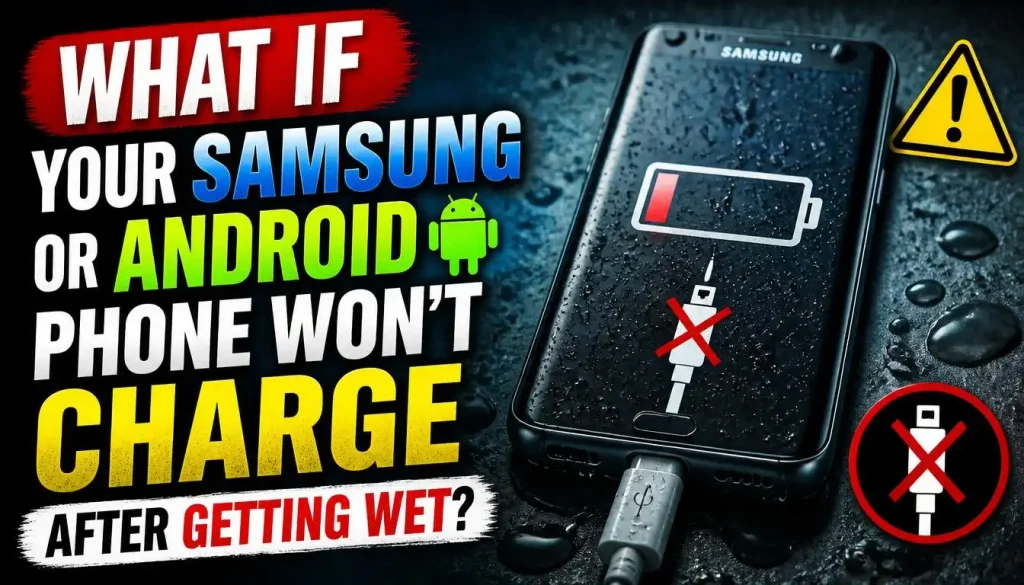
Android phones do not all use the same moisture-detection system. The correct troubleshooting procedure depends on the manufacturer and model.
Samsung Moisture Detected in Charging Port
Samsung Galaxy phones may stop wired charging when moisture is detected in the USB port.
Disconnect the charger, turn off the device, and follow Samsung’s instructions for drying the port.
If the water-drop icon remains even though the device is dry, check the official troubleshooting steps for your exact model. Samsung also recommends checking whether the cable itself is triggering the warning.
Google Pixel Liquid or Debris Warning
Google Pixel devices may disable USB charging when the port or cable contains liquid or debris.
Disconnect the charger and allow the device to dry at room temperature. Do not insert a tool or cotton swab into the USB-C port.
If the warning remains, or the port appears burned, melted, or corroded, contact Google support or an authorised repair partner.
Other Android Phones
Motorola, OnePlus, Xiaomi, and other Android manufacturers may use different warning messages and recovery procedures.
Check your phone manufacturer’s official support instructions rather than following a method designed for another brand.
If the device was submerged or shows symptoms beyond a temporary port warning, seek professional inspection.
Can You Wirelessly Charge a Phone After Water Damage?
Wireless charging may be an option for some phones, but it is not a universal solution to water damage.
Certain devices support wireless charging even when their USB port has temporarily disabled wired charging. Apple and Samsung both describe wireless charging options for compatible devices under specific conditions.
Before considering it, remember:
- The outside and back of the phone must be completely dry.
- Your phone must support wireless charging.
- The device must not show signs of serious internal damage.
- You should follow the manufacturer’s instructions for your exact model.
Do not place a swollen, unusually hot, damaged, or potentially waterlogged phone on a wireless charging pad.
Wireless charging cannot repair a damaged battery, motherboard, or internal charging circuit. If you suspect liquid has reached the inside of the phone, professional inspection is the safer choice.
Can a Water-Resistant Phone Still Get Water Damage?
Yes. Water-resistant does not mean waterproof.
Some smartphones have an IP rating that indicates a tested level of protection against dust and liquid under controlled conditions. However, the rating and level of protection vary by model.
There are several reasons a water-resistant phone may still suffer damage:
- Its water-resistance seals may have weakened over time.
- A previous drop may have damaged the phone’s structure.
- An earlier repair may have affected the seals.
- The device may have been exposed to water beyond its rated conditions.
- Salt water, pool water, and other liquids may create problems that ordinary fresh water does not.
Apple explains that water resistance is not permanent and may decrease with normal wear. Samsung also notes that Galaxy device water resistance can diminish over time.
Before assuming your phone is protected, check the official water-resistance information for your specific model.
Signs Your Phone Has Serious Water Damage
Some symptoms suggest that the problem is no longer limited to moisture inside the charging port.
Watch for these warning signs.
Phone won’t turn on: The device may have a damaged battery connection, power component, or motherboard.
Charging port shows corrosion: Discolouration or visible corrosion may indicate damage to the connector.
Unusual heating: A phone that becomes unusually hot after water exposure should not be charged or used.
Unexpected battery drain: Liquid exposure may affect battery-related components. If your phone works again but loses charge unusually quickly, our guide to why your phone battery is draining so fast may help you understand the symptoms.
Screen or touchscreen problems: Flickering, unresponsive areas, or unexpected display behaviour may indicate internal damage.
Speaker or microphone problems: Water exposure can affect sound quality and other components, even when charging appears normal.
Repeated shutdowns: Unexpected restarts or shutdowns after water exposure should not be ignored.
If the battery looks swollen, the phone is smoking, or you notice a burning smell, stop using it and arrange professional assistance.
Can Water Damage Cause Phone Problems Later?
Yes. Some liquid-related problems may appear after the phone initially seems to recover.
For example, the device may start charging again but later develop charging interruptions, battery problems, or unreliable connections.
This can happen when moisture or contamination affects internal components and corrosion develops over time.
A phone that looks dry on the outside is not necessarily free of internal damage.
If the device was submerged, exposed to salt water, or developed unusual behaviour after getting wet, a professional inspection is worth considering even when the immediate charging problem appears to have disappeared.
When Should You Get Your Water-Damaged Phone Repaired?
Not every moisture warning requires a repair. Sometimes the phone simply needs to dry according to the manufacturer’s instructions.
However, you should contact a repair provider when:
- The phone still will not charge after proper drying.
- A moisture warning remains for longer than the manufacturer’s recommended period.
- The charging port looks corroded, burned, or damaged.
- The phone will not turn on.
- The battery drains unusually fast after exposure.
- The phone becomes hot or shuts down unexpectedly.
- The device was submerged in salt water, pool water, or another contaminated liquid.
- Several compatible, dry charging accessories fail to work.
Ask the repair provider to inspect the charging port and internal components rather than replacing parts without first identifying the fault.
Also check your phone’s warranty, insurance, and local consumer protections. Accidental liquid damage may not be covered by a manufacturer’s standard warranty, but coverage and legal rights vary by product and country.
Common Mistakes to Avoid After Water Damage
Trying to fix a wet phone too quickly can turn a temporary problem into a costly repair.
Avoid these common mistakes:
Connecting the charger too soon: Do not test wired charging while moisture may still be present.
Using a hair dryer: Direct heat can damage internal components.
Putting the phone in rice: Rice is not a reliable way to dry a smartphone and may introduce debris.
Inserting objects into the charging port: Pins, needles, cotton swabs, and paper towels can damage the connector.
Repeatedly reconnecting different chargers: This will not remove internal moisture and may make the situation worse.
Ignoring liquid-detection warnings: These alerts are designed to help prevent charging-related damage.
Opening the phone at home: Modern smartphones have delicate internal components and may require specialist tools and repair procedures.
How to Prevent Water Damage and Charging Problems
A few simple habits can reduce the risk of future water-related charging problems.
- Keep your phone away from sinks, bathtubs, pools, and other wet areas.
- Use a protective case suitable for your phone and intended activities.
- Avoid charging your device in damp or wet environments.
- Keep your charging cable and adapter dry.
- Do not assume an IP rating makes your phone waterproof.
- Check your device’s water-resistance limitations before exposing it to water.
- Avoid using a phone with damaged housing or signs of previous liquid exposure.
- Follow the manufacturer’s instructions if your phone gets wet.
Prevention is much easier than dealing with a damaged charging port or internal components.
Frequently Asked Questions
1. Why Is My Phone Not Charging After Water Damage?
Your phone may not charge because moisture is inside the charging port, liquid-detection protection has disabled wired charging, or internal components have been damaged. Disconnect the charger and follow the drying instructions for your specific phone model.
2. How Long Should I Wait Before Charging a Phone After It Gets Wet?
There is no universal waiting period. Apple says a wet connector may take up to 24 hours to dry, while Samsung gives a shorter estimate for moisture in some charging ports. These times do not guarantee that a submerged phone is safe to charge. Follow your manufacturer’s instructions.
3. Can I Charge My Phone After 24 Hours of Drying?
Only when the phone, connector, and cable are completely dry and the manufacturer’s guidance says it is safe. If the phone was submerged, exposed to contaminated liquid, or still shows signs of damage, get it inspected before charging.
4. What Should I Do If My Phone Says Liquid Detected but It Is Dry?
Check the charging cable and connector as well as the phone. Leave them in a dry area with airflow and follow the manufacturer’s troubleshooting instructions. A persistent warning may indicate residue, a damaged accessory, a software-related issue, or a fault that requires service.
5. Can a Phone Charging Port Be Repaired After Water Damage?
Yes, depending on the extent of the damage and the phone model. A technician may be able to repair or replace the charging port. If liquid has affected other internal components, additional work may be necessary.
6. Why Is My Phone Not Charging After Salt Water Exposure?
Salt water can leave residue that may contribute to corrosion and interfere with charging contacts. Disconnect the charger, avoid further testing, and arrange professional inspection as soon as possible.
7. Can I Wirelessly Charge My Phone After Getting It Wet?
Some compatible phones support wireless charging when the charging port is wet, but the entire device must be dry and free from signs of internal damage. Follow the manufacturer’s guidance. Wireless charging is not a repair for internal water damage.
8. Why Won’t My Phone Turn On After Water Damage?
Liquid may have affected the battery, internal connectors, power circuitry, or motherboard. Do not repeatedly try to switch it on or connect it to a charger. Get professional help.
9. Does Putting a Wet Phone in Rice Work?
No. Rice is not a dependable way to remove moisture from inside a smartphone. It may also leave small particles in the charging port. Allow the phone to dry according to the manufacturer’s instructions instead.
10. Can Water Damage Cause Charging Problems Days Later?
Yes. Corrosion and other internal damage may cause symptoms to appear after the initial exposure. If charging becomes unreliable or the phone behaves unusually after getting wet, arrange a professional inspection.
11. Is a Water-Resistant Phone Safe to Use After Getting Wet?
Not automatically. Water resistance depends on the specific model and its condition. A phone may still suffer liquid damage, particularly if its seals are worn or it has been dropped or repaired.
12. Will My Phone Warranty Cover Water Damage?
It depends on the manufacturer, warranty terms, insurance policy, country, and applicable consumer law. Check the terms for your particular device before arranging a repair.
Final Thoughts
A phone that stops charging after water damage should never be forced to charge before it is safe.
Start by disconnecting the charger, powering off the device when appropriate, removing visible moisture, and allowing it to dry according to the manufacturer’s instructions. Avoid rice, hair dryers, compressed air, and objects inside the charging port.
If the phone still will not charge, displays a persistent moisture warning, or shows signs of corrosion or internal damage, professional inspection is the safest next step.
Most importantly, remember that a phone can look completely dry on the outside while moisture or liquid residue remains inside. Taking the right precautions early may help prevent a much more expensive repair.

“The right smartphone can make a bigger difference than you think.”
Hi, I’m Ethan Collins, a technology writer and smartphone enthusiast at PhoneProSolve.com.
My interest in smartphones started with a simple question: How do you know which phone is actually right for your needs?
With so many brands, models, features, specifications, operating systems, accessories, and price ranges available today, choosing the right phone can quickly become confusing. And when a phone starts overheating, charging slowly, draining its battery, running slowly, or developing other problems, finding a clear solution can be just as frustrating.
I created PhoneProSolve.com to make that process easier.
Through this website, I share practical smartphone guides, product comparisons, buying advice, troubleshooting tips, how-to guides, accessory information, and solutions to common phone problems.
I focus on turning complicated technical information into clear, practical, and easy-to-understand guidance that everyday readers can actually use.
Whether you’re searching for a smartphone with better battery life, a powerful device for gaming, a reliable camera phone, useful accessories, or simply trying to figure out why your current phone isn’t working properly, my goal is to help you find the information you need before making a decision.
I believe good recommendations should be based on careful research, real-world considerations, honest pros and cons, and the specific needs of the user—not simply marketing claims.
Through PhoneProSolve.com, I’m committed to helping readers understand their smartphones, solve common phone problems, choose useful products, and make smarter purchasing decisions with confidence.
— Ethan CollinsAuthor & Technology WriterPhoneProSolve.com