There is nothing more frustrating than plugging in your phone, expecting the battery percentage to rise quickly, and then discovering that it is barely moving. Your phone may show that it is charging, but it takes much longer than usual to reach 50%, 80%, or a full battery.
So, why is your phone not charging fast?
In most cases, slow charging is related to the charger, cable, charging settings, device temperature, or the way you use your phone while it is plugged in. Sometimes, the phone is simply following its normal battery protection process. A worn-out battery or damaged charging port can also affect charging performance.
The good news is that you do not always need a new battery or an expensive repair. A few simple checks can help you identify the problem.
In this guide, you will learn why your phone is charging slowly and how to fix it with practical steps. Whether you use an iPhone, Samsung Galaxy, Google Pixel, or another Android phone, these solutions can help you get your charging speed back to normal.
Why Is My Phone Not Charging Fast? 12 Common Causes
Before changing chargers or adjusting settings, it helps to understand what might be slowing down the charging process.
Here are 12 common reasons your phone may not be charging as quickly as expected.
1. Your Charger Does Not Provide Enough Power
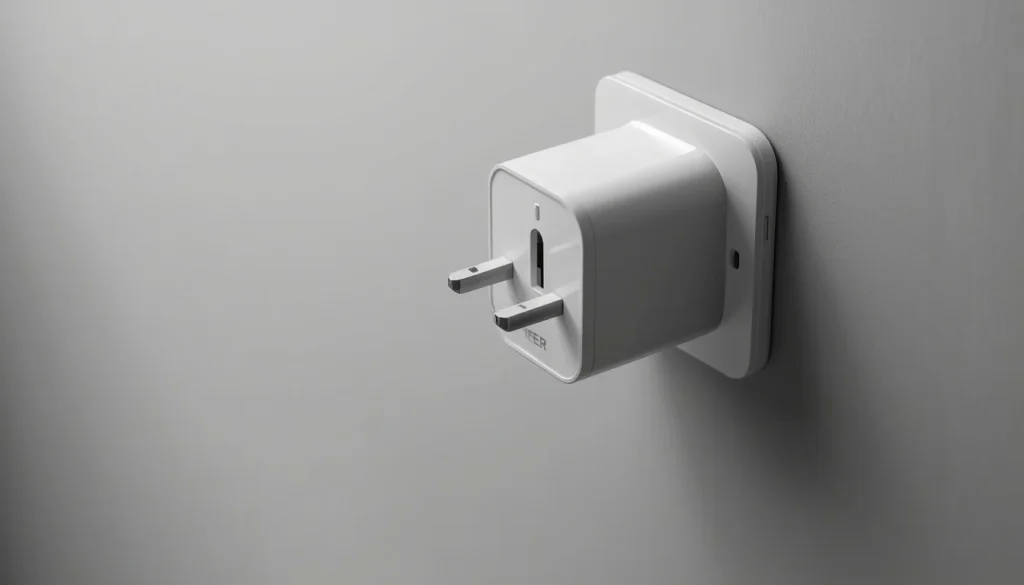
Not all phone chargers deliver the same amount of power. An older adapter or a basic charger may still charge your phone, but it might not support the faster charging speed available on your device.
For example, a phone that supports fast charging may charge much more slowly with a low-power adapter than with a compatible fast charger.
The charger’s wattage is important, but compatibility matters too. Your phone must support the charging standard used by the adapter.
2. Your Charging Cable Cannot Deliver Enough Power
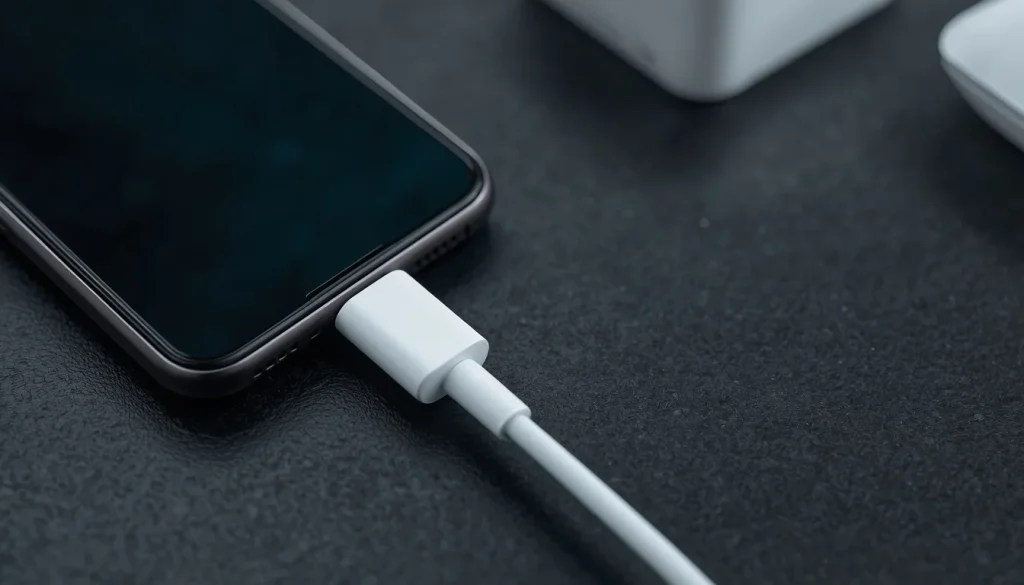
A charging cable can look perfectly normal and still limit charging speed.
Some cables are designed mainly for basic charging and data transfer. Others support higher power levels required for fast charging. Internal wear, damaged connectors, or poor-quality construction can also affect power delivery.
If your phone charges faster with another cable, your existing cable may be the problem.
3. You Are Charging Through a Laptop, Car USB Port, or USB Hub
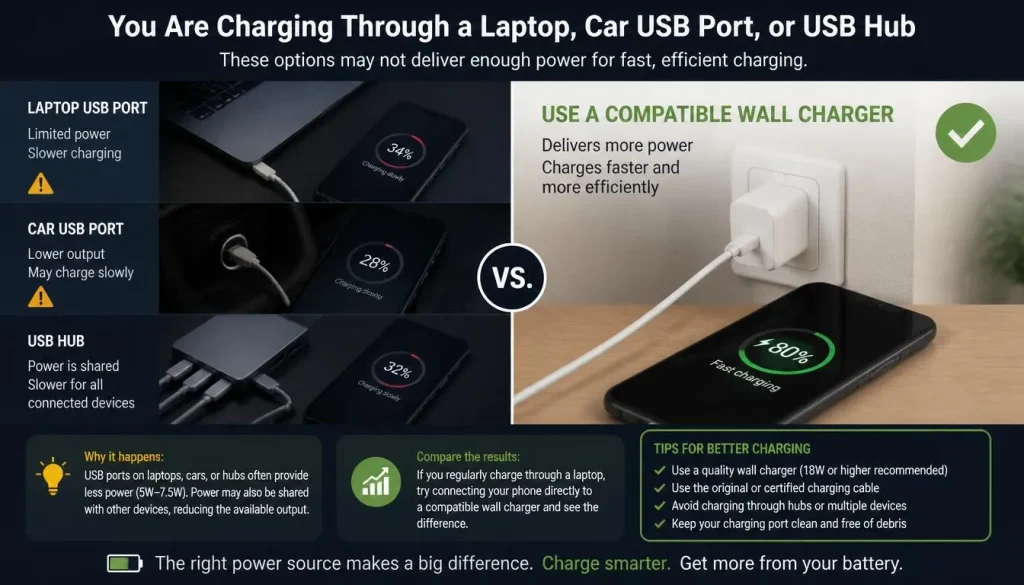
Charging your phone through a laptop or computer can be convenient, but it may not provide the same power as a dedicated wall adapter.
The available output can depend on the USB port, computer, connected accessories, and power-sharing arrangements.
The same issue can happen with some car USB ports and multi-port charging hubs.
If you regularly charge through a laptop, try connecting your phone directly to a compatible wall charger and compare the results.
4. Your Phone Is Too Hot or Too Cold
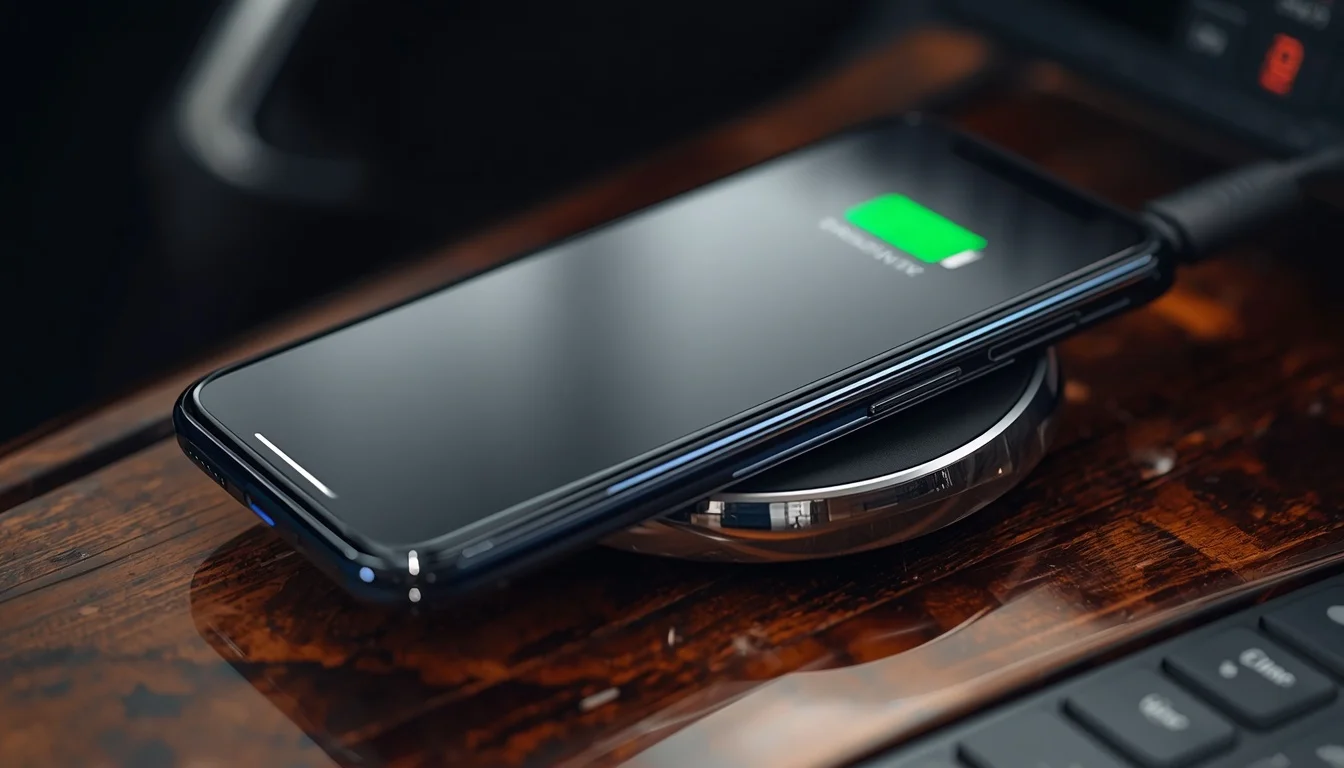
Temperature has a direct effect on phone charging performance.
When your phone becomes too hot, its charging system may automatically reduce power or temporarily pause charging to protect the battery.
This can happen when you:
- Play demanding games while charging.
- Stream videos for a long time.
- Use GPS navigation with the screen constantly on.
- Charge in direct sunlight.
- Leave your phone inside a hot vehicle.
- Use a wireless charger in a poorly ventilated area.
Very cold temperatures can also slow down charging or temporarily prevent it.
These restrictions are protective features, not necessarily signs of a damaged battery.
5. You Are Using Your Phone While It Is Charging
Your phone needs energy to run apps, maintain a mobile connection, power the screen, and perform background activities.
When you use demanding apps while charging, the phone consumes some of the incoming power. As a result, the battery percentage may increase very slowly.
This is particularly common when playing games, recording videos, streaming high-quality content, or using navigation apps.
In some cases, the battery percentage may barely increase because the phone is consuming power almost as quickly as the charger supplies it.
6. Fast Charging Is Disabled in Your Phone Settings
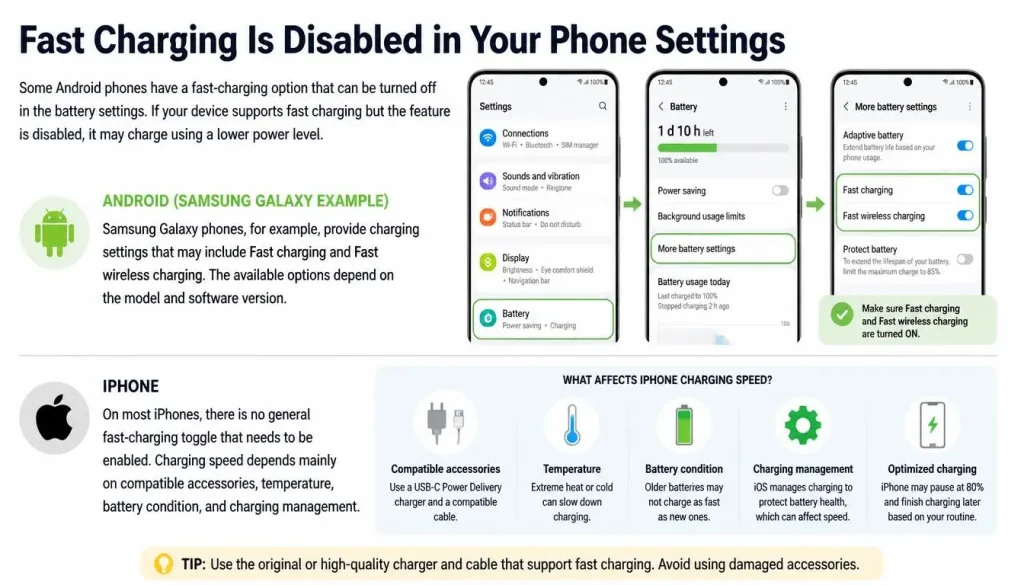
Some Android phones have a fast-charging option that can be turned off in the battery settings.
If your device supports fast charging but the feature is disabled, it may charge using a lower power level.
Samsung Galaxy phones, for example, provide charging settings that may include Fast charging and Fast wireless charging. The available options depend on the model and software version.
On most iPhones, there is no general fast-charging toggle that needs to be enabled. Charging speed depends mainly on compatible accessories, temperature, battery condition, and charging management.
7. Your Phone Is Not Compatible With Your Charger’s Charging Technology
This is one of the most overlooked reasons a phone may not charge fast even with a powerful adapter.
Modern chargers can use different charging technologies, including USB Power Delivery (USB-PD) and Programmable Power Supply (PPS).
USB-C is a connector type, not a guarantee of fast charging. A USB-C charger and cable must also support the power requirements and charging standard of your phone.
For example, some Samsung Galaxy models require a compatible USB-PD PPS charger to use Super Fast Charging. A charger with a high maximum wattage may still fail to provide that speed if it does not support the required standard.
You can learn more about USB Power Delivery from the USB Implementers Forum.
8. Your Phone’s Battery Protection Settings Are Limiting Charging
Many modern smartphones include battery protection features designed to reduce battery ageing.
Depending on the device, these features may limit the maximum charge level or temporarily control when charging finishes.
For example, some iPhones use Optimized Battery Charging or a configurable Charge Limit. Samsung Galaxy phones also offer Battery protection settings.
These features can make it look as though the phone is charging slowly or has stopped charging at a particular percentage.
Before assuming your battery is faulty, check whether a charging limit or battery protection feature is active.
9. Your Phone Naturally Charges More Slowly Above 80%
If your phone charges quickly from a low battery level but slows down near 80%, this may be completely normal.
Smartphones do not maintain the same charging speed throughout the entire charging process.
Charging is generally faster when the battery level is low. As the battery approaches a high charge level, the phone gradually reduces power to control heat and battery stress.
Apple describes this as a slower final charging stage that helps protect battery health.
Therefore, slower charging between 80% and 100% does not automatically mean your charger or battery is defective.
10. Your Charging Port Has Dust, Debris, or a Connection Problem
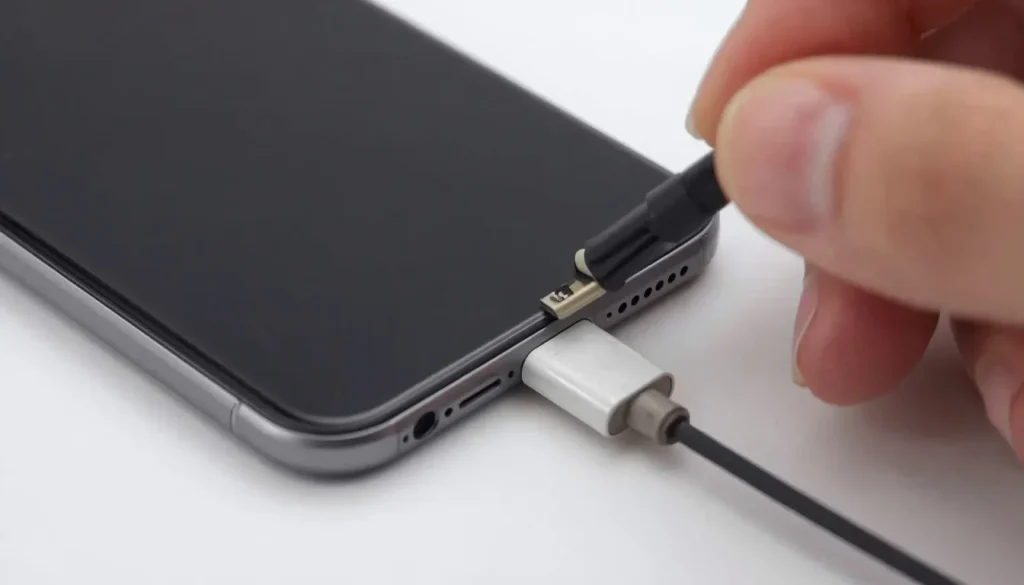
Dust and pocket lint can accumulate inside your phone’s charging port over time.
Even a small amount of debris may prevent the connector from making proper contact. This can affect charging performance or cause an unstable connection.
You may notice that:
- The cable does not fit securely.
- Charging speed changes when the cable moves.
- The connector feels loose.
- Your phone repeatedly connects and disconnects.
- The phone charges normally only with certain cables.
A damaged charging port can create similar symptoms. If the connector appears bent or the port feels unusually loose, professional inspection is safer than attempting a repair yourself.
11. A Software Issue or Background App Is Affecting Charging
Sometimes the problem is related to software rather than the charger or battery.
A temporary operating system glitch, demanding background process, or recently installed app may cause unusual battery consumption.
You may notice slow charging after a software update, especially when the phone is still completing background tasks.
A restart can help resolve temporary software problems. Checking battery usage can also help identify apps that consume unusually high amounts of power.
12. Your Wireless Charger or Battery Is Affecting Charging Speed
Wireless charging is convenient, but it does not always provide the same speed as wired charging.
The charging speed can depend on:
- The wireless charging standard supported by your phone.
- The power output of the charging pad.
- Whether the phone is correctly aligned.
- The thickness and material of the phone case.
- Temperature during charging.
An older wireless charger may work with your phone but provide a lower charging speed.
Battery ageing can also affect charging performance. If the phone charges unusually slowly with multiple compatible accessories, a battery or internal hardware problem may need to be checked.
How to Fix a Phone That Is Not Charging Fast: 12 Practical Fixes
Now that you understand the possible causes, follow these troubleshooting steps. Start with the simple checks before considering a battery replacement or professional repair.
1. Use a Charger That Matches Your Phone’s Charging Requirements
Start by checking your phone manufacturer’s recommended charging specifications.
Find out:
- The maximum wired charging speed supported by your phone.
- The charger wattage recommended for that model.
- Which charging standards the phone supports.
- Whether the manufacturer recommends a particular type of adapter.
A higher-wattage charger does not automatically make every phone charge faster. Your phone and charger must support compatible charging technology.
For example, a 65W adapter will not force 65W of power into a phone designed for a lower charging speed. The phone uses the charging power it can safely support.
Always choose a reputable charger that meets your phone’s requirements.
2. Check USB-C, USB-PD, and PPS Compatibility
If your phone supports fast charging but the charging speed remains low, check the charger’s supported technology.
USB Power Delivery allows compatible devices and chargers to negotiate suitable power levels.
Some Android phones, particularly supported Samsung Galaxy models, also require PPS support for certain Super Fast Charging modes.
Check the charger’s specifications for:
- USB Power Delivery or USB-PD support.
- PPS support, if required by your phone.
- Supported voltage and current profiles.
- Maximum output from the specific charging port you are using.
Do not assume that every USB-C adapter supports the same charging speed.
For Samsung-specific compatibility details, check the official Samsung fast-charging support guide.
3. Replace Your Charging Cable With a Compatible One
A damaged or incompatible cable can prevent your phone from reaching its supported charging speed.
Try another cable that you know works with your phone.
Check the following:
- Does the cable support the required charging power?
- Are the connectors damaged or loose?
- Does another compatible cable charge your phone faster?
- Is the cable suitable for the charging standard supported by your adapter?
Some higher-power charging setups require a cable with a specific current rating. For example, certain Samsung Super Fast Charging configurations require a 5A-rated USB-C cable.
However, cable requirements vary by phone and charger. A 5A cable is not automatically necessary for every smartphone.
Stop using cables with exposed wires, melted sections, or damaged connectors.
4. Charge Directly From a Wall Outlet
If you normally charge your phone through a laptop, computer, USB hub, or car USB port, try a wall adapter instead.
Follow these steps:
- Disconnect your phone from the laptop or USB hub.
- Connect a compatible charger to a working wall outlet.
- Use a cable that supports your phone’s charging requirements.
- Connect the phone and check its charging status.
- Compare the charging progress with your previous setup.
A dedicated wall adapter often provides a more suitable power source for fast charging.
Also, remember that multi-port adapters may distribute power differently when several devices are connected. Check the manufacturer’s output specifications for the port you are using.
5. Let Your Phone Return to a Normal Temperature
If your phone feels unusually hot, stop demanding activities and let it cool down before charging again.
Try the following:
- Stop gaming or streaming temporarily.
- Move the phone away from direct sunlight.
- Remove a thick case if it traps heat.
- Place the phone in a cool, dry, well-ventilated area.
- Avoid charging inside a hot vehicle.
If your phone is very cold, allow it to warm gradually to a normal indoor temperature before charging.
Never put your phone in a refrigerator or freezer to cool it down. Sudden temperature changes can cause condensation and create additional problems.
If charging repeatedly slows down because of excessive heat during ordinary use, have the device inspected.
6. Stop Heavy Apps While Charging
Using your phone less while charging can help the battery gain power more efficiently.
For a simple test:
- Connect your phone to a compatible wall charger.
- Close demanding apps.
- Stop gaming, video streaming, and navigation.
- Turn off the screen.
- Leave the phone connected for around 20 to 30 minutes.
- Check whether the battery percentage has increased more consistently.
You do not need to close every app manually. Focus on activities that put heavy demands on the processor, graphics system, and display.
If the charging speed improves significantly when the screen is off, power consumption during use may be part of the problem.
7. Enable Fast Charging in Your Android Settings
Some Android devices let you control fast charging through the battery settings.
On supported Samsung Galaxy phones, try the following:
- Open Settings.
- Tap Battery.
- Select Charging settings.
- Look for Fast charging or Fast wireless charging.
- Enable the relevant option if it is available.
The exact menu names can vary depending on your Galaxy model and software version. Some newer models combine charging options that were previously listed separately.
Other Android manufacturers may use different names or settings locations.
Remember that enabling the option will not make an incompatible charger deliver a higher charging speed.
For more details, visit Samsung’s official guide to enabling fast charging.
8. Review Battery Protection and Optimized Charging
If your phone repeatedly slows down or stops charging at a particular percentage, review its battery settings.
On supported iPhones:
- Open Settings.
- Tap Battery.
- Look for Charging or Charge Limit settings.
- Review Optimized Battery Charging and any configured charging limit.
On supported Samsung Galaxy phones:
- Open Settings.
- Tap Battery.
- Open Battery protection.
- Review the available protection options.
Menu names and features vary by model and software version.
You do not need to disable battery protection simply to make your phone reach 100%. These features are designed to help manage battery ageing.
If the phone slows down near 80% or follows a charging schedule, this may be normal behaviour rather than a fault.
9. Inspect the Charging Port and Cable Connection
A poor connection can reduce charging performance.
First, disconnect the charger and inspect the charging port under good lighting.
Look for visible dust, lint, or damage. Make sure the cable connector is fully inserted and is not being pushed sideways by the phone case.
If you see debris near the opening, do not use metal pins, needles, paper clips, or liquids to clean the port.
Charging ports contain delicate contacts. If debris is trapped deep inside, or the connector appears damaged, let a qualified technician inspect it.
Also, if your phone displays a moisture or liquid-detection warning, disconnect the cable and follow the manufacturer’s drying instructions. Do not continue testing the charger while the port may be wet.
10. Restart Your Phone and Check for Software Updates
A temporary software issue may interfere with normal charging behaviour.
Start by restarting the phone.
After restarting:
- Connect a compatible charger.
- Turn off the screen.
- Check whether charging speed improves.
- Open Battery settings and review recent battery usage.
- Check for available software updates.
Install updates through the phone’s official settings and follow the manufacturer’s instructions.
If a recently installed app appears to consume unusually high power, investigate that app.
On supported Android devices, Safe Mode can help identify whether a third-party app is causing the problem. If charging behaves normally in Safe Mode, a recently installed app may be involved.
A software update will not repair a damaged charging port, cable, or battery, so do not assume every charging problem is software-related.
11. Test With Another Compatible Charger and Cable
One of the easiest ways to identify a charging accessory problem is to test another known-working setup.
Try this process:
- Use a compatible charger that works with another device.
- Connect a known-working cable.
- Plug it into a reliable wall outlet.
- Connect your phone.
- Observe whether charging speed improves.
Change only one component at a time when possible.
For example, keep the same charger and replace the cable first. Then test another compatible adapter.
This makes it easier to identify whether the problem comes from the cable, charger, or phone itself.
Avoid using cheap, damaged, or unverified accessories simply because they advertise a high wattage.
12. Check Battery Health and Get Hardware Problems Inspected
If your phone still charges slowly after testing compatible adapters, cables, and power outlets, the problem may be inside the device.
On iPhones, check the Battery Health information available in Settings. The exact information shown depends on the model and iOS version.
On supported Samsung Galaxy devices, you can use the Samsung Members app to run battery and charging diagnostics.
Google Pixel users can also consult the device’s battery and charging guidance and manufacturer support resources.
A professional inspection may be necessary if:
- Charging remains unusually slow with multiple compatible accessories.
- The charging port feels loose or appears damaged.
- The phone becomes excessively hot during normal charging.
- Battery health diagnostics indicate a problem.
- The battery is swollen or the phone’s body is separating.
If you notice a swollen battery, stop using and charging the device. Do not press, puncture, bend, or attempt to remove the battery yourself. Arrange professional service.
Why Is My Phone Charging Slowly Even With a Fast Charger?
This is a common problem. You may have purchased a high-wattage adapter specifically for fast charging, yet your phone still takes much longer to charge than expected.
A powerful charger alone cannot guarantee fast charging. Several other things must work together.
Check the Phone’s Maximum Supported Wattage
Start by checking the charging specifications for your exact phone model.
If your phone supports a maximum charging speed lower than your adapter’s advertised output, it will not use the adapter’s full power.
For example, connecting a phone that supports a lower charging wattage to a 100W adapter does not mean the phone will charge at 100W.
Check USB-PD or PPS Support
Some phones require a particular charging protocol to reach their advertised speed.
USB-PD is widely used for compatible USB-C fast charging. Certain Samsung Super Fast Charging modes also require PPS support.
Check the charger’s detailed specifications instead of relying only on the wattage printed on the packaging.
Check the Cable’s Power Rating
A charger may support a high power output, but the cable can become the limiting factor.
Use a cable that meets the requirements of your phone and charger. Test with another compatible cable if you are unsure.
Check the Phone’s Temperature
Your phone may reduce charging speed even when the charger and cable are correct.
This can happen when the battery or device becomes too warm or too cold.
Let the phone return to a normal temperature and repeat the test.
Check Whether Other Devices Are Sharing the Charger
A multi-port adapter may divide its available power between connected devices.
Disconnect the other devices and test your phone using one charging port.
If charging becomes faster, the adapter’s power distribution may have been limiting the output.
How to Check Your Phone’s Charging Speed
You do not always need a special app to find out whether your phone is charging slowly.
A few simple checks can help you understand what is happening.
How to Check Charging Speed on iPhone
On supported iPhones, open Settings and tap Battery.
With iOS 26, you can see an estimate of how long the phone may take to reach 80% or its configured charge limit. If the battery is already above 80%, the estimate can show the time remaining to reach 100% or the charge limit.
On iOS 18 and later, a Slow Charger message may appear when a higher-wattage charger could improve your charging experience.
This message does not necessarily mean that the charger or phone is damaged.
For more information, read Apple’s official guide: About iPhone charge speeds.
How to Check Fast Charging on Samsung Galaxy
Connect your Galaxy phone to a compatible charger and check the charging notification.
You can also review the charging options under Settings > Battery > Charging settings on supported models.
If available, use Samsung Members diagnostics to check the cable charging condition.
Remember that the wording and available indicators may vary between models.
How to Check Charging Status on Google Pixel and Other Android Phones
Android charging notifications differ between manufacturers.
Some devices display a fast-charging message, while others may show a general charging notification.
For Google Pixel phones, check the device’s battery and charging specifications to confirm its supported charging capabilities.
Google also recommends using a compatible power adapter connected to a wall outlet instead of relying on a laptop USB port when faster charging is needed.
You can find the details in Google’s official Pixel charging guide.
How to Compare Charging Speed With Another Charger
If you suspect your current charger is too slow, compare it with another compatible charger.
For a useful comparison:
- Start both tests at approximately the same battery percentage.
- Use the same phone and charging conditions.
- Keep the screen off.
- Avoid running demanding apps.
- Compare the battery percentage after the same amount of time.
Charging speed will naturally vary with temperature, battery level, and device activity. A comparison under similar conditions is more useful than relying on one charging test.
Why Does My Phone Charge Slowly After 80%?
A phone that charges quickly at 20% but takes much longer between 80% and 100% is not necessarily experiencing a problem.
Modern smartphones manage charging power to protect battery health.
As the battery approaches a high charge level, the phone gradually reduces the amount of power it accepts. This helps control heat and reduce stress on the battery.
Other features can also affect charging:
- Optimized Battery Charging on supported iPhones.
- Charge Limit settings.
- Samsung Battery protection.
- Temperature-related charging restrictions.
- Adaptive charging features on supported Android devices.
For example, an iPhone with Optimized Battery Charging may pause charging around 80% and finish closer to the time it expects you to unplug the phone.
Check your charging settings before replacing the battery or charger.
However, if charging remains unusually slow at low battery percentages as well, test another compatible charger and cable.
Why Is My Phone Charging Slowly After a Software Update?
If your phone started charging slowly after installing a software update, temporary background activity may be part of the reason.
After a major update, a phone may need time to finish background tasks, organise files, update apps, and complete other system processes.
During this period, power consumption or device temperature may be higher than usual.
Try these steps:
- Restart your phone.
- Check whether apps are still updating.
- Open Battery settings and review recent power usage.
- Close apps that are consuming unusually high amounts of power.
- Install any additional updates that may be available.
- Test charging again with a compatible wall charger.
Give the phone some time to complete its background work.
If slow charging continues for several days, or the device becomes unusually hot, investigate the charger, cable, charging port, and battery condition as well.
A software update may be related to the timing of the problem, but that does not prove it is the cause.
iPhone vs. Android: Why Charging Speed May Be Different
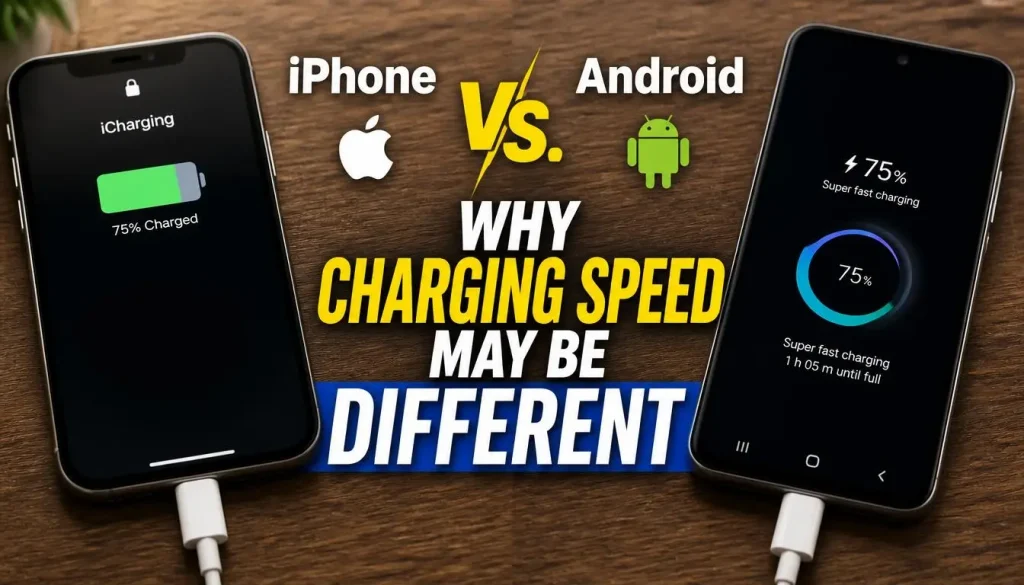
The basic principles of phone charging are similar across devices, but the available charging standards, settings, and warnings vary.
Why Is Your iPhone Charging Slowly?
If your iPhone charges slowly, check the following:
- Use a compatible USB-C Power Delivery charger for faster wired charging on USB-C iPhone models.
- Use the appropriate USB-C to Lightning cable for supported Lightning models.
- Check whether iOS displays a Slow Charger message.
- Avoid demanding apps while charging.
- Let the phone return to a normal temperature if it is too hot or too cold.
- Review Charge Limit and Optimized Battery Charging settings.
Apple provides device-specific guidance in its official iPhone charging speed guide.
Why Is Your Samsung Galaxy Not Showing Super Fast Charging?
If your Samsung phone is not showing Fast Charging or Super Fast Charging, check these items:
- Make sure your phone supports the charging mode.
- Use a compatible adapter and cable.
- Check whether the charger supports the required USB-PD PPS standard.
- Enable Fast charging in the battery settings if available.
- Disconnect the phone from a PC or standard USB port.
- Check for high-temperature or moisture warnings.
Samsung explains the required charger, cable, and settings in its official Galaxy fast-charging troubleshooting guide.
Why Is Your Google Pixel Charging Slowly?
Google Pixel charging speed can vary depending on the model, charger, battery level, and temperature.
Check the charging specifications for your exact Pixel model.
Use a compatible power adapter connected to a working wall outlet. If the phone becomes too warm, allow it to cool before charging again.
For wireless charging, check the supported wireless standard and make sure the phone is properly aligned.
Google’s official Pixel charging instructions provide model-specific guidance.
Why Do Charging Settings Differ Between Android Brands?
Android manufacturers do not all use the same charging technology or settings.
Samsung, Google, Motorola, OnePlus, Xiaomi, and other brands may have different supported wattages, charging protocols, cable requirements, and battery protection features.
Do not assume that a charger advertised for one Android phone will provide the fastest charging speed on another.
Always check the specifications for your exact device.
Quick Troubleshooting Table: Phone Charging Slowly
Use this table to identify the possible cause based on what you notice.
| What You Notice | Possible Cause | What to Try |
|---|---|---|
| Phone charges slowly with every charger | Device, battery, or charging port problem | Test compatible accessories and check battery health |
| Phone charges faster with another cable | Damaged or incompatible cable | Replace the cable |
| Phone charges slowly from a laptop | Limited USB power | Use a compatible wall adapter |
| Phone becomes hot while charging | Temperature protection | Stop heavy activities and let it cool |
| Fast charging suddenly stops working | Charger compatibility or settings | Check the adapter, cable, and fast-charging settings |
| Phone slows down near 80% | Normal charging behaviour or battery protection | Review charging limits and optimized charging |
| Wireless charging is unusually slow | Charger output, alignment, or case interference | Check charger compatibility and reposition the phone |
| Phone charges slowly after an update | Background processes or software issue | Restart, review battery usage, and check for updates |
When Should You Get Your Phone Checked by a Technician?
Most slow-charging problems can be investigated with basic checks. However, some symptoms suggest that the phone may need professional service.
Consider getting your phone inspected if:
- It remains unusually slow with multiple compatible chargers and cables.
- The charging port feels loose or visibly damaged.
- The device becomes excessively hot during ordinary charging.
- Battery diagnostics indicate a problem.
- Charging speed changes unpredictably even with reliable accessories.
- The phone has been dropped or exposed to liquid.
A swollen battery needs immediate attention. Stop using and charging the device, and arrange professional service rather than trying to fix it yourself.
If your phone is not charging at all rather than simply charging slowly, follow our separate guide on how to fix a phone that is not charging.
Also, remember that slow charging and battery drain are different problems. If your phone charges normally but loses power unusually quickly after you unplug it, read our guide on why your phone battery is draining so fast.
Frequently Asked Questions
1. Why Is My Phone Charging So Slowly All of a Sudden?
A sudden drop in charging speed can be caused by a damaged cable, incompatible charger, high device temperature, background apps, or a charging setting. Try another compatible charger and cable, then restart your phone and check its temperature.
2. Why Is My Phone Not Charging Fast Even With a Fast Charger?
Your phone may not support the charger’s full wattage or charging protocol. A cable that cannot deliver the required power, a high device temperature, or disabled fast-charging settings can also limit charging speed.
3. Does USB-C Charge Faster Than USB-A?
USB-C can support newer charging standards and higher power delivery, but the connector alone does not guarantee faster charging. The phone, adapter, cable, and supported charging protocol all affect charging speed.
4. What Wattage Charger Do I Need for My Phone?
The required wattage depends on your phone model. Check the manufacturer’s specifications or support page to find its maximum supported charging speed and recommended adapter requirements. Buying a charger with a much higher wattage does not automatically make your phone charge faster.
5. Why Is My Phone Charging Slowly With a New Charger?
A new charger may not support your phone’s required charging protocol, or its cable may not deliver enough power. Some multi-port chargers also distribute power between connected devices. Check the specifications and test the charger with a compatible cable.
6. Why Does My Phone Charge Slowly in Cold Weather?
Very cold temperatures can affect battery performance and cause some phones to reduce or temporarily stop charging. Move your phone to a normal indoor environment and let it warm gradually before trying again.
7. Why Does My Phone Charge Slowly When the Screen Is On?
The display, apps, games, and background processes consume power while the phone is charging. If the phone is using a significant amount of energy, the battery percentage may increase more slowly. Try charging with the screen off.
8. Why Is My iPhone Showing a Slow Charger Message?
On supported iOS versions, an iPhone may display a Slow Charger message when a higher-wattage adapter could improve charging speed. Try a compatible USB Power Delivery charger and cable, and check Apple’s charging recommendations for your model.
9. Why Is My Samsung Phone Not Showing Super Fast Charging?
Your Samsung phone may be connected to an incompatible adapter or cable, or the charger may not support the required USB-PD PPS standard. Check the Fast charging setting and confirm that your phone and accessories support the same charging mode.
10. Can a Software Update Make My Phone Charge Slowly?
A software update may temporarily increase background activity while the phone completes system tasks. A software-related issue is also possible. Restart your phone, review battery usage, and check for additional updates. If the problem continues, test the charger and cable as well.
11. Is Wireless Charging Slower Than Wired Charging?
Wireless charging is often slower than compatible fast wired charging, although the actual speed depends on the phone, wireless charging standard, charger output, and temperature. Correct alignment and a compatible case also matter.
12. Does an Old Battery Affect Charging Speed?
Battery ageing can affect overall charging performance and may contribute to unusual charging behaviour. However, slow charging alone does not prove the battery needs replacement. Test compatible charging accessories and check the available battery diagnostics first.
Final Thoughts
If your phone is not charging fast, you do not need to assume that its battery is damaged.
In many cases, the problem comes from an incompatible charger, a cable that cannot deliver enough power, high device temperature, or a setting that limits charging speed.
Start by checking your charger and cable. Then connect your phone directly to a suitable wall outlet, reduce demanding activity, and make sure the device is at a normal temperature.
If you use an iPhone, Samsung Galaxy, or Google Pixel, follow the charging recommendations for your exact model. Charging standards and settings are not identical across all smartphones.
Also, remember that charging usually slows down as the battery approaches 100%. This is often normal and helps protect long-term battery health.
If your phone continues charging unusually slowly after all these checks, or you notice overheating, a damaged port, or battery swelling, seek professional assistance.
A few careful checks can often identify the cause and help you restore normal charging performance without spending money on unnecessary repairs.

“The right smartphone can make a bigger difference than you think.”
Hi, I’m Ethan Collins, a technology writer and smartphone enthusiast at PhoneProSolve.com.
My interest in smartphones started with a simple question: How do you know which phone is actually right for your needs?
With so many brands, models, features, specifications, operating systems, accessories, and price ranges available today, choosing the right phone can quickly become confusing. And when a phone starts overheating, charging slowly, draining its battery, running slowly, or developing other problems, finding a clear solution can be just as frustrating.
I created PhoneProSolve.com to make that process easier.
Through this website, I share practical smartphone guides, product comparisons, buying advice, troubleshooting tips, how-to guides, accessory information, and solutions to common phone problems.
I focus on turning complicated technical information into clear, practical, and easy-to-understand guidance that everyday readers can actually use.
Whether you’re searching for a smartphone with better battery life, a powerful device for gaming, a reliable camera phone, useful accessories, or simply trying to figure out why your current phone isn’t working properly, my goal is to help you find the information you need before making a decision.
I believe good recommendations should be based on careful research, real-world considerations, honest pros and cons, and the specific needs of the user—not simply marketing claims.
Through PhoneProSolve.com, I’m committed to helping readers understand their smartphones, solve common phone problems, choose useful products, and make smarter purchasing decisions with confidence.
— Ethan CollinsAuthor & Technology WriterPhoneProSolve.com