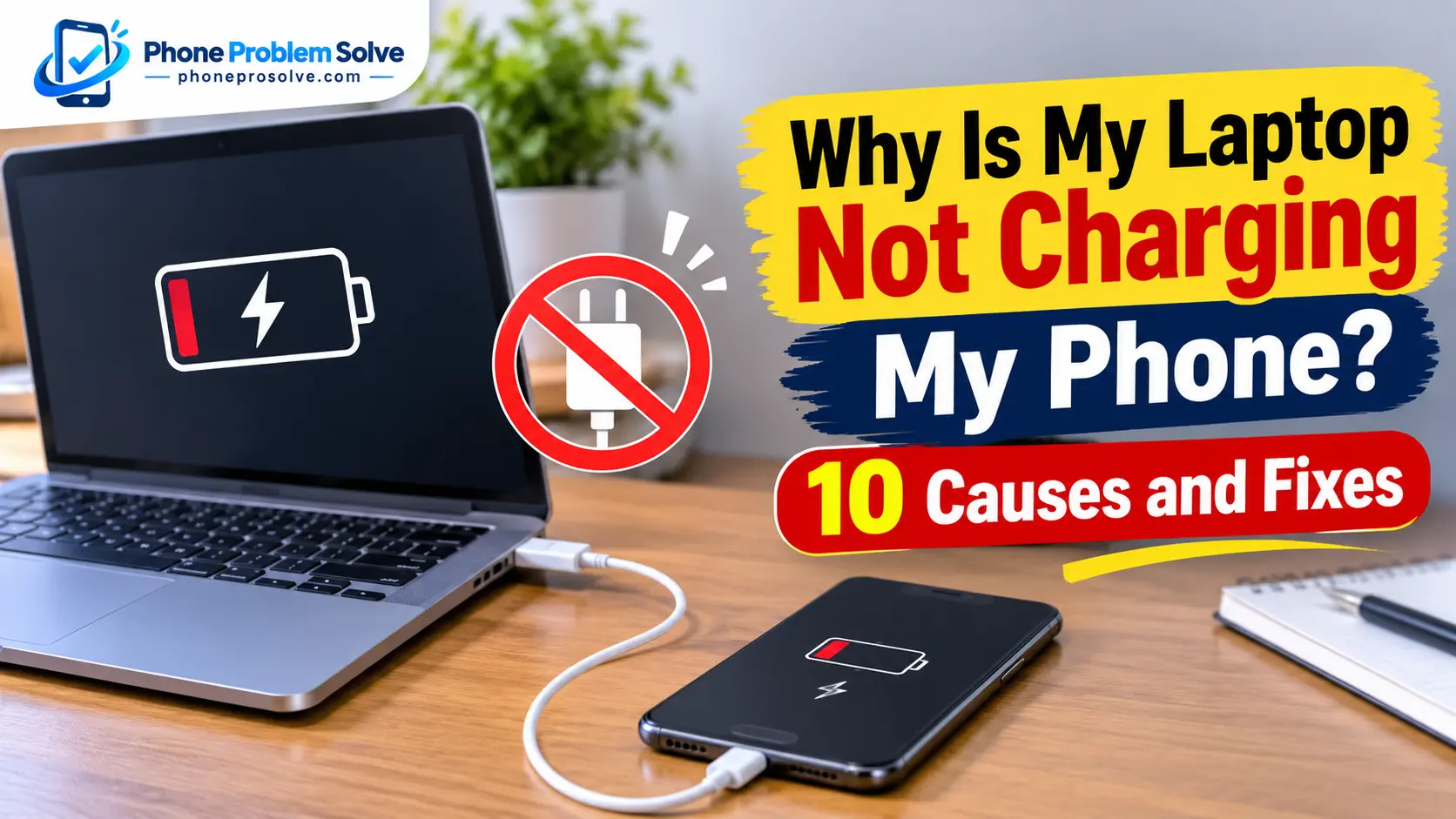
You connect your phone to your laptop, expecting the battery to start charging. Instead, nothing happens. Sometimes the phone is detected by the computer but the battery percentage does not increase. In other cases, it starts charging briefly, disconnects, or charges much more slowly than expected.
So, why is your laptop not charging your phone?
The problem usually comes down to the USB port, charging cable, available power, laptop settings, or a connection issue on the phone. Not every laptop USB port provides the same amount of power, and some ports are designed mainly for data transfer rather than faster charging.
The good news is that you can check most of these issues yourself without replacing your phone or laptop. In this guide, you will learn why a laptop may not charge your phone and how to troubleshoot the problem on Windows laptops and MacBooks.
Why Is My Laptop Not Charging My Phone? 10 Common Causes
Before trying different solutions, it helps to understand where the problem might be coming from. Here are ten common reasons your phone may not charge when connected to a laptop.
1. Your Laptop’s USB Port Is Not Providing Enough Power
One of the most common reasons is insufficient power from the laptop’s USB port.
A laptop USB port can provide power to connected devices, but its output depends on the port type, hardware design, and supported charging standards. Some ports provide enough power for basic phone charging, while others may deliver less than your phone needs for faster charging.
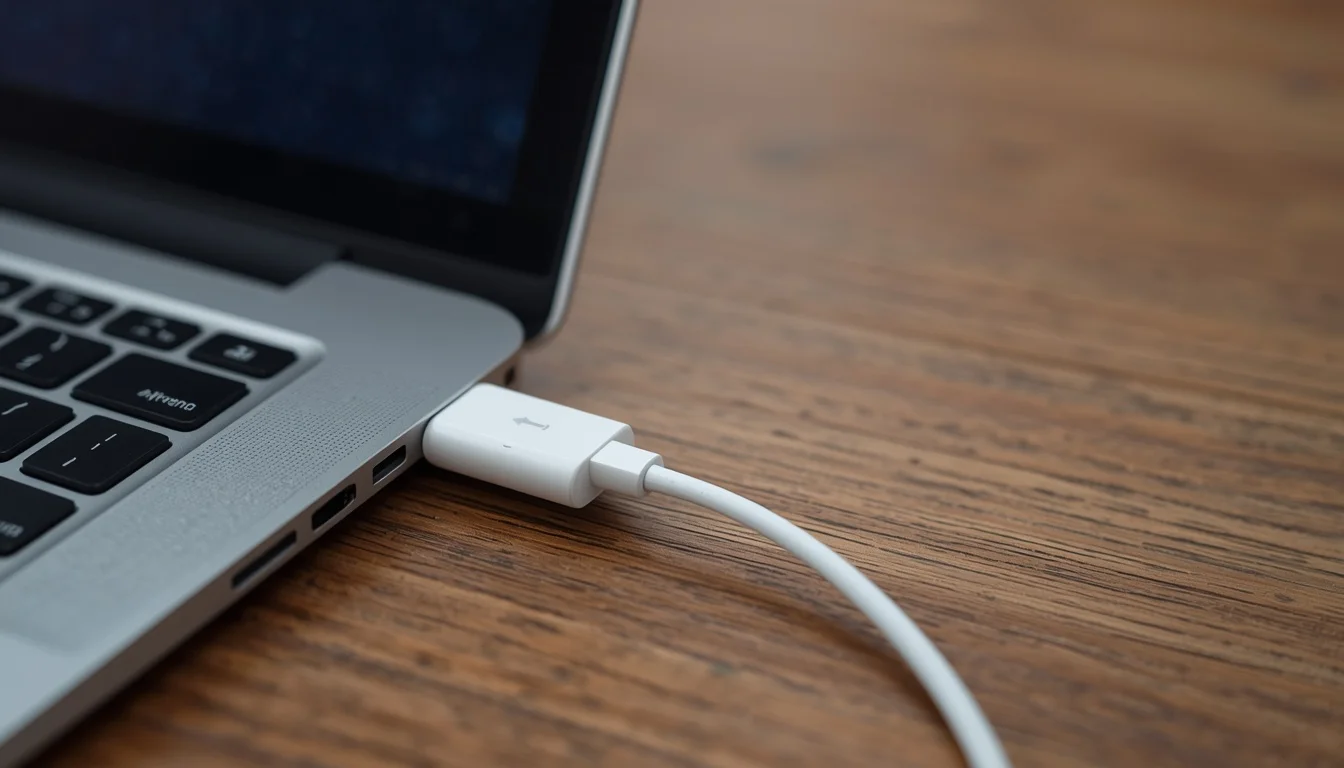
For example, your phone might show a charging symbol but gain very little battery. If you use the screen, play games, or run navigation apps while connected, the battery percentage might barely increase.
This does not necessarily mean your laptop or phone is broken. The USB port may simply be providing limited power.
What to check:
- Compare charging through the laptop with charging through a compatible wall adapter.
- Check your laptop manufacturer’s specifications for USB power output.
- Try another USB port that supports charging.
- Keep the phone’s screen off temporarily to see whether the battery percentage increases.
2. You Are Using a USB Port That Does Not Support the Expected Charging Power
Not all USB ports on a laptop work in exactly the same way.
Some laptops have multiple USB-A or USB-C ports, and their power capabilities can differ. One port might support basic charging, while another supports higher power output or a dedicated charging feature.
USB-C is also not a guarantee of fast charging. A USB-C connector can support different features depending on the laptop’s hardware.
For example, a USB-C port that supports USB Power Delivery (USB-PD) may provide more charging power than a basic USB port. However, the laptop, phone, and cable must all support compatible charging capabilities.
What to check:
- Look for a charging or battery symbol beside the laptop’s USB port.
- Check the laptop’s user manual to identify which ports support charging.
- Try another USB port directly on the laptop.
- Check whether the USB-C port supports USB Power Delivery if you expect faster charging.
3. Your USB Cable Is Damaged or Incompatible
A faulty or incompatible cable can prevent your phone from charging even when the laptop’s USB port is working properly.
Charging cables experience regular wear and tear. Their connectors can become loose, internal wires can break, or the cable may fail to deliver stable power.
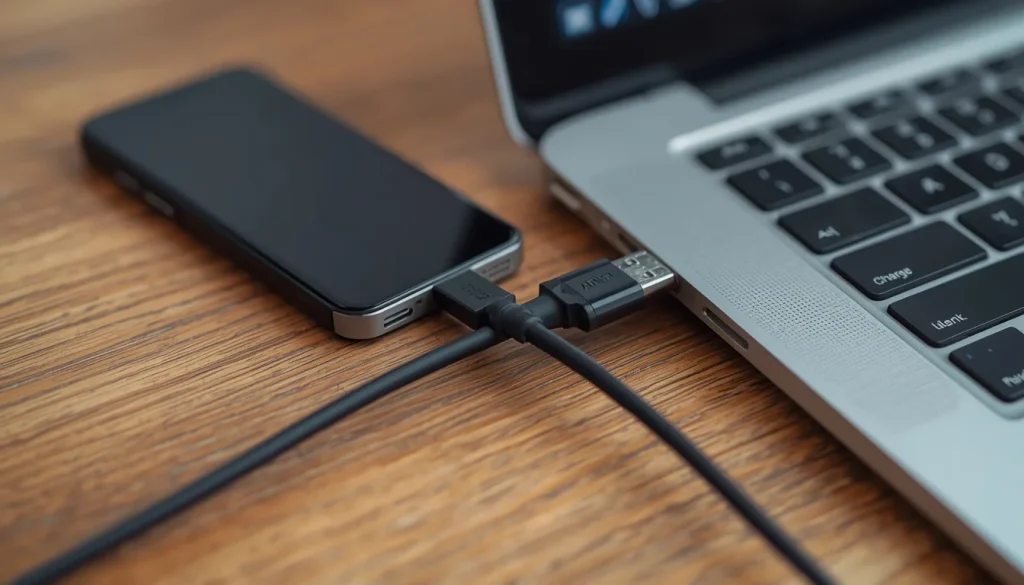
Sometimes a cable works with one charger but behaves differently with another device or port.
You may notice these symptoms:
- Your phone charges only when the cable is held at a particular angle.
- Charging starts and stops repeatedly.
- The cable feels loose when connected.
- Your laptop detects the phone, but the battery percentage does not increase.
- Another compatible cable works without any problem.
It is also important to understand that charge-only cables can supply power without supporting data transfer. Therefore, a cable does not necessarily need file-transfer functionality to charge your phone.
What to do: Try another cable that is known to work with your phone. Choose a reputable, compatible cable that supports the charging power you need.
Avoid using cables with exposed wires, bent connectors, melted insulation, or loose fittings.
4. You Are Connecting Your Phone Through a USB Hub or Docking Station
Are you connecting your phone through a USB hub, docking station, monitor, or keyboard rather than directly to your laptop?
That could be the problem.
An external USB hub or dock may have limited power available for connected devices. Some hubs also need their own power adapter to provide enough power to multiple accessories.
This means your phone may not charge properly even though the hub can transfer files or connect other devices.
How to identify this issue:
- Your phone does not charge through the hub.
- Charging works when you connect the phone directly to the laptop.
- Other devices connected to the hub behave differently depending on how many accessories are attached.
Solution: Disconnect the USB hub or docking station and connect your phone directly to a compatible USB port on the laptop.
Microsoft also recommends checking external hubs and docks when troubleshooting certain USB-C power problems. You can find more details in its guide on fixing USB-C problems in Windows.
5. Your Laptop Battery Is Low or Power Saving Is Limiting USB Power
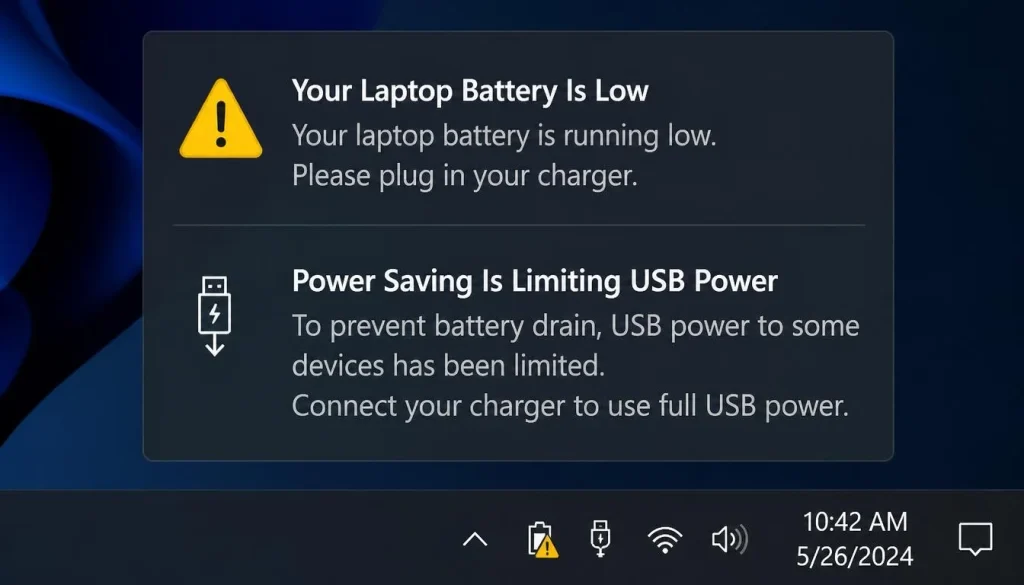
Some laptops reduce the power available to connected USB devices when their own battery is low or when power-saving behaviour is active.
This can happen because the laptop is trying to conserve its remaining battery power.
The problem may become more noticeable when several USB devices are connected simultaneously. Your laptop might temporarily limit the power supplied to one or more accessories.
For example, connecting a phone, external hard drive, USB light, and other accessories may place additional demands on the laptop’s USB power system.
What to do:
- Connect your laptop to its compatible power adapter.
- Wait until the laptop is receiving external power.
- Disconnect USB devices you are not using.
- Reconnect your phone directly to the laptop.
- Check whether charging becomes more stable.
If your phone starts charging after connecting the laptop to its power adapter, limited USB power may have been contributing to the problem.
6. Your Laptop Is in Sleep, Hibernation, or Shutdown Mode
Your phone may stop charging when your laptop enters sleep, hibernation, or shutdown mode.
Some laptop models can continue supplying power through selected USB ports while asleep or turned off. Others stop USB power when the computer changes its power state.
The behaviour depends on the laptop manufacturer, model, hardware, and available power-sharing features.
This is particularly important if you connect your phone and close your laptop’s lid.
What to check:
- Keep the laptop awake while testing the connection.
- Reconnect your phone after waking the laptop.
- Check whether your laptop supports USB charging while asleep.
- Look for features such as Always-On USB or USB PowerShare in the manufacturer’s documentation, if available.
Do not assume that every laptop can charge a phone when switched off. If charging stops when you close the lid, test again with the laptop awake.
7. Your Laptop’s USB Port Is Dirty or Damaged
Dust, debris, and physical damage can prevent a USB connector from making proper contact.
Even a small amount of debris can interfere with a connection. A damaged port may also cause the phone to disconnect whenever the cable moves.
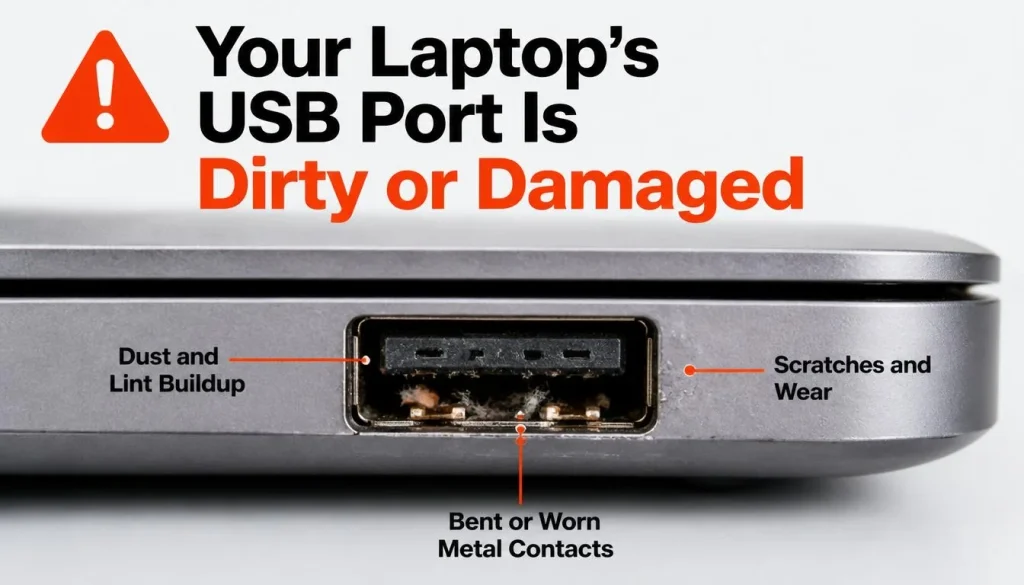
Look for these signs:
- The cable does not fit securely.
- Charging starts and stops when the laptop moves.
- The USB connector feels unusually loose.
- Several compatible cables fail in the same port.
- Other USB devices are not recognised by that port.
How to check the port safely:
- Disconnect your phone and any other accessories.
- Inspect the USB port under good lighting.
- Look for visible dust, debris, or signs of physical damage.
- Do not insert metal objects, needles, or paper clips into the port.
- Avoid pouring liquids or cleaning solutions into the opening.
If the port looks damaged or the connection remains unstable, have it checked by a qualified technician rather than trying to repair it yourself.
8. Your Phone Is Not Allowing the Expected USB Connection
Sometimes the laptop is working correctly, but your phone is restricting the USB connection.
This is particularly relevant when connecting an iPhone to a computer or when an Android phone displays a USB connection notification.
On some iPhones, the device must be unlocked before it communicates with a connected computer or accessory. Apple explains that an iPhone may not communicate with, or charge from, a USB accessory if it has not been unlocked as required.
For Android phones, USB notifications may offer options such as File Transfer, Android Auto, or other connection modes. These options mainly control how the phone communicates with the computer; selecting File Transfer is not normally required just to receive charging power.
Try these steps:
- Disconnect your phone from the laptop.
- Unlock your phone.
- Reconnect the USB cable.
- Check whether a USB connection notification appears.
- Review any relevant connection or security prompt.
- Check whether the charging indicator appears.
For more information about iPhone USB connections, see Apple’s guide on allowing USB and other accessories to connect to an iPhone.
9. Your Laptop Has a USB Driver or System Problem
Your laptop uses USB controllers and system drivers to manage connected devices.
If a USB driver is outdated, corrupted, or not working correctly, the computer may fail to recognise the phone properly. In some cases, the phone may connect and disconnect repeatedly.
This is more likely when you also experience problems with other USB accessories.
For example, an external mouse, keyboard, flash drive, or other device may also behave unexpectedly.
What to check:
- Restart your laptop.
- Install available Windows or macOS updates.
- Check Device Manager on Windows for USB devices showing a warning symbol.
- Check the laptop manufacturer’s support page for relevant driver updates.
- Test another USB port to determine whether the issue affects one port or several.
Avoid downloading drivers from unknown websites. Use Windows Update or the laptop manufacturer’s official support page.
10. Your Phone Is Using More Power Than It Receives
Sometimes the laptop is charging your phone, but the battery percentage does not increase.
This can happen when the phone consumes nearly as much power as it receives through the USB connection.
For example, running demanding apps, playing games, using GPS navigation, or keeping the screen brightness high can increase power consumption.
Heat can also affect charging. If your phone becomes too warm, its charging system may reduce charging speed or temporarily pause charging to protect the device.
What to try:
- Turn off the screen while charging.
- Close demanding apps.
- Reduce screen brightness.
- Stop gaming or video streaming temporarily.
- Move the phone away from direct sunlight.
- Allow the device to cool down if it feels unusually warm.
If the phone still fails to charge with several known-working power sources, the issue may be related to its battery or charging hardware.
For more general charging problems, see our guide on why your phone is not charging and how to fix it.
How to Fix a Laptop That Won’t Charge Your Phone
Now that you understand the possible causes, follow these troubleshooting steps in order. Start with the simple checks before changing system settings or considering repairs.
1. Restart Your Laptop and Phone
A temporary software problem can interfere with charging or USB device recognition.
Restarting both devices can refresh their connections and clear minor software glitches.
Follow these steps:
- Disconnect your phone from the laptop.
- Restart your phone.
- Restart your laptop.
- Wait until the laptop has fully started.
- Unlock your phone and connect it again.
- Check whether the battery percentage increases.
This is a simple first step that can solve temporary connection problems without changing any settings.
2. Connect Your Laptop to Its Power Adapter
If your laptop is running on battery power, connect its compatible charger before testing your phone.
A laptop with a low battery may reduce the power available to connected USB devices.
After connecting the laptop to external power, try the following:
- Disconnect your phone.
- Connect the laptop’s power adapter.
- Wait until the laptop recognises external power.
- Reconnect your phone using a suitable USB cable.
- Check whether charging starts.
If this solves the issue, limited USB power may have been the reason your phone was not charging.
3. Connect Your Phone Directly to the Laptop
If you are using a USB hub, docking station, monitor, or adapter, remove it temporarily.
Connect the phone directly to the laptop’s USB port.
This removes extra connections that may restrict power or interfere with communication.
If your phone starts charging directly, check the hub or dock’s power specifications before using it again.
4. Try a Different USB Port
Your laptop’s USB ports may have different charging capabilities.
One port may provide limited power, while another may support a higher output or a dedicated charging function.
Try the following:
- Disconnect your phone.
- Move the cable to another USB port.
- Reconnect the phone.
- Check for a charging indicator.
- Wait briefly to see whether the battery percentage increases.
If one port works but another does not, the issue may be related to the specific port or its hardware capabilities.
5. Use Another Compatible USB Cable
A damaged or unsuitable cable can make troubleshooting confusing.
Even if the phone is recognised by the laptop, the cable may not provide a stable charging connection.
Use a different cable that is compatible with your phone.
Check that:
- The connectors fit securely.
- The cable has no visible damage.
- It supports charging.
- It is suitable for the charging power expected by your phone.
If the replacement cable works, stop using the faulty one.
6. Unlock Your Phone and Check Its USB Connection
Your phone may require you to approve or unlock a connection before it communicates with a computer.
For iPhone users:
- Disconnect the cable.
- Unlock your iPhone.
- Connect it to the laptop again.
- Follow any security prompt that appears.
- Check whether it starts charging.
For Android users:
- Connect the phone to the laptop.
- Unlock the screen.
- Open the USB connection notification if one appears.
- Check whether the phone recognises the connected device.
- Confirm that the charging indicator is visible.
Remember that choosing File Transfer is generally for transferring data, not a requirement for basic charging.
7. Check USB Power Settings in Windows
Windows includes power-management features designed to reduce energy consumption.
These features can affect how USB devices operate, particularly when the computer enters a low-power state.
First, try the simpler checks:
- Press the Windows key.
- Open Settings.
- Go to System and then Power & battery.
- Check your current power mode.
- Connect the laptop to its power adapter.
- Test the phone while the laptop is awake.
You can also inspect the USB devices in Device Manager.
- Right-click the Start button.
- Select Device Manager.
- Expand Universal Serial Bus controllers.
- Look for devices showing a warning icon.
- Check the device’s properties if an error appears.
Windows also uses a feature called USB Selective Suspend to reduce power consumption by suspending individual USB ports when appropriate. Microsoft generally recommends leaving this feature enabled rather than disabling it globally.
Do not change advanced power settings unless you have identified a relevant problem or your laptop manufacturer recommends doing so.
For official instructions, visit Microsoft’s USB-C troubleshooting guide.
8. Update USB Drivers and Check for System Updates
If the laptop continues to recognise the phone inconsistently, check for system or driver problems.
On Windows:
- Open Settings.
- Select Windows Update.
- Check for available updates.
- Install relevant updates.
- Restart the laptop.
You can also open Device Manager and check whether any USB controller or connected device has a warning symbol.
If a driver update is necessary, use Windows Update or download the appropriate driver from your laptop manufacturer’s official website.
On a MacBook, install available macOS updates through System Settings > General > Software Update.
Do not use random driver-update programs or unofficial driver websites. They may install incorrect or unnecessary software.
9. Inspect the Laptop and Phone Charging Ports
If changing cables and USB ports does not help, inspect both connection points.
Check the laptop’s USB port and your phone’s charging port for:
- Dust or debris.
- Loose connections.
- Bent or damaged connectors.
- Signs of corrosion.
- Unusual heat or discolouration.
Never force a cable into a port that does not fit properly.
If your phone shows a moisture or liquid-detection warning, disconnect it and follow the manufacturer’s instructions. Do not continue connecting the cable to see whether the warning disappears.
Professional cleaning or repair is the safer choice if either port appears damaged.
10. Test Your Phone With Another Charger or Computer
This is one of the most useful ways to identify where the problem comes from.
Connect your phone to a compatible wall charger that you know works. Check whether it charges normally.
Then, if possible, try another computer using a suitable cable.
The results can help narrow down the cause:
| Test result | What it may indicate |
|---|---|
| Phone charges from a wall adapter but not the laptop | Laptop USB power, port, or settings problem |
| Phone charges from another computer | Possible issue with the original laptop |
| Phone fails to charge from different power sources | Possible phone cable, port, battery, or hardware problem |
| Another phone charges from the same laptop | Possible issue with your original phone or its compatibility |
| Phone charges only when the screen is off | Limited power output or high phone power consumption may be contributing |
If the phone will not charge from several reliable power sources, consider having its charging port and battery checked.
How to Fix a Windows Laptop Not Charging Your Phone
If you use a Windows 10 or Windows 11 laptop, a few additional checks may help.
Check Device Manager for USB Errors
Device Manager can help identify whether Windows is having trouble with a USB controller or connected device.
Open Device Manager and expand Universal Serial Bus controllers.
Look for:
- Yellow warning symbols.
- Devices reporting an error.
- USB controllers that fail to start correctly.
If you find an error, check its details and use Windows Update or your laptop manufacturer’s support page to find the correct driver.
Check Windows Power Management
Windows may reduce power consumption when the laptop runs on battery power or enters a low-power state.
Connect the laptop to its power adapter and keep it awake while testing.
If charging works only when the laptop is awake, check whether your laptop supports USB charging during sleep and whether its manufacturer provides a relevant power-management setting.
Do not assume that disabling every USB power-saving feature will improve charging. Some power-management features are necessary for normal operation.
Install Manufacturer Updates
Some laptops receive USB controller, chipset, or firmware updates through their manufacturer’s support tools.
Check the support page for your exact laptop model. Install only updates intended for that model and operating system.
If the USB ports still fail after the appropriate updates and basic troubleshooting, the port or controller may need professional inspection.
How to Fix a MacBook Not Charging Your Phone
A MacBook can charge a compatible phone through its USB port, but the result depends on the Mac model, phone, cable, and connection settings.
Try these checks:
Check USB Accessory Permissions
Recent versions of macOS may ask you to approve a newly connected USB or Thunderbolt accessory.
When prompted, review the device and choose Allow if you trust it and want the accessory to communicate with your Mac.
Apple explains that selecting Don’t Allow can still permit charging while preventing data transfer. Therefore, a phone charging without being recognised for file transfer does not necessarily indicate a charging fault.
You can review the relevant settings under System Settings > Privacy & Security > Accessories, although the available options depend on your Mac and macOS version.
For more details, see Apple’s guide on using the ports on your Mac.
Keep Your MacBook Awake
Some charging behaviour depends on the Mac’s power state.
Keep the MacBook switched on and awake while testing. Do not assume that a connected phone will continue charging when the Mac is shut down or asleep.
If you are charging an iPhone, Apple’s guidance specifically recommends keeping the computer turned on because an iPhone connected to a switched-off computer may drain its battery instead of charging.
See Apple’s iPhone charging instructions for more information.
Try Another USB Port and Cable
If your MacBook has multiple USB ports, try another compatible port.
Also test a different cable that supports charging. A cable may fit the connector but still fail to provide a reliable connection.
If the phone charges normally through a compatible wall adapter but not through any MacBook port, the Mac’s USB connection or power behaviour may need further investigation.
Why Does My Phone Charge Slowly When Connected to a Laptop?
A phone can charge slowly from a laptop even when everything is working correctly.
The main reason is that laptop USB ports do not always provide the same power output as dedicated phone chargers.
Here are some factors that can affect charging speed.
USB port output: A basic USB port may provide less charging power than a compatible USB-C port with USB Power Delivery.
Cable compatibility: Some cables support only limited charging capabilities. A cable that works for basic charging may not support the power level required for faster charging.
Phone activity: Gaming, navigation, video streaming, and other demanding activities can consume much of the incoming power.
Laptop power management: Some laptops limit USB power when running on battery or entering low-power states.
Temperature: A phone may reduce charging speed when it becomes too warm.
If your phone charges slowly from multiple power sources, the issue may not be related to the laptop alone. Read our guide on why your phone is not charging fast for more troubleshooting advice.
Laptop USB Charging vs. Wall Charger: Which Is Better?
Both options can charge a phone, but they are useful in different situations.
| Feature | Laptop USB Port | Wall Charger |
|---|---|---|
| Charging speed | Depends on the laptop port | Depends on the adapter and phone |
| Power output | Varies by USB port | Varies by charger |
| Convenience | Useful when working on a laptop | Requires a power outlet |
| Fast charging | Available on supported ports and combinations | Available with compatible adapters and cables |
| Best use | Occasional or convenient charging | Regular charging |
A laptop is a convenient backup power source, especially when you are working at a desk or travelling.
However, a compatible wall charger may be a better choice when you need faster charging.
Remember that USB-C does not automatically mean fast charging. The phone, laptop port, and cable must support compatible charging standards.
Can You Charge Your Phone When Your Laptop Is Off?
It depends on the laptop model and its USB power features.
Some laptops have dedicated USB ports that continue supplying power when the computer is asleep or switched off. Others stop providing power when the laptop shuts down.
You may find features such as Always-On USB or PowerShare on certain models. These features allow supported ports to supply power to connected devices under specific conditions.
Check your laptop’s user manual to find out whether it supports charging external devices when powered off.
For iPhone users, there is an additional consideration: Apple warns that an iPhone connected to a computer that is turned off may drain its battery instead of charging.
For reliable charging, keep the laptop switched on and check that the charging indicator appears on your phone.
When Should You Suspect a Hardware Problem?
If you have tried different cables, ports, and power sources without success, the problem may involve damaged hardware.
Consider professional inspection when:
- The laptop’s USB port feels loose or physically damaged.
- Several USB devices fail to work through the same port.
- Your phone disconnects whenever the cable moves.
- The phone fails to charge from several known-working chargers.
- The charging port looks corroded or damaged.
- The USB connector or charging cable becomes unusually hot.
- You notice a burning smell, melted plastic, or other signs of electrical damage.
Stop using a port, cable, or accessory that shows signs of overheating or physical damage.
A qualified technician can check whether the issue comes from the laptop’s USB hardware, phone charging port, battery, or another internal component.
Frequently Asked Questions
Why Is My Laptop Recognizing My Phone but Not Charging It?
Your laptop may recognise your phone for data communication without providing enough power for effective charging. A faulty cable, limited USB power, or a connection issue can also cause this problem.
Try another compatible cable, connect directly to a different USB port, and keep the laptop awake while testing.
Why Does My Phone Charge From a Wall Charger but Not My Laptop?
A wall charger may provide more power than the laptop’s USB port. The laptop may also have a port-specific charging limitation, power-management setting, or USB connection problem.
Connect your phone directly to another laptop USB port and check whether the charging indicator appears.
Why Does My Phone Battery Drain While Connected to My Laptop?
Your phone may be using more power than it receives through the USB connection. This can happen when the laptop port provides limited power and the phone is running demanding apps.
Check charging with the screen off and close unnecessary apps. Also confirm that the cable and USB port support suitable charging.
Can I Charge My Phone Through a Laptop USB Port Overnight?
You can charge a compatible phone through a laptop USB port if the laptop and port support supplying power during that period.
However, the laptop may enter sleep mode or shut down, which can interrupt charging. Some ports may also provide limited power.
For predictable charging, use a compatible wall adapter instead.
Does USB-C Charge a Phone Faster Than USB-A?
Not always. USB-C can support higher charging power and USB Power Delivery, but the actual charging speed depends on the laptop port, cable, phone, and supported charging standards.
A USB-C connection does not automatically guarantee faster charging than USB-A.
Can a Laptop USB Port Damage My Phone?
A properly functioning, standards-compliant USB port and compatible charging cable should not damage a phone during normal use.
However, damaged cables, faulty ports, or low-quality accessories can create electrical or connection problems.
Stop using any accessory that becomes unusually hot, smells burnt, or shows visible damage.
Why Does My Phone Keep Disconnecting From My Laptop?
Repeated disconnections may be caused by a loose USB port, damaged cable, debris, driver issues, or an unstable connection through a USB hub.
Try another cable and connect the phone directly to a different laptop port. If the problem continues, inspect both ports for damage.
Can I Charge My Phone When My Laptop Is Turned Off?
Some laptops support USB charging while switched off through a dedicated power-sharing feature. Others do not supply USB power after shutdown.
Check your laptop manufacturer’s documentation for the relevant feature. For an iPhone, Apple recommends keeping the connected computer turned on because the battery may drain when the computer is off.
Final Thoughts
When your laptop is not charging your phone, the problem is not always caused by a damaged battery or charging port. A USB port with limited power, incompatible cable, external hub, laptop power setting, or phone connection issue can all contribute.
Start by connecting your phone directly to the laptop, trying another compatible cable, and keeping the laptop connected to its power adapter. Then check whether the USB port supports charging and whether your phone needs to be unlocked or have a connection prompt approved.
If you use Windows, check Device Manager and install relevant system or manufacturer updates. MacBook users should review USB accessory permissions and test the connection while the computer is awake.
Most importantly, compare the results with a compatible wall charger or another computer. This simple test can help you determine whether the issue comes from your phone or laptop.
With a few careful checks, you can often identify the cause and get your phone charging again without replacing any hardware unnecessarily.
SEO details for WordPress
- SEO Title: Why Is My Laptop Not Charging My Phone? 10 Causes and Fixes
- Primary Keyword: why is my laptop not charging my phone
- Suggested URL Slug:
why-is-my-laptop-not-charging-my-phone - Meta Description: Laptop not charging your phone? Discover 10 common causes and practical fixes for USB ports, cables, Windows, and Mac.
- Suggested Category: Phone Problems and Solutions
Internal links included: Why Is My Phone Not Charging?, Why Is My Phone Not Charging Fast?.
Official external references included: Microsoft USB-C troubleshooting, Apple iPhone USB accessory permissions, Apple Mac USB port guidance, and Apple iPhone charging instructions.

“The right smartphone can make a bigger difference than you think.”
Hi, I’m Ethan Collins, a technology writer and smartphone enthusiast at PhoneProSolve.com.
My interest in smartphones started with a simple question: How do you know which phone is actually right for your needs?
With so many brands, models, features, specifications, operating systems, accessories, and price ranges available today, choosing the right phone can quickly become confusing. And when a phone starts overheating, charging slowly, draining its battery, running slowly, or developing other problems, finding a clear solution can be just as frustrating.
I created PhoneProSolve.com to make that process easier.
Through this website, I share practical smartphone guides, product comparisons, buying advice, troubleshooting tips, how-to guides, accessory information, and solutions to common phone problems.
I focus on turning complicated technical information into clear, practical, and easy-to-understand guidance that everyday readers can actually use.
Whether you’re searching for a smartphone with better battery life, a powerful device for gaming, a reliable camera phone, useful accessories, or simply trying to figure out why your current phone isn’t working properly, my goal is to help you find the information you need before making a decision.
I believe good recommendations should be based on careful research, real-world considerations, honest pros and cons, and the specific needs of the user—not simply marketing claims.
Through PhoneProSolve.com, I’m committed to helping readers understand their smartphones, solve common phone problems, choose useful products, and make smarter purchasing decisions with confidence.
— Ethan CollinsAuthor & Technology WriterPhoneProSolve.com