Want to know if your phone supports 5G? You do not need to install a special app or visit a phone repair shop to find out. In most cases, you can start by checking your phone’s network settings, looking up its exact model number, and confirming that it works with your mobile carrier.
However, there is one important detail: a phone can support 5G without being compatible with every carrier’s 5G network. This is especially important if you use an imported, refurbished, or second-hand phone in the USA, UK, Canada, or Australia.
In this guide, you will learn how to check if your phone supports 5G on an iPhone or Android device, verify its network compatibility, and troubleshoot common problems if 5G is not working.
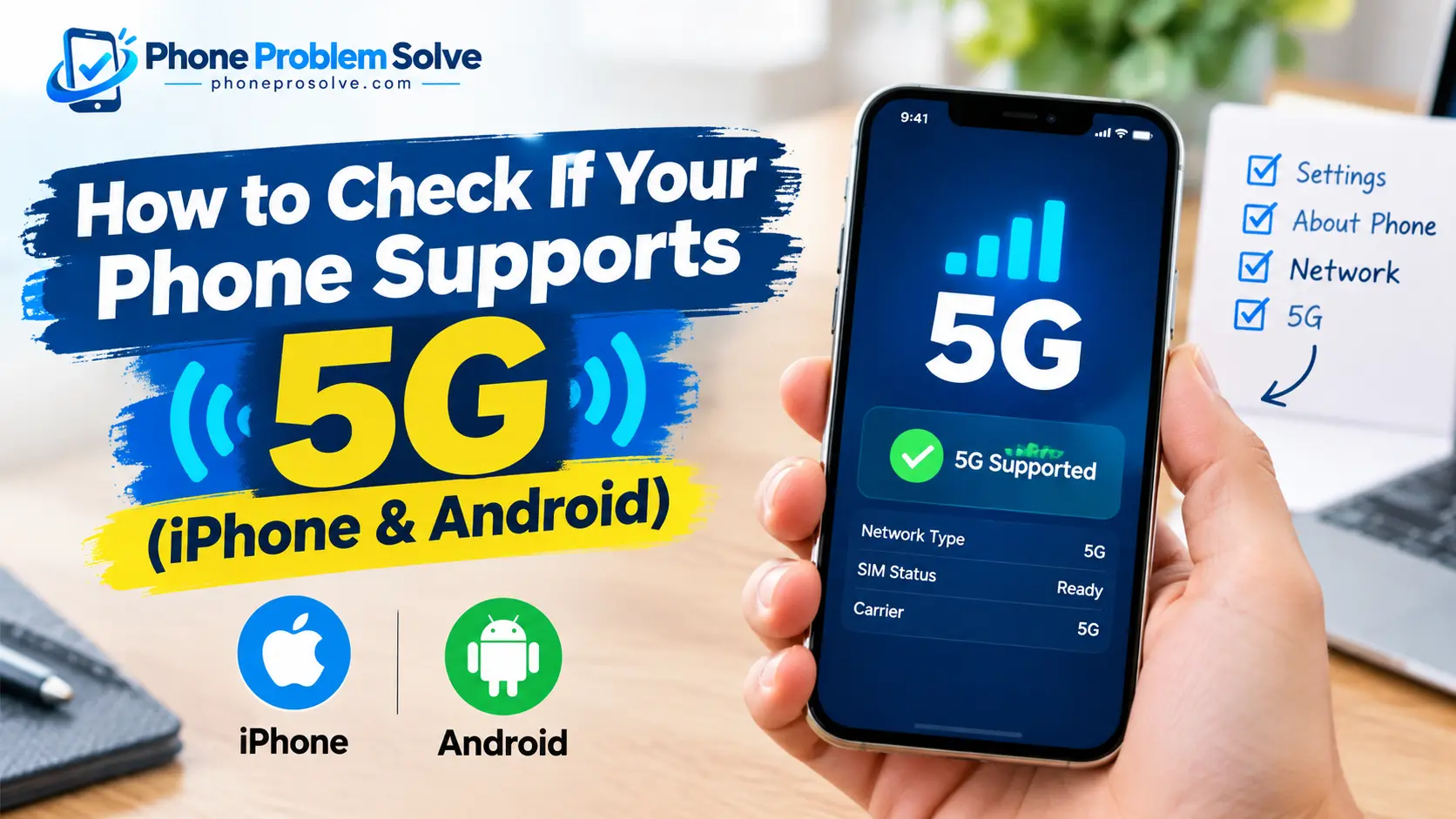
How to Check If Your Phone Supports 5G Without an App
The quickest way to check 5G support is to look at your phone’s network settings. If that does not give you a clear answer, you can verify the exact model number on the manufacturer’s website.
Follow these three steps:
Step 1: Check the network settings. Open your phone’s mobile network settings and look for an option that includes 5G.
Step 2: Find your exact model number. Go to your phone’s About section and identify the model number, not just the marketing name.
Step 3: Verify the specifications and carrier compatibility. Visit the manufacturer’s official website to confirm 5G support, then check whether your mobile carrier supports that particular model.
Finding a 5G option in Settings is a useful clue, but it should not be your only test. Carrier restrictions, software differences, and network configuration can affect the options you see. Checking the exact model is a more reliable way to confirm the phone’s hardware capabilities.
How to Check If Your iPhone Supports 5G
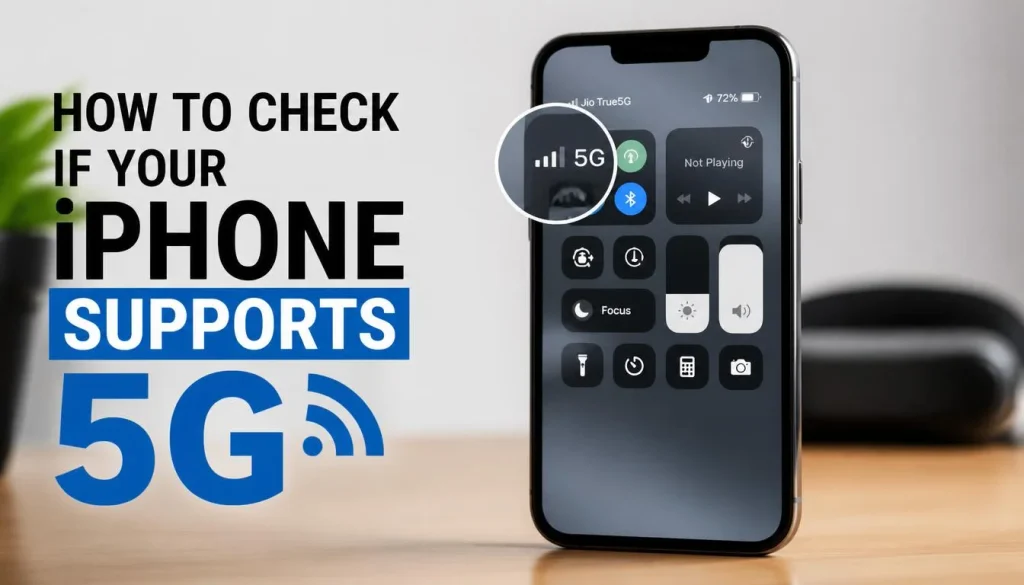
Apple provides a straightforward way to check the available cellular network options on a compatible iPhone.
Check 5G Support in iPhone Settings
- Open the Settings app.
- Tap Cellular or Mobile Data, depending on your region.
- Select Cellular Data Options or Mobile Data Options.
- Tap Voice & Data.
- Look for options such as 5G Auto, 5G On, or LTE.
If you see 5G Auto or 5G On, that is a strong indication that your iPhone supports 5G.
Apple’s official guide to using 5G with an iPhone explains these settings and how your carrier plan affects 5G access.
If the menu does not include a 5G option, do not immediately assume that your phone is 4G-only. Check the exact model, install any available software or carrier settings updates, and confirm that your carrier supports the device.
Which iPhone Models Support 5G?
The iPhone 12 generation introduced 5G support to Apple’s main iPhone lineup. iPhone 12 and newer models generally support 5G, but the precise capabilities depend on the model and regional variant.
If you own an older iPhone, check its specifications instead of relying on its appearance or release year.
To identify your device:
- Open Settings.
- Tap General.
- Select About.
- Find the model name and model number.
You can use Apple’s iPhone model identification guide to identify your device and then check its official technical specifications.
How to Enable 5G on an iPhone
If your iPhone supports 5G, follow these steps:
- Open Settings and select Cellular or Mobile Data.
- Tap Cellular Data Options or Mobile Data Options.
- Select Voice & Data.
- Choose 5G Auto or 5G On, if available.
5G Auto allows the iPhone to manage its network connection based on performance and battery efficiency. 5G On allows it to use 5G whenever the network is available and the other requirements are met.
Remember that selecting a 5G option does not guarantee an immediate 5G connection. Your plan, coverage, SIM or eSIM configuration, and carrier compatibility still matter.
How to Check If Your Android Phone Supports 5G
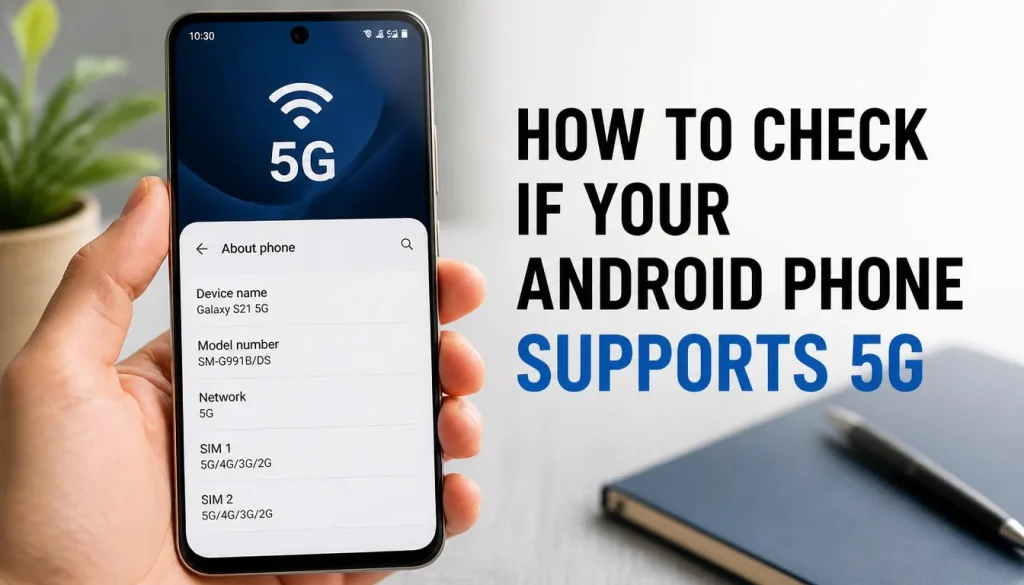
Android phones use different menus depending on the manufacturer, software version, and mobile carrier. Samsung, Google Pixel, Motorola, and OnePlus devices may display their network settings differently.
If the steps below do not match your phone, open Settings and use the search function to look for “5G,” “Mobile Network,” or “Preferred Network Type.”
Check 5G Support on Samsung Galaxy Phones
On many Samsung Galaxy phones, you can check the network mode by following these steps:
- Open Settings.
- Tap Connections.
- Select Mobile Networks.
- Tap Network Mode.
- Look for a network mode that includes 5G.
If a 5G network mode is available, your device may support 5G. However, some settings can be restricted by the carrier or vary between regional models.
You can also consult Samsung’s official guide to using 5G on Galaxy phones for additional steps involving the SIM, mobile plan, coverage, and network settings.
Check 5G Support on Google Pixel Phones
On supported Google Pixel devices, follow these steps:
- Open Settings.
- Tap Network & Internet.
- Select SIMs.
- Choose your mobile operator or SIM.
- Look for Preferred Network Type.
If the option is available, check whether 5G appears among the network choices.
Google states that Pixel 4a (5G) and later Pixel phones support 5G service, although actual availability depends on the model, carrier, country, and network configuration.
For device-specific information, visit Google’s Pixel mobile network settings guide.
Check 5G Support on Motorola, OnePlus, and Other Android Phones
On Motorola, OnePlus, Xiaomi, and other Android devices, the network settings may be located under menus such as:
- Settings → Network & Internet
- Settings → Mobile Network
- Settings → SIM Cards & Mobile Networks
- Settings → Connections
Look for an option such as Preferred Network Type, Network Mode, or 5G/4G/3G.
If you cannot find one, search for your exact model on the manufacturer’s official website. Compare its specifications with the version of the phone you own.
Do not decide that your phone is 4G-only simply because the settings menu does not show 5G. Verify its hardware specifications and carrier support before reaching that conclusion.
How to Enable 5G on Android
If your phone supports 5G and your carrier allows it, open your mobile network settings and select a preferred network mode that includes 5G.
On a compatible Samsung Galaxy phone, this is usually under Connections → Mobile Networks → Network Mode. On a Google Pixel, it is generally under Network & Internet → SIMs → Preferred Network Type.
The available options may differ by phone and carrier. If 5G is missing, check your plan, SIM or eSIM activation, software updates, and device compatibility.
How to Check Your Phone’s Exact Model Number and 5G Bands
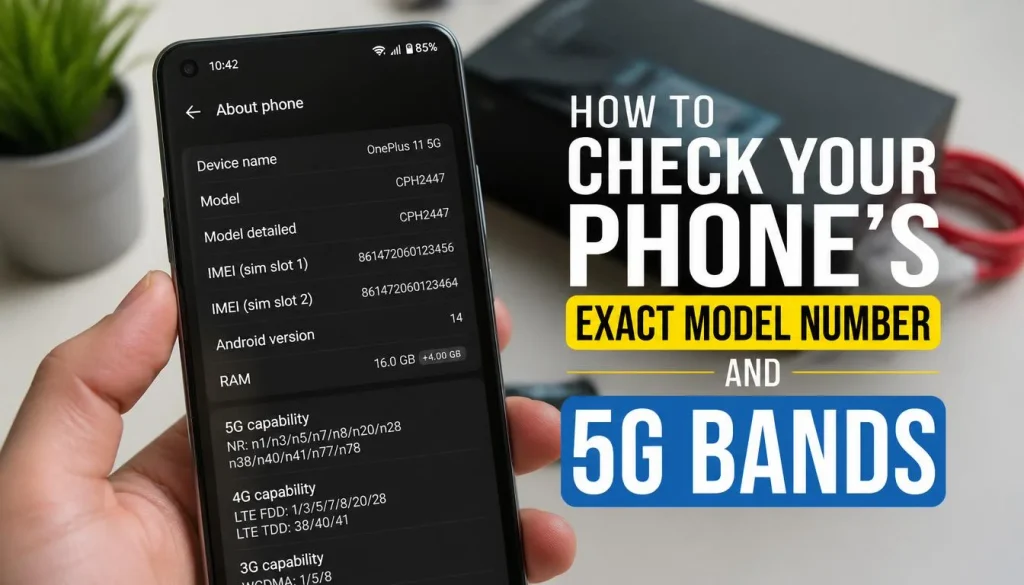
Checking the exact model number is particularly important when you buy a used or imported phone. Two phones with nearly identical names can have different supported network bands.
Find Your Exact Phone Model
For an iPhone, open Settings → General → About.
For an Android phone, open Settings → About Phone. Depending on the manufacturer, you may find the model number under Device Details or Model.
Write down the full model number before searching for specifications. A broad search for a phone’s marketing name may show information for a different regional version.
Check the Official 5G Specifications
Visit the manufacturer’s website and find the specifications for your exact model. Look for terms such as:
- 5G connectivity
- 5G NR bands
- Supported network frequencies
- Sub-6 GHz
- mmWave, where applicable
For example, a specification might list 5G bands such as n41, n77, or n78. These are identifiers for different 5G frequency bands. Their relevance depends on the carrier and country in which you plan to use the phone.
You can compare Apple’s regional model details using its official 5G and LTE band list. Google also publishes detailed Pixel phone hardware specifications.
Understand Sub-6 GHz and mmWave 5G
5G is not a single frequency. Phones and carriers can use different spectrum bands, and not every device supports all of them.
Sub-6 GHz 5G uses frequencies below 6 GHz and is widely used for a balance of coverage and performance.
mmWave 5G uses much higher frequencies and can deliver very high speeds in suitable locations, but its coverage is generally more limited.
A phone might support Sub-6 GHz 5G but lack mmWave support. That does not automatically make it incompatible with every 5G network. What matters is whether its supported technology and bands meet the requirements of your carrier.
Never assume that a phone will work on every carrier simply because its specifications include the word “5G.”
How to Check If Your Phone Supports Your Carrier’s 5G Network
Your phone’s hardware is only part of the equation. To use 5G, you generally need a compatible phone, a supported carrier, an eligible plan, and coverage in your area.
Use Your Carrier’s Official Compatibility Checker
If you are planning to insert a new SIM or switch mobile networks, check your phone through the carrier’s official compatibility tool.
These services can help determine whether a device can be activated on the network. Some use the phone’s IMEI, while others also offer lists of approved devices or manual model checks.
Here are useful starting points for readers in your target countries:
USA: Check AT&T’s IMEI tool, T-Mobile’s bring-your-own-phone tool, or Verizon’s device compatibility checker.
UK: Check your operator’s supported-device information and EE’s mobile coverage checker.
Canada: Review Rogers’ BYOD compatibility guidance or Bell’s phone compatibility requirements.
Australia: Check Telstra’s 5G Standalone compatible-device information and its network coverage information.
These resources have different purposes. A device activation checker, a supported-device list, and a coverage map do not all answer the same question. Use the right tool for the issue you are investigating.
How to Check 5G Compatibility by IMEI
An IMEI is a unique identifier associated with a mobile device. Carriers may use it to determine whether a phone can be activated on their networks.
To find your IMEI:
- Open the Phone app.
- Dial
*#06#, if supported by your device. - Note the IMEI displayed on the screen.
You can also find it in your phone’s About section. On dual-SIM devices, there may be more than one IMEI.
Enter the relevant number only on the official website of your intended carrier. For example, T-Mobile’s BYOD tool allows customers to check their device as part of the activation process.
An IMEI result is useful for checking carrier eligibility, but it is not a substitute for reviewing the model’s technical specifications. Depending on the carrier, an IMEI check may also identify a locked or blocked device.
Avoid posting your IMEI publicly or sharing it with unverified websites.
Check Your SIM, eSIM, Plan, and Unlock Status
Even if the phone has compatible 5G hardware, your mobile service must be configured correctly.
Check the following:
- Plan: Confirm that your current plan includes access to the carrier’s 5G service.
- SIM or eSIM: Ask your carrier whether your existing SIM is compatible and whether 5G needs to be activated on your line.
- Unlock status: If you are switching networks, confirm that the phone is unlocked or otherwise eligible for use with the new carrier.
- Coverage: Check whether the carrier offers compatible 5G service where you intend to use the phone.
A new physical SIM is not always necessary. Some existing SIMs can be used with 5G, while other cases require a replacement, an eSIM, or updated carrier provisioning.
If all the basic checks look correct, ask your carrier to verify the account and device configuration before buying a replacement phone.
Why Is My 5G Phone Showing LTE Instead of 5G?
Seeing LTE or 4G instead of 5G does not automatically mean your phone lacks 5G capability. Several issues can cause a 5G phone to use an older network connection.
1. You Are Outside a 5G Coverage Area
Your carrier may provide 5G in some locations but not others. Buildings, terrain, distance from network equipment, and local signal conditions can also affect reception.
Check your carrier’s coverage map using the postcode or location where you experience the problem. If possible, test your connection outdoors or in another nearby location.
2. 5G Is Disabled in Your Settings
Open the mobile network settings and verify that your preferred network mode includes 5G.
If your phone is set to LTE-only or 4G-only, it will not normally select a 5G connection until you change the setting. The exact menu depends on the device and carrier.
3. Your Mobile Plan or SIM Is Not Properly Configured
Your plan might not include 5G, or your account might require an activation or settings update.
Contact your carrier to confirm that the plan, SIM or eSIM, and account are enabled for the service. Do not replace your SIM automatically without first checking the carrier’s requirements.
4. Your Phone Is Not Compatible With the Carrier’s Network
This issue is particularly common with some imported phones.
A device may support 5G but lack one or more important bands used by your carrier. Some services may also require carrier certification or particular network capabilities beyond basic band support.
Recheck the exact model number, technical specifications, and official compatibility result. If the phone is not supported, changing a setting will not add the missing hardware.
5. Your Phone Needs an Update or Restart
Temporary network problems or outdated software can interfere with connectivity.
Try these steps in order:
- Turn Airplane Mode on for a few seconds, then turn it off.
- Restart your phone.
- Install available system and carrier settings updates.
- Check whether your carrier reports an outage.
- Contact your carrier if the connection still does not work.
As a last resort, you can consider resetting the mobile network settings. Read the on-screen warning first because the available reset options vary by phone.
Google’s mobile connectivity troubleshooting guide offers additional steps for Pixel devices and explains how to investigate persistent network problems.
How to Confirm That Your Phone Is Actually Connected to 5G
Once you have confirmed that your phone supports 5G, you may want to check whether it is currently using that network.
Start by looking at the status bar near the top of your screen. Depending on the carrier and network configuration, you may see a 5G indicator or another label such as 5G+, 5G UC, or 5G UW.
These labels do not mean exactly the same thing everywhere. Some are carrier-specific names for particular types of 5G service.
For a basic check:
- Turn off Wi-Fi temporarily.
- Make sure mobile data is enabled.
- Check the network indicator.
- Open a website or app that uses mobile data.
- If needed, use a reputable speed test to check the connection’s performance.
A 5G indicator alone does not guarantee a particular speed. Signal strength, congestion, network configuration, and the carrier’s service all influence performance.
Your phone may also switch between 5G and LTE automatically. For example, an iPhone using 5G Auto may choose LTE when doing so offers a suitable experience while helping to preserve battery life.
If your phone alternates between 5G and LTE, check coverage and settings before assuming something is broken.
How to Check 5G Support Before Buying a Used or Imported Phone
Buying a used phone can save money, but the wrong model may not work correctly with your local carrier.
Before paying, take these precautions.
Confirm the exact model number. Ask the seller for the complete model identifier and compare it with the manufacturer’s official specifications.
Check the supported 5G bands. Compare the specifications against the intended carrier’s documented network requirements. Do not rely solely on the phone’s marketing name.
Run a carrier compatibility check. Use the official BYOD tool or supported-device list for the network you plan to use.
Verify the unlock and IMEI status. A compatible phone may still be unusable if it is locked to another carrier or reported as lost or stolen.
Review the return policy. If the seller allows returns, make sure you can test the device with your SIM or eSIM before the return window closes.
These steps are especially valuable when purchasing a phone from another country. A device that works well on one network may offer limited connectivity or lack certain services on another.
Frequently Asked Questions
How Can I Tell If My Phone Is 4G or 5G?
Check your phone’s mobile network settings for a 5G option. If you are unsure, find the exact model number in Settings and look up its official specifications. This is more reliable than judging by the phone’s appearance or current signal icon.
Does Seeing 5G in Settings Mean My Phone Supports 5G?
It is a useful indication, but it is not the final test. Confirm the exact model’s hardware specifications and make sure the device is supported by your carrier. Settings can vary because of software, regional configurations, and carrier restrictions.
Can a 4G Phone Be Upgraded to 5G?
No. A phone that is genuinely 4G-only cannot connect to a 5G cellular network through a software update or a new SIM card. It lacks the necessary 5G radio hardware. To use 5G, you need a compatible device.
Do I Need a New SIM Card to Use 5G?
Not always. Some carriers support 5G with an existing SIM, while others require a compatible SIM, eSIM activation, or an update to your account. Check your carrier’s current requirements before replacing your SIM.
Can a 5G Phone Work on Any Carrier?
No. A 5G phone may lack the bands, network capabilities, or carrier approval required by a particular provider. Check both the exact model’s specifications and the carrier’s official compatibility information before switching networks.
Why Does My Phone Show LTE Instead of 5G?
Possible reasons include limited 5G coverage, a plan that does not include 5G, disabled network settings, SIM or account issues, and unsupported carrier bands. Start with Settings and coverage, then verify your plan and device compatibility.
Can I Check 5G Compatibility Using My IMEI Number?
Yes, some carriers use the IMEI to check whether a phone can be activated on their network. Dial *#06# on a supported device to display the number, then use the carrier’s official checker. An IMEI result does not replace checking the phone’s detailed 5G specifications.
Final Checklist: Is Your Phone Ready for 5G?
Before deciding that your phone supports 5G on your current network, make sure you have completed these checks:
- I checked my phone’s network settings for a 5G option.
- I found the exact model number.
- I confirmed 5G support in the manufacturer’s official specifications.
- I checked the supported bands for my regional model.
- I verified compatibility with my intended mobile carrier.
- I confirmed that my plan and SIM or eSIM allow 5G access.
- I checked that 5G coverage is available in my area.
- I enabled 5G where the setting is available.
If your phone passes these checks but still cannot connect to 5G, contact your carrier and ask it to confirm your device’s activation, account settings, and local network availability.
The key is to check more than the 5G option in your settings. Your phone’s hardware, exact model, carrier compatibility, mobile plan, and local coverage all work together to determine whether you can actually use 5G.

“The right smartphone can make a bigger difference than you think.”
Hi, I’m Ethan Collins, a technology writer and smartphone enthusiast at PhoneProSolve.com.
My interest in smartphones started with a simple question: How do you know which phone is actually right for your needs?
With so many brands, models, features, specifications, operating systems, accessories, and price ranges available today, choosing the right phone can quickly become confusing. And when a phone starts overheating, charging slowly, draining its battery, running slowly, or developing other problems, finding a clear solution can be just as frustrating.
I created PhoneProSolve.com to make that process easier.
Through this website, I share practical smartphone guides, product comparisons, buying advice, troubleshooting tips, how-to guides, accessory information, and solutions to common phone problems.
I focus on turning complicated technical information into clear, practical, and easy-to-understand guidance that everyday readers can actually use.
Whether you’re searching for a smartphone with better battery life, a powerful device for gaming, a reliable camera phone, useful accessories, or simply trying to figure out why your current phone isn’t working properly, my goal is to help you find the information you need before making a decision.
I believe good recommendations should be based on careful research, real-world considerations, honest pros and cons, and the specific needs of the user—not simply marketing claims.
Through PhoneProSolve.com, I’m committed to helping readers understand their smartphones, solve common phone problems, choose useful products, and make smarter purchasing decisions with confidence.
— Ethan CollinsAuthor & Technology WriterPhoneProSolve.com