Is your iPhone battery draining faster than usual, even when you are not using it much? Perhaps you charge your phone in the morning, but the battery is already running low by the afternoon. Or maybe you have noticed a sudden drop in battery life after installing an iOS update.
The good news is that a fast-draining iPhone battery does not always mean you need a new battery. The problem could be caused by background activity, a power-hungry app, poor cellular reception, high screen brightness, or an aging battery.
The best way to fix the problem is to identify what is consuming the power and then make the right adjustments. Changing random settings can waste time and may disable features you actually need.
In this guide, you will learn how to fix iPhone battery draining fast, how to identify the most common causes, and when a battery replacement might be necessary. These steps apply to a range of iPhone models, although some settings may look different depending on your model and iOS version.
Quick Answer: How to Fix iPhone Battery Draining Fast
If your iPhone battery is losing charge too quickly, start with these steps:
- Open Settings → Battery and check which apps or system activities use the most power.
- Restart your iPhone if the drain started unexpectedly.
- Update or troubleshoot any app showing unusually high battery usage.
- Reduce screen brightness and set a shorter Auto-Lock time.
- Turn on Low Power Mode when you need your battery to last longer.
- Review Background App Refresh and Location Services permissions.
- Check your cellular signal and use reliable Wi-Fi when available.
- Check Battery Health for signs of battery deterioration.
If the problem started immediately after an iOS update, give the phone a few days to finish its background tasks, provided it is otherwise working normally.
Apple also recommends checking battery suggestions and usage information before assuming that the battery itself is faulty. You can follow its official guide to fixing an iPhone battery that drains too quickly for additional troubleshooting.
Why Is Your iPhone Battery Draining So Fast?
Before changing your settings, it helps to understand what might be causing the problem. Several things can reduce battery life, and more than one may be happening at the same time.
1. Apps Are Consuming Battery in the Background
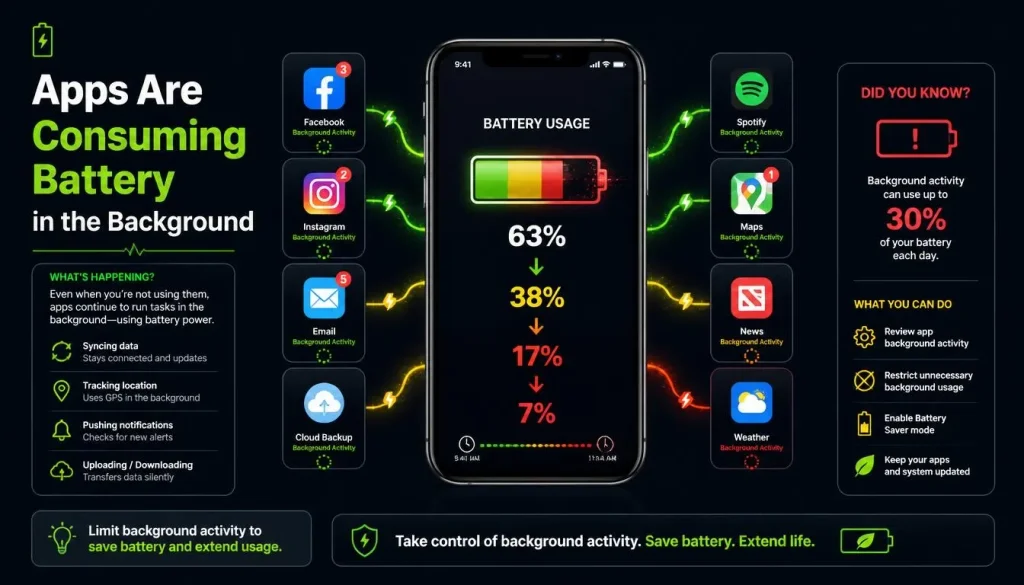
Some apps continue performing tasks when you are not actively using them. They may refresh content, synchronise data, track your location, or upload photos.
Social media, navigation, email, fitness, and cloud storage apps can all perform background activities.
This is not necessarily a problem. However, if one app consistently uses more battery than expected, it is worth investigating.
What to do: Open Settings, tap Battery, and review the battery usage information. Look for apps with unusually high background activity.
2. Your iPhone Has a Weak Cellular Signal
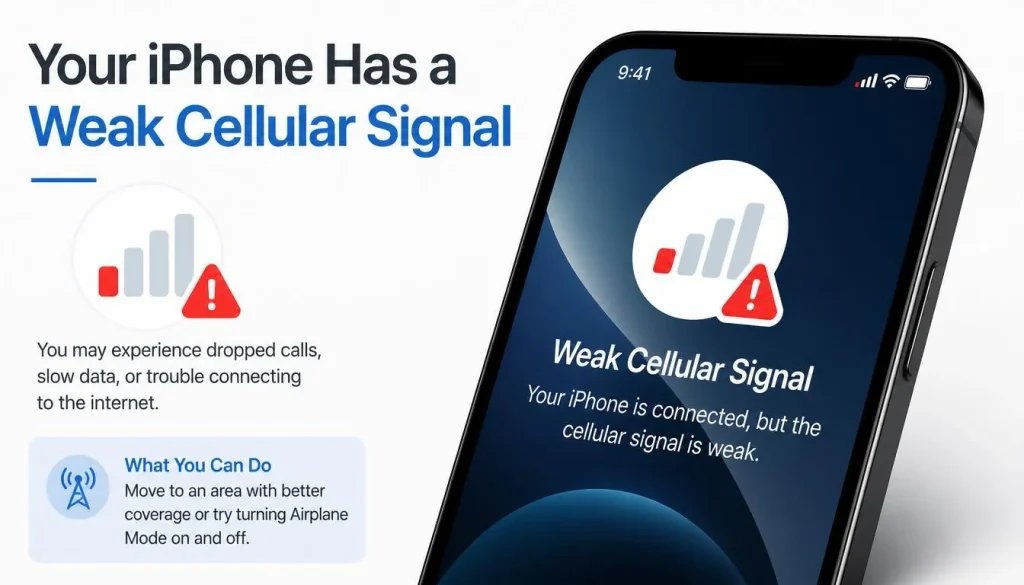
Your iPhone may use more power when it struggles to maintain a cellular connection.
This can happen indoors, in basements, in remote areas, or in buildings with thick walls. Even when you are not actively browsing, your phone may need additional power to maintain or search for a network signal.
What to do: Try using your iPhone in an area with stronger reception. When reliable Wi-Fi is available, connect to it and see whether battery consumption improves.
3. Your Screen Is Using Too Much Power
The display is one of the major contributors to battery consumption during everyday use.
High brightness, a long Auto-Lock time, frequent screen wake-ups, and an Always-On Display can all contribute to faster battery drain.
What to do: Reduce brightness to a comfortable level, enable Auto-Lock, and review display features you do not regularly use.
4. Battery Drain Started After an iOS Update
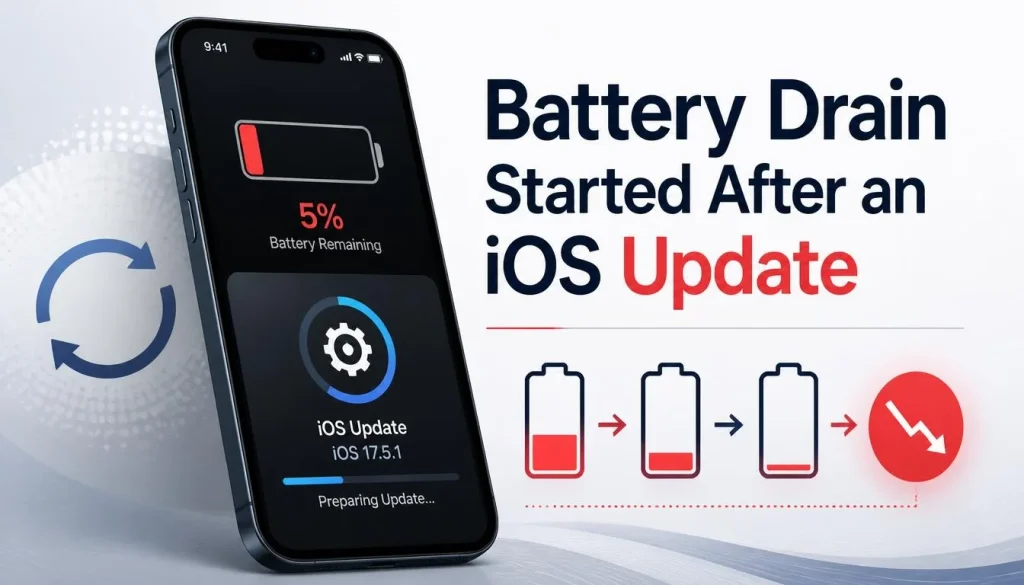
Have you noticed your battery draining faster after installing a new iOS version?
An update can trigger additional background tasks while the phone finishes processing information and completing system activities. Restoring a backup or setting up a new iPhone can have a similar effect.
Apple recommends checking again after a few days because battery life may return to normal once those tasks finish.
What to do: Open Settings → Battery and look for battery usage details or update-related insights. If the drain continues beyond a few days, investigate other causes.
5. Your iPhone Battery Has Lost Capacity
Rechargeable batteries gradually wear out. As an iPhone battery ages, it may store less energy than when the phone was new.
You might notice that the percentage falls quickly, charging becomes more frequent, or the phone shuts down unexpectedly.
What to do: Check the Battery Health information available for your iPhone. If iOS shows a service recommendation, consider having the battery assessed.
For a broader look at the possible causes, see our guide to why your phone battery is draining so fast.
How to Check What Is Draining Your iPhone Battery
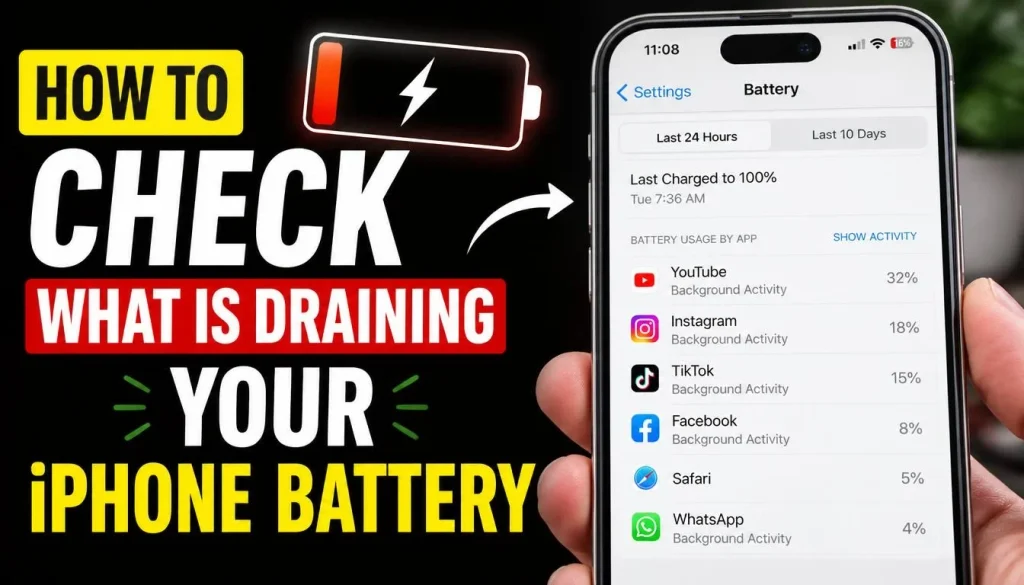
Checking battery usage should be one of your first steps. It can help you determine whether the problem is related to a particular app, poor network coverage, or general battery condition.
Check Battery Usage by App
Follow these steps:
- Open the Settings app.
- Tap Battery.
- Review the battery usage chart and available daily activity information.
- Look at the apps and system activities consuming the most power.
- Select an app to see more details, where available.
Depending on your iOS version, you may also find battery suggestions or a Daily Usage chart.
Pay attention to the difference between active use and background activity. An app that consumes substantial power while you are using it heavily may be behaving normally. An app that consumes a surprising amount of power when you barely use it deserves a closer look.
Understand Background Activity and Low Signal
Your iPhone may display details that help explain its battery consumption.
For example:
- Background Activity: An app performed tasks while running in the background.
- Notifications: Frequent notifications may wake the device and use additional power.
- Low Signal or No Mobile Coverage: The phone spent time searching for or maintaining a weak connection.
- Recent Update Activity: The device may still be completing background tasks after an update.
These indicators provide clues rather than definitive proof of a fault. Compare them with your usual usage to identify what has changed.
Compare Battery Usage Over Several Days
One unusual day does not always indicate a battery problem.
Check the usage chart over several days, where available. If one app repeatedly appears near the top of the list despite limited use, investigate it first.
If no individual app stands out, look at screen activity, network conditions, software updates, and battery health.
For more detailed instructions, consult Apple’s guide to iPhone battery usage and performance.
12 Practical Fixes for iPhone Battery Draining Fast
Once you have checked the battery usage information, work through the following fixes. Start with the simple steps before considering more disruptive changes.
1. Restart Your iPhone
If your iPhone battery suddenly starts draining faster than usual, restart the device.
A restart can resolve some temporary software problems and refresh system processes. It will not fix an aging battery or every software issue, but it is a sensible first step.
To restart an iPhone with Face ID:
- Press and hold the side button and either volume button.
- Wait until the power-off slider appears.
- Drag the slider to turn off the phone.
- Wait approximately 30 seconds.
- Press and hold the side button until the Apple logo appears.
On an iPhone with a Home button, the restart process depends on the model. Consult Apple’s instructions if these steps do not match your device.
After restarting, use your phone normally and check the battery usage information again.
2. Find and Fix Apps That Drain Your Battery
A single app may be responsible for much of your battery loss.
Open Settings → Battery and inspect the apps with the highest power consumption. Look at how much you use each app and whether it performs significant background activity.
If an app appears to be the problem:
- Update it through the App Store.
- Review its notification and location permissions.
- Check whether its background activity is necessary.
- Remove and reinstall it if the problem continues and you have protected any important app data.
Before deleting an app, make sure its important information is backed up or synchronised. Some apps store data locally.
Do not delete an app simply because it appears near the top of your battery usage list. Video streaming, gaming, photography, and navigation can naturally consume substantial power during active use.
3. Update iOS and Your Apps
Software bugs can sometimes contribute to excessive battery consumption.
To check for an iOS update:
- Open Settings.
- Tap General.
- Select Software Update.
- Follow the onscreen instructions if an appropriate update is available.
You can also open the App Store, access your account, and check for available app updates.
Before installing a major iOS update, back up important data and ensure you have enough battery or access to a charger.
Keep in mind that a new update may temporarily increase battery consumption. If your iPhone has just updated, do not assume that installing another update or repeatedly restarting it will immediately solve the problem.
4. Give Your iPhone Time After an Update or Setup
If your battery started draining after an iOS update, restoring an iCloud backup, or setting up a new iPhone, some background activity may still be running.
Your device may need time to complete setup tasks and process information.
Here is what you should do:
- Open Settings → Battery.
- Check for available battery insights or unusual usage.
- Connect to reliable Wi-Fi when practical.
- Leave the phone connected to power when convenient and allow it to finish its tasks.
- Check battery usage again after a few days.
If the battery returns to its usual behaviour, the extra consumption was likely temporary.
If the problem persists, investigate app activity, network conditions, and Battery Health rather than assuming the update is responsible.
5. Turn On Low Power Mode or Adaptive Power
Low Power Mode reduces the energy your iPhone uses by limiting certain features and background activities. It is particularly useful when you need your battery to last until the next opportunity to charge.
On iPhone 14 and earlier, go to:
Settings → Battery → Low Power Mode
On iPhone 15 and later, the option is generally found under:
Settings → Battery → Power Mode → Low Power Mode
Menu names may vary with your software version.
When enabled, Low Power Mode can reduce background activity, Mail fetching, some visual effects, and other power-consuming features. Some tasks may take longer, and certain updates or notifications may be delayed.
On supported iPhone models running compatible iOS versions, Adaptive Power can also help extend battery life by adjusting selected settings when your usage is higher than usual. Check Settings → Battery → Power Mode to see whether it is available on your phone.
For additional details, read Apple’s guide to using Low Power Mode.
6. Reduce Screen Brightness and Adjust Auto-Lock
You do not necessarily need to keep your iPhone screen at maximum brightness throughout the day.
Try these adjustments:
Reduce screen brightness. Open Control Centre and move the brightness slider to a comfortable level.
Enable Auto-Brightness. Go to Settings → Accessibility → Display & Text Size and turn on Auto-Brightness.
Shorten Auto-Lock. Go to Settings → Display & Brightness → Auto-Lock and select a shorter interval if it suits your routine.
If your iPhone has an Always-On Display, review whether you need it continuously enabled.
Dark Mode may also reduce display power consumption on iPhones with OLED screens, although the benefit depends on the display, content, and brightness.
These adjustments are often more useful than repeatedly closing apps without checking what is actually consuming battery power.
7. Limit Background App Refresh
Background App Refresh allows supported apps to check for new information when you are not actively using them.
You do not have to disable it for every app. Instead, limit it for apps that do not need to refresh frequently.
To adjust the setting:
- Open Settings.
- Tap General.
- Select Background App Refresh.
- Choose whether to allow it over Wi-Fi, Wi-Fi and cellular data, or disable it.
- Review individual apps where the available options permit.
Disabling Background App Refresh may delay certain updates until you open an app. It also does not prevent every form of background activity, such as notifications or some location services.
For more information, see Apple’s instructions for switching apps and managing Background App Refresh.
8. Review Location Services and App Permissions
Location Services can consume power when apps repeatedly determine your position, especially during continuous navigation or location tracking.
You do not need to turn off location access completely. Many useful features, including navigation and location-based safety services, depend on it.
Instead, review which apps need continuous access.
Follow these steps:
- Open Settings.
- Tap Privacy & Security.
- Select Location Services.
- Choose an app.
- Review its available permission options.
Where appropriate, select While Using the App instead of allowing continuous background location access.
Keep the permissions needed for apps such as navigation, fitness tracking, and safety tools. Change only permissions that are unnecessary for the way you use the app.
Apple explains these controls in its official guide to Location Services and privacy.
9. Improve Your Cellular Connection and Review 5G Settings
Poor cellular reception can contribute to battery drain, particularly when your iPhone repeatedly searches for a network.
If the problem occurs mainly at work, at home, or in a particular building, compare battery usage in an area with stronger reception.
You can also try the following:
- Connect to reliable Wi-Fi when available.
- On a compatible iPhone and carrier, consider using 5G Auto instead of keeping 5G enabled continuously.
- If you are somewhere with no cellular coverage for an extended period and do not need cellular connectivity, consider Airplane Mode.
- Compare battery usage under similar conditions before concluding that 5G is the cause.
To check the available 5G options, go to Settings → Cellular or Mobile Data → Cellular Data Options or Mobile Data Options → Voice & Data. Exact labels vary by carrier, iPhone, and iOS version.
5G does not automatically drain more battery than 4G in every situation. Signal quality, network behaviour, and the type of activity all influence power consumption.
If the problem happens mainly while using 5G, our guide to 5G vs. 4G phone battery differences provides additional context.
If your phone also becomes unusually warm on a 5G connection, see why a phone gets hot on 5G and how to fix it.
10. Reduce Unnecessary Notifications and Background Syncing
Your iPhone may use power to check for new messages, synchronise files, refresh information, and display notifications.
One notification does not usually cause a major problem, but frequent activity across several apps can add up.
Review the apps that regularly wake your screen or perform background tasks.
Consider these adjustments:
- Disable notifications from apps that are not important.
- Review Mail fetching settings if you do not need frequent updates.
- Check whether photo uploads or cloud synchronisation are consuming substantial power.
- Reduce unnecessary automatic downloads and background syncing where appropriate.
To change notification settings, go to Settings → Notifications and select the app you want to review.
For Mail and other services, the exact options depend on the app and your account configuration.
Avoid disabling essential calls, messages, security alerts, or other notifications you rely on. The goal is to reduce unnecessary activity without making your iPhone less useful.
11. Keep Your iPhone at a Suitable Temperature
Heat can increase power consumption and contribute to long-term battery deterioration.
Your iPhone may become warm during video streaming, gaming, wireless charging, a software update, or other demanding activities. Temporary warmth does not automatically indicate a fault.
However, persistent heat while the phone is idle or performing light tasks deserves attention.
To reduce unnecessary heating:
- Keep your iPhone out of direct sunlight.
- Avoid leaving it in a hot car.
- Pause demanding activities if the device becomes unusually warm.
- Allow the phone to cool naturally in a suitable environment.
- Avoid charging or using the phone in conditions that cause excessive heat.
Apple states that iPhones are designed to operate in ambient temperatures between 0°C and 35°C (32°F and 95°F). Prolonged exposure to high temperatures can permanently reduce battery lifespan.
Read Apple’s official guidance on iPhone temperature management for further details.
If your iPhone repeatedly overheats while idle, displays temperature warnings, or shuts down unexpectedly, seek professional assistance.
12. Check Battery Health and Consider Replacement
If you have tried the relevant software and settings fixes but your iPhone still loses charge quickly, examine its battery health.
To check battery health:
On iPhone 15 and later: Open Settings → Battery → Battery Health.
On iPhone 14 and earlier: Open Settings → Battery → Battery Health & Charging.
The exact information available depends on your model and iOS version.
Look for the maximum capacity, any service recommendation, and information about peak performance where available.
Maximum capacity indicates how much charge the battery can hold compared with when it was new. As the battery chemically ages, this capacity can decline.
Battery replacement may be worth considering if:
- Your phone no longer lasts as long as it used to under comparable usage.
- The battery percentage drops unusually quickly.
- The phone shuts down unexpectedly despite showing remaining charge.
- Battery Health indicates substantial deterioration or a service recommendation.
- The problem persists after reasonable software troubleshooting.
A battery reading of 80% does not automatically mean every iPhone needs immediate replacement. Battery condition, actual performance, model, and Apple’s service recommendations all matter.
If a replacement appears necessary, consult Apple’s official iPhone battery service options.
A replacement battery may be a practical choice if the rest of your iPhone works well.
Special Cases: How to Fix Different iPhone Battery Problems
Some battery problems need a slightly different approach. Here is where to start if your experience does not fit the usual pattern.
| Problem | What to check first |
|---|---|
| Battery drains overnight | Background activity, cellular reception, syncing and overnight usage |
| Battery drains while the phone is idle | App activity, notifications, network conditions and Battery Health |
| Battery drains after an iOS update | Update insights, background tasks and app usage |
| Battery percentage drops suddenly | Battery Health, unexpected shutdowns and service warnings |
| Battery drains faster on mobile data | Cellular signal and available network settings |
| Battery drains despite closing all apps | System activity, notifications, network connections and background services |
| Battery drains while the phone is fully powered off | Battery condition, temperature and possible hardware issues |
How to Fix iPhone Battery Draining Overnight
Your iPhone can still use power while you sleep because it remains connected to networks, receives notifications, and may synchronise information.
Start by reviewing battery usage the next morning. Look for unusual background activity or poor cellular reception.
If you are experiencing this particular problem, follow our detailed guide on phone battery draining fast overnight.
How to Fix iPhone Battery Draining While Not in Use
A screen that is turned off does not mean the iPhone is completely inactive.
Background tasks, location services, notifications, and network activity may continue running.
Check your Battery settings and investigate any app that uses an unexpected amount of power while idle.
Our guide to phone battery draining while not in use covers additional ways to investigate this symptom.
Why Does My iPhone Battery Percentage Drop Suddenly?
A sudden percentage drop can have several causes, including an aging battery, heavy background activity, unusual power consumption, or battery performance problems.
Check Battery Health and compare the battery usage chart with your usual activity.
If the phone repeatedly shuts down unexpectedly or displays a battery service warning, contact Apple Support or an authorised service provider rather than relying solely on settings changes.
What to Do If Your iPhone Battery Still Drains Fast
If the problem persists after trying the relevant fixes, avoid resetting your iPhone immediately.
Work through these additional checks first.
Try Resetting Network Settings if the Problem Is Network-Related
If the battery drain appears to be associated with cellular connectivity or network configuration, resetting network settings may be worth considering.
On supported iOS versions, the option is generally found under:
Settings → General → Transfer or Reset iPhone → Reset → Reset Network Settings.
This removes saved network settings, including saved Wi-Fi networks and passwords, and may reset other network-related configurations.
It will not fix a worn battery or every software problem. Use it only when the symptoms suggest a network issue.
Consider Resetting All Settings Only When Necessary
Reset All Settings can help when a persistent configuration problem is suspected, but it should not be an early troubleshooting step.
Understand what will be reset before proceeding. Back up important data as a precaution, and remember that this option is different from erasing all content and settings.
A factory reset is more disruptive because it removes personal data and installed apps. Consider it only after less disruptive troubleshooting has failed and your important data is backed up.
Contact Apple Support if the Problem Continues
Professional assistance may be appropriate if your iPhone:
- Drains unusually quickly even with light use.
- Repeatedly overheats while idle.
- Shuts down unexpectedly.
- Displays a battery service warning.
- Has a battery that appears swollen or physically damaged.
If the battery is swollen, stop using and charging the phone and arrange professional service. Do not press, puncture, or attempt to repair the battery yourself.
Frequently Asked Questions
Why Is My iPhone Battery Draining So Fast All of a Sudden?
Sudden battery drain may be caused by a problematic app, weak cellular reception, high screen brightness, background activity, a software update, or battery deterioration.
Open Settings → Battery first. Check for unusual app activity or system insights, then investigate the most likely cause.
How Do I Stop My iPhone Battery From Draining Overnight?
Start by checking battery usage in the morning. Look for background activity, frequent notifications, cloud syncing, and poor cellular reception.
If needed, limit unnecessary app activity and use Low Power Mode. Compare your results over several nights before assuming the battery is damaged.
Why Is My iPhone Battery Draining When I Am Not Using It?
Your iPhone can perform background tasks while the screen is off. It may also receive notifications, maintain a network connection, synchronise information, or use location services.
If the drain is unusually high, review battery usage and check whether the problem is connected to a particular app, location, or recent update.
What Drains an iPhone Battery the Most?
There is no single activity that consumes the most power on every iPhone. Heavy screen use, gaming, video streaming, navigation, background activity, weak cellular reception, and demanding apps can all contribute.
Check your own battery usage information to understand which activities consume the most power on your device.
Does Closing All Apps Save iPhone Battery?
Not necessarily. Repeatedly force-closing every app is not a reliable way to solve battery drain.
iOS manages suspended apps, and closing an app does not stop every background or system activity. Investigate apps that show unusually high power consumption instead of closing everything repeatedly.
Does Dark Mode Save Battery on an iPhone?
Dark Mode may reduce display power consumption on iPhones with OLED screens because darker pixels use less power. The benefit depends on your model, brightness, and how the screen is used.
Reducing unnecessary brightness and shortening Auto-Lock time are also practical ways to reduce display-related power consumption.
Does 5G Make an iPhone Battery Drain Faster?
It can in some circumstances, but not always. Battery consumption depends on the iPhone model, signal quality, network conditions, and what you are doing.
If you suspect 5G is contributing to the problem, compare battery usage with 5G Auto or LTE under similar conditions, where those options are available.
How Much Battery Drain Overnight Is Normal?
There is no single overnight battery-loss percentage that applies to every iPhone.
Battery age, cellular reception, background activity, notifications, and software tasks all influence the result.
A repeated increase compared with your phone’s usual behaviour is more useful to investigate than relying on one fixed percentage.
Should I Replace My iPhone Battery if It Drains Fast?
Not necessarily. A battery replacement may help if the battery has deteriorated, but it will not fix every problem caused by software, apps, or network conditions.
Check Battery Health, review your actual battery life, and look for service recommendations before deciding.
Final Thoughts
When your iPhone battery starts draining fast, replacing the battery should not be your first response. In many cases, the problem can be traced to a particular app, background activity, screen settings, cellular reception, or temporary activity after an update.
Start by checking Settings → Battery. Identify what is using the power, apply the fix that matches your symptoms, and review the results before changing additional settings.
If your battery health has deteriorated or the iPhone continues to lose charge unusually quickly despite reasonable troubleshooting, professional assessment may be the next step.
The goal is not to disable every useful feature on your iPhone. It is to find what is consuming more power than expected and fix the underlying problem so your phone can last longer between charges.

“The right smartphone can make a bigger difference than you think.”
Hi, I’m Ethan Collins, a technology writer and smartphone enthusiast at PhoneProSolve.com.
My interest in smartphones started with a simple question: How do you know which phone is actually right for your needs?
With so many brands, models, features, specifications, operating systems, accessories, and price ranges available today, choosing the right phone can quickly become confusing. And when a phone starts overheating, charging slowly, draining its battery, running slowly, or developing other problems, finding a clear solution can be just as frustrating.
I created PhoneProSolve.com to make that process easier.
Through this website, I share practical smartphone guides, product comparisons, buying advice, troubleshooting tips, how-to guides, accessory information, and solutions to common phone problems.
I focus on turning complicated technical information into clear, practical, and easy-to-understand guidance that everyday readers can actually use.
Whether you’re searching for a smartphone with better battery life, a powerful device for gaming, a reliable camera phone, useful accessories, or simply trying to figure out why your current phone isn’t working properly, my goal is to help you find the information you need before making a decision.
I believe good recommendations should be based on careful research, real-world considerations, honest pros and cons, and the specific needs of the user—not simply marketing claims.
Through PhoneProSolve.com, I’m committed to helping readers understand their smartphones, solve common phone problems, choose useful products, and make smarter purchasing decisions with confidence.
— Ethan CollinsAuthor & Technology WriterPhoneProSolve.com