Is your Android phone losing battery faster than usual, even when you are not using it much? You might start the day with a fully charged phone, only to find the battery nearly empty by the afternoon. This can be frustrating, especially when you rely on your phone for work, navigation, calls, or staying in touch with family.
The good news is that fast battery drain does not always mean your battery needs replacing. A background app, weak mobile signal, high screen brightness, a software bug, or an aging battery could be responsible.
To fix battery drain on an Android phone, start by checking battery usage in Settings. Then restart your device, investigate apps using excessive power, adjust unnecessary settings, and check for software updates. These steps can help you identify the cause instead of changing random settings.
In this guide, you will learn 12 practical ways to improve Android battery life, including what to do when the battery drains overnight, after an update, or while your phone is not in use.
Quick Fixes for Android Battery Drain
Before trying advanced troubleshooting, start with these simple steps:
- Restart your Android phone.
- Open Battery Usage and check which apps consume the most power.
- Enable Battery Saver or Power Saving Mode.
- Reduce screen brightness and shorten Screen Timeout.
- Update apps and check for Android software updates.
- Turn off Mobile Hotspot and unnecessary location access.
- Investigate weak cellular coverage or excessive mobile network usage.
Try these fixes first. If your phone still loses battery unusually quickly, the following steps will help you narrow down the cause.
1. Check Which Apps Are Draining Your Android Battery
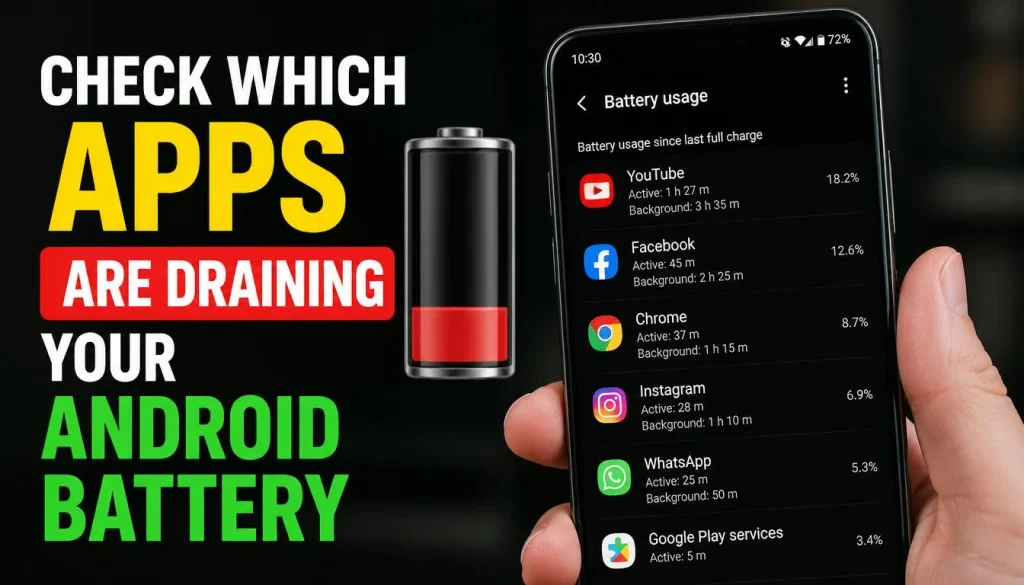
One of the first things to do when troubleshooting Android battery drain is to identify where the power is going.
Some apps consume considerable energy when you use them. Others may continue working in the background even after you leave them. Social media, navigation, video streaming, gaming, and poorly behaving apps are worth checking, although high battery usage alone does not mean an app is faulty.
How to check battery usage:
- Open your phone’s Settings.
- Tap Battery or Battery Usage.
- Open the battery usage details.
- Review the list of apps and their battery consumption.
- Look for apps using an unusually large amount of power compared with how much you use them.
On some phones, you can switch between battery usage by apps and battery usage by system services. The exact menu names depend on your Android version and manufacturer.
For more detailed instructions, follow Google’s official guide to fixing battery drain on Pixel phones.
What If Android System or Google Play Services Uses Too Much Battery?
If Android System, Mobile Network, or Google Play services appears high on the list, do not immediately assume that it needs to be disabled.
System components support essential functions such as connectivity, notifications, synchronisation, and app services. Their consumption can increase temporarily because of updates, poor reception, or background activity.
Start by restarting your phone, checking for updates, and observing whether the same component continues to use excessive power.
Important: Google advises users not to force stop or uninstall Google Play services as a battery-saving measure because Android depends on it for essential functions. See Google’s official battery-drain troubleshooting instructions.
2. Restart Your Android Phone
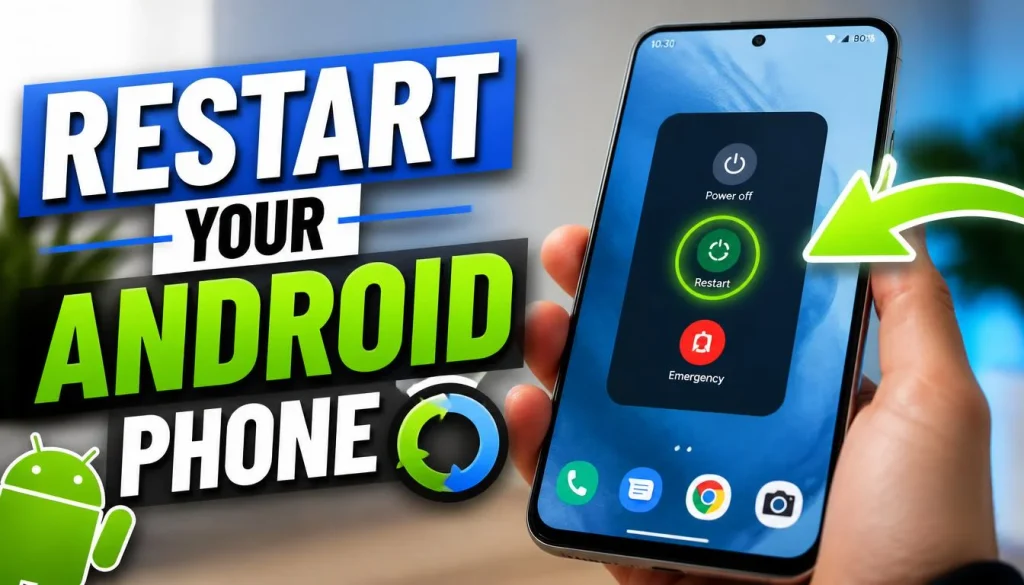
Restarting is a simple step, but it can help when battery drain is caused by a temporary software glitch or an app that is not behaving correctly.
For example, an app might continue working in the background after you finish using it. Restarting the phone can stop temporary processes and give you a fresh starting point.
How to restart your Android phone:
- Press and hold the Power button, or open the power menu using your phone’s available controls.
- Tap Restart.
- Allow the phone to start normally.
- Use it as you normally would and monitor the battery consumption.
If your device does not have a Restart option in the visible power menu, consult its manufacturer instructions.
Restarting will not fix every battery problem, particularly one caused by a damaged battery or a consistently faulty app. However, it is a sensible first step before making more significant changes.
3. Restrict Apps Running in the Background
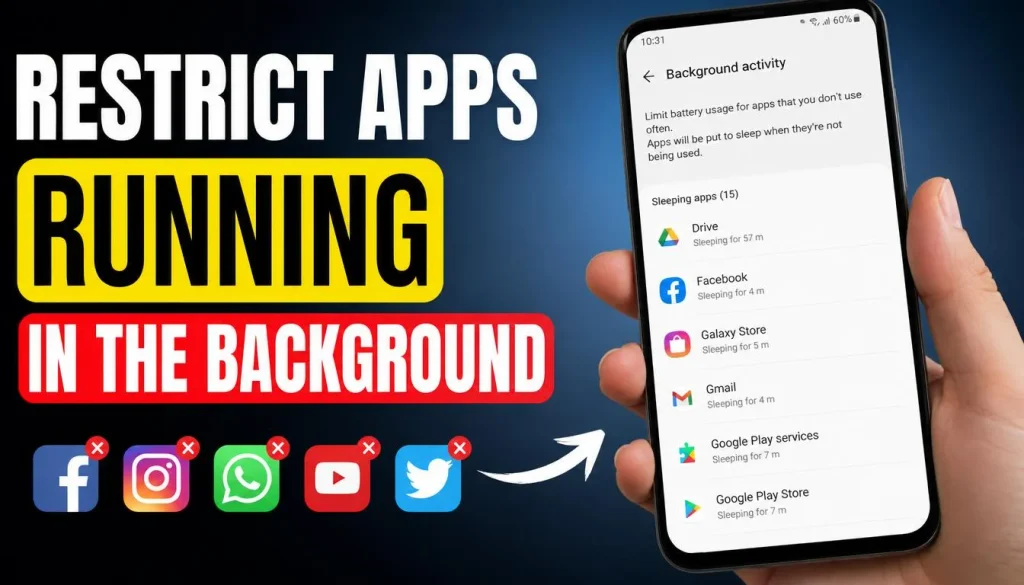
Some Android apps perform useful tasks even when you are not actively using them. For example, email apps may synchronise messages, cloud apps may upload files, and messaging apps may receive notifications.
The problem begins when an app consumes excessive power without providing much benefit.
How to restrict background battery usage:
- Open Settings.
- Select Battery and then Battery Usage, or find the relevant app through Apps.
- Choose an app that appears to use excessive power.
- Look for options such as App Battery Usage or Allow Background Usage.
- Restrict background activity where appropriate.
On Samsung Galaxy phones, you may find options under Battery and Background Usage Limits. Google Pixel phones have their own battery optimisation controls.
Avoid applying the strictest restrictions to every app. Restricting an app’s background activity can delay email delivery, messaging notifications, location updates, or other features.
If you have noticed that your phone battery drains while not in use, reviewing background activity is a particularly useful place to start.
4. Update Android and Your Apps
Outdated software can sometimes cause excessive battery consumption. An app may have a bug, or a system update may include changes that improve power management.
Updating everything does not guarantee better battery life, but it can resolve known software problems.
Check for Android Updates
- Open Settings.
- Look for System, Software Update, or Software Updates.
- Tap the option to check for available updates.
- Install an appropriate update if one is available.
The menu varies by manufacturer.
Update Your Apps
- Open the Google Play Store.
- Tap your profile picture.
- Select Manage apps & device.
- Check for available app updates.
- Update apps, especially those that show unusually high battery consumption.
Samsung users should also check the Galaxy Store for updates to Samsung apps.
You can follow Google’s official Android battery-saving and troubleshooting guide for additional recommendations.
What If the Battery Started Draining After an Update?
A phone may consume more power temporarily after a major software update because it is completing background tasks and optimising the updated software.
Give your device a little time, restart it if appropriate, and check that your apps are up to date. Google notes that Pixel devices can use more battery than usual for a few days after an update. If unusual drain continues, investigate it rather than assuming it is normal.
5. Reduce Screen Brightness and Screen Timeout
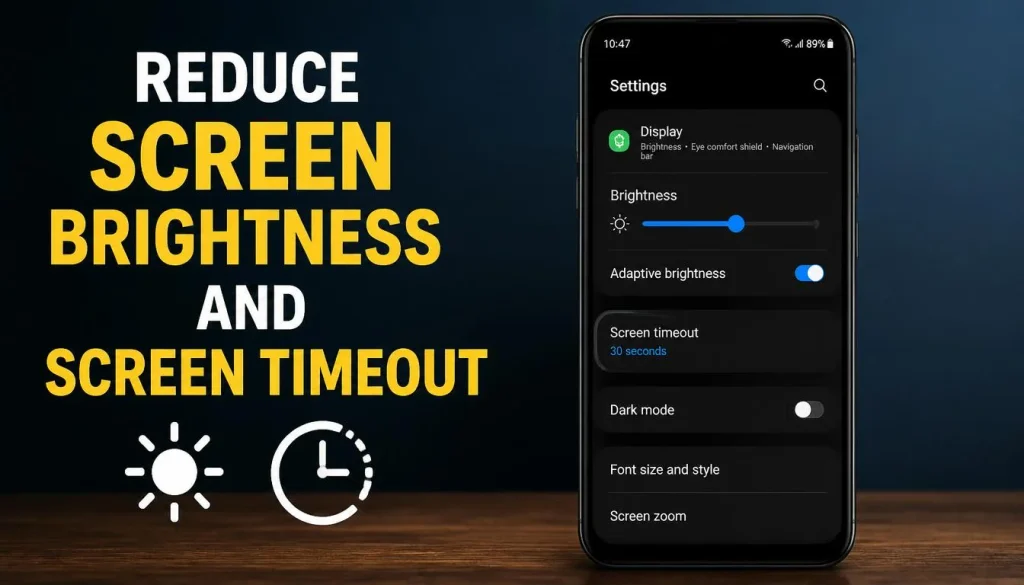
The display can be one of the largest sources of battery consumption, especially when you use your phone for long periods.
A bright screen, long Screen Timeout, high refresh rate, or Always-On Display can contribute to faster battery drain.
Try these adjustments:
- Reduce brightness: Keep the screen at a comfortable level instead of maximum brightness.
- Enable Adaptive Brightness: Let your phone adjust brightness to suit the lighting around you.
- Shorten Screen Timeout: Set the display to turn off after a shorter period, such as 30 seconds.
- Review refresh rate: If your device supports different refresh rates, try a lower setting when battery life matters more than smooth scrolling.
- Review Always-On Display: Turn it off or limit when it appears if you do not need it.
On Samsung Galaxy phones, display settings may include Motion Smoothness and Always On Display. On Google Pixel phones, the corresponding options may appear under Display & touch.
For more specific guidance, Google explains these settings in its Pixel battery-life guide.
Does Dark Mode Save Battery?
Dark Mode can reduce power consumption on OLED screens because darker areas can use less energy. The benefit depends on the display technology, brightness, and content on the screen, so it will not produce the same savings on every Android phone.
It is worth trying, but do not expect Dark Mode alone to solve severe battery drain.
6. Enable Battery Saver or Adaptive Battery
Android includes battery-management features designed to help your phone last longer between charges.
Battery Saver typically reduces some background activity and may limit certain functions. Adaptive Battery, where supported, helps manage power use based on how you use your apps.
How to Turn On Battery Saver
- Open Settings.
- Tap Battery.
- Select Battery Saver, Power Saving, or a similarly named option.
- Turn it on.
You may also be able to enable Battery Saver from Quick Settings by swiping down from the top of the screen.
Keep Adaptive Battery Enabled
If your phone offers Adaptive Battery, check whether it is enabled. This feature can reduce background activity for apps you use less often.
Keep in mind that Battery Saver may delay notifications or limit background updates. That is usually an acceptable trade-off when you need your battery to last longer, but it may not suit every situation.
7. Check Whether 5G or a Weak Mobile Signal Is Draining the Battery
Your phone’s cellular connection can affect battery life.
When mobile reception is poor, the phone may work harder to maintain a reliable connection. Switching between network conditions can also contribute to power consumption.
If your phone loses charge quickly while travelling, commuting, or spending time in a building with weak reception, the mobile network may be part of the problem.
Try These Network Fixes
- Connect to reliable Wi-Fi when it is available.
- Check whether battery drain is worse in areas with weak reception.
- Turn off 5G temporarily, if your phone and carrier provide a network-mode option, and test whether LTE or 4G improves battery life.
- Avoid repeatedly switching network settings without monitoring the results.
Samsung explains in its official guide to 5G network battery drain on Galaxy phones that maintaining multiple network connections can increase power consumption on affected devices.
However, 5G does not automatically drain every phone’s battery faster. The effect depends on the phone, network implementation, signal conditions, and how you use your device.
If you are unsure whether switching networks is worthwhile, read our guide to 5G vs. 4G phones and their battery differences.
8. Turn Off Unnecessary Location and Connectivity Features
Location access, Bluetooth, and Mobile Hotspot are useful features, but you may not need all of them running constantly.
For example, navigation apps may use location services continuously. A hotspot can consume power while sharing your connection with a laptop or another phone.
Try the following:
Review Location permissions: Check which apps have permission to access your location all the time. Change unnecessary permissions to a more restrictive option when appropriate.
Turn off Mobile Hotspot: Disable it after you finish sharing your connection.
Switch off Bluetooth when unnecessary: This may help in some circumstances, although Bluetooth does not always use substantial power when idle.
Review syncing and connected devices: Check for apps or services that repeatedly upload, download, or synchronise large amounts of data.
Use Airplane Mode as a test: If you do not need calls or mobile connectivity, temporarily enable Airplane Mode and observe the battery usage. This can help you determine whether cellular reception is contributing to the drain.
Airplane Mode is not a suitable permanent solution if you need to receive calls or messages. Treat it as a diagnostic test instead.
9. Find and Remove Problematic Apps
If battery drain began shortly after you installed a new app, that app deserves closer attention.
A poorly behaving app may repeatedly run background tasks, access location unnecessarily, or keep the device active.
Start by updating the app. If the problem continues, review its battery usage and permissions.
You can also try force stopping a non-essential app to see whether its behaviour changes. If the same app repeatedly causes unusually high battery consumption, consider uninstalling it.
Be careful not to force stop essential system components or remove apps you do not recognise without understanding their purpose.
If several apps appear to be consuming excessive battery, check whether they need background access. You may be able to reduce consumption without removing useful apps.
10. Test Your Phone in Safe Mode
Safe Mode can help you determine whether a downloaded app is contributing to battery drain.
When Android starts in Safe Mode, downloaded apps are generally disabled temporarily, while the phone’s core software remains available. The exact procedure varies by manufacturer.
How to Use Safe Mode for Battery Troubleshooting
- Find the Safe Mode instructions for your specific phone model.
- Restart the device in Safe Mode.
- Use the phone under similar conditions to those in which you noticed the battery drain.
- Observe whether the battery behaves noticeably better.
- Restart normally to leave Safe Mode.
If battery life improves significantly in Safe Mode, a downloaded app may be responsible. Review recent installations and uninstall suspected apps one at a time.
If the battery continues to drain quickly in Safe Mode, investigate system software, network conditions, overheating, or battery health.
Samsung provides more details in its official Galaxy battery-drain troubleshooting guide.
11. Turn Off Unnecessary Visual Effects, Vibrations, and Notifications
Some additional settings may contribute to battery consumption, particularly when combined with other power-hungry activities.
Consider adjusting these options:
- Live wallpapers: Try a static wallpaper if you use an animated background.
- Keyboard vibration: Turn off haptic feedback if you do not need it.
- Keyboard sounds: Disable unnecessary typing sounds.
- App notifications: Reduce notifications from apps that you rarely use.
- Always-On Display: Limit it when you do not need to see information on the screen while the phone is idle.
Do not expect every change to produce a large improvement. The goal is to remove unnecessary activity without making the phone inconvenient to use.
12. Keep Your Phone Cool and Check Battery Health
Heat is an important clue when diagnosing rapid Android battery drain.
A phone can become warm during gaming, navigation, video recording, charging, or other demanding tasks. However, persistent overheating or unusual battery loss while idle deserves attention.
What to Do if Your Android Phone Gets Hot
- Stop demanding activities temporarily.
- Move the phone out of direct sunlight.
- Close or stop the activity that appears to be causing excessive heat.
- Check battery usage for unusually active apps.
- Allow the phone to cool naturally before heavy use.
Avoid placing a hot phone in a refrigerator or freezer, as sudden temperature changes can damage the device.
If your phone regularly gets hot while using 5G, read our guide to why your phone gets hot on 5G.
How to Know If Your Battery Is Wearing Out
Lithium-ion batteries gradually lose capacity as they age and go through charging cycles. As a result, an older phone may not last as long as it did when it was new.
Possible warning signs include:
- Battery life has declined noticeably over time.
- The phone shuts down unexpectedly despite showing remaining charge.
- Battery percentage changes unusually quickly.
- The phone becomes unusually hot during light use.
Some Android phones provide battery health information or built-in diagnostics. For example, Google documents a Battery Diagnostics feature on supported Pixel 6 and later devices.
If your phone supports it, open Settings and look under Battery for diagnostic options. Menu availability depends on the model and Android version.
If you suspect battery damage, arrange an inspection through the manufacturer or a qualified repair provider. If the battery is swollen, the device is visibly damaged, or it becomes dangerously hot, stop using and charging it and seek professional assistance.
How to Fix Android Battery Drain in Specific Situations
The most useful solution often depends on when the battery starts draining. These common situations can help you narrow down the cause.
Android Battery Draining Fast After an Update
If you first noticed the issue after updating Android, do not immediately assume the update permanently damaged your battery.
Try these steps:
- Give the phone time to finish background processing.
- Restart the device.
- Update apps through the relevant app store.
- Check Battery Usage for unusually active apps or system services.
- Seek manufacturer support if the problem continues.
A short period of increased consumption can be normal after an update. However, persistent or severe drain should be investigated rather than ignored.
Android Battery Draining Overnight
If your phone loses a noticeable amount of charge overnight, review its battery usage before going to bed and again in the morning.
Check for background apps, poor mobile reception, repeated synchronisation, and unnecessary connectivity features.
You can also compare battery usage on a night when your phone is connected to stable Wi-Fi with a night spent in an area with weak reception.
For a more detailed walkthrough, see our guide to phone battery draining fast overnight.
Android Battery Draining While Not in Use
When a phone loses charge while the screen is off, the cause may be background apps, system activity, weak network coverage, or battery aging.
Start by checking battery usage, restricting unnecessary background activity, and restarting your device.
If the drain continues despite these steps, use Safe Mode to investigate whether a downloaded app is responsible.
You can also follow our detailed guide to fixing a phone battery that drains while not in use.
Android Battery Draining Fast and Getting Hot
If your phone gets hot while losing battery quickly, first stop demanding activities and allow it to cool.
Then check battery usage, review recently installed apps, and investigate whether poor network reception is contributing to the problem.
If the device continues overheating while idle or during light use, seek professional support. Persistent overheating should not be treated as an ordinary battery-saving issue.
How to Fix Battery Drain on Samsung Galaxy Phones
Samsung Galaxy phones include additional battery-management settings that can help identify and reduce excessive power consumption.
Try these steps:
- Open Settings and tap Battery.
- Review the battery usage details.
- Look for Background Usage Limits and consider placing rarely used apps into sleep or deep sleep.
- Enable Power Saving when you need longer battery life.
- Open Device Care, where available, and use its optimisation options.
- Check for software updates through Software Update and update apps in both the Play Store and Galaxy Store.
Samsung’s exact menu names vary by model, software version, and carrier. Its official Galaxy battery troubleshooting instructions provide additional model-specific guidance.
If a recently installed app appears to be causing the issue, testing in Safe Mode can help determine whether downloaded software is responsible.
How to Fix Battery Drain on Google Pixel Phones
Google Pixel users can start with the built-in battery usage controls.
- Open Settings and select Battery.
- Open Battery Usage and review which apps consume the most power.
- Check whether Adaptive Battery is enabled.
- Review background battery usage for apps with unusually high consumption.
- Restart the phone and check for available software and app updates.
On supported models, Google also provides Battery Diagnostics for users who notice that the battery drains too quickly.
Google notes that battery optimisation after a new-device setup or factory reset may take a few weeks to take full effect on Pixel phones. This does not mean you should ignore severe battery drain; check for other symptoms and investigate persistent problems.
For more guidance, follow Google’s official Pixel battery troubleshooting instructions.
Can You Fix Android Battery Drain Without a Factory Reset?
Yes. In many cases, you can investigate and resolve battery drain without erasing your phone.
Before considering a factory reset, work through these steps:
- Check battery usage.
- Restart the device.
- Update Android and your apps.
- Restrict or remove problematic apps.
- Test in Safe Mode.
- Review network conditions and battery health.
A factory reset may help when persistent problems are caused by unwanted settings or third-party software, but it is not guaranteed to solve battery drain. It will not repair a physically degraded battery.
If you eventually decide to reset the phone, back up important photos, files, messages, and other data first. A factory reset erases data stored on the device.
When Should You Replace an Android Phone Battery?
Battery replacement may be worth considering if your phone is several years old and its battery life has declined significantly.
You should also consider a professional assessment if the phone shuts down unexpectedly, the battery percentage behaves erratically, or the device cannot maintain a reasonable charge despite troubleshooting.
Check the manufacturer’s diagnostic tools and repair options before buying a replacement battery. A faulty app, network issue, or software problem may be responsible instead.
Never attempt to repair a swollen or damaged battery yourself. Use a qualified repair service.
Frequently Asked Questions About How to Fix Battery Drain on Android Phone
1. Why Is My Android Phone Battery Draining So Fast?
Common causes include apps running in the background, high screen brightness, weak mobile reception, software problems, and an aging battery. Start by checking Battery Usage to identify what is consuming power.
2. How Do I Stop My Android Battery From Draining Overnight?
Check overnight battery usage, restrict unnecessary background activity, and investigate weak network reception. If the problem started recently, restart the phone and review app updates.
3. Which Apps Drain the Most Battery on Android?
Navigation, video streaming, gaming, social media, and other frequently active apps can consume significant power. However, consumption depends on how you use each app, so check your phone’s battery usage list instead of assuming a particular app is responsible.
4. Does 5G Drain an Android Phone Battery Faster?
It can, particularly under some network conditions or when reception is weak. However, the effect varies by phone, carrier, and network. Temporarily testing LTE or 4G may help you determine whether your connection is contributing to the problem.
5. Why Is My Android Battery Draining After an Update?
A software update may temporarily increase power consumption while the phone completes background tasks and optimises software. If the problem continues, check for additional updates and investigate battery usage by apps and system services.
6. Does Battery Saver Really Improve Battery Life?
Yes, Battery Saver can help by limiting background activity and certain power-consuming features. Some notifications or background processes may be delayed while it is enabled.
7. Can I Fix Android Battery Drain Without a Factory Reset?
Yes. Checking battery usage, restarting your phone, updating apps, restricting problematic background activity, and testing in Safe Mode can help resolve many software-related battery problems without erasing your data.
8. How Do I Know If My Android Battery Needs Replacing?
Noticeably reduced battery life, unexpected shutdowns, and unusual battery behaviour can indicate battery wear. Use available diagnostic tools or consult a qualified repair provider, especially if you notice swelling or persistent overheating.
Final Thoughts
Fast battery drain on an Android phone can have several causes, so the best solution is to identify the problem before changing too many settings.
Start by checking which apps and system processes use the most power. Then restart your phone, update its software, restrict unnecessary background activity, and adjust display and connectivity settings. If the problem continues, Safe Mode and the phone’s battery diagnostics can help you decide what to investigate next.
Remember that an older battery, persistent overheating, or hardware damage may require professional attention rather than another settings change.
The most important step is to find out why your Android battery is draining quickly. Once you understand the cause, you can focus on the fix that is most likely to help your phone last longer between charges.

“The right smartphone can make a bigger difference than you think.”
Hi, I’m Ethan Collins, a technology writer and smartphone enthusiast at PhoneProSolve.com.
My interest in smartphones started with a simple question: How do you know which phone is actually right for your needs?
With so many brands, models, features, specifications, operating systems, accessories, and price ranges available today, choosing the right phone can quickly become confusing. And when a phone starts overheating, charging slowly, draining its battery, running slowly, or developing other problems, finding a clear solution can be just as frustrating.
I created PhoneProSolve.com to make that process easier.
Through this website, I share practical smartphone guides, product comparisons, buying advice, troubleshooting tips, how-to guides, accessory information, and solutions to common phone problems.
I focus on turning complicated technical information into clear, practical, and easy-to-understand guidance that everyday readers can actually use.
Whether you’re searching for a smartphone with better battery life, a powerful device for gaming, a reliable camera phone, useful accessories, or simply trying to figure out why your current phone isn’t working properly, my goal is to help you find the information you need before making a decision.
I believe good recommendations should be based on careful research, real-world considerations, honest pros and cons, and the specific needs of the user—not simply marketing claims.
Through PhoneProSolve.com, I’m committed to helping readers understand their smartphones, solve common phone problems, choose useful products, and make smarter purchasing decisions with confidence.
— Ethan CollinsAuthor & Technology WriterPhoneProSolve.com