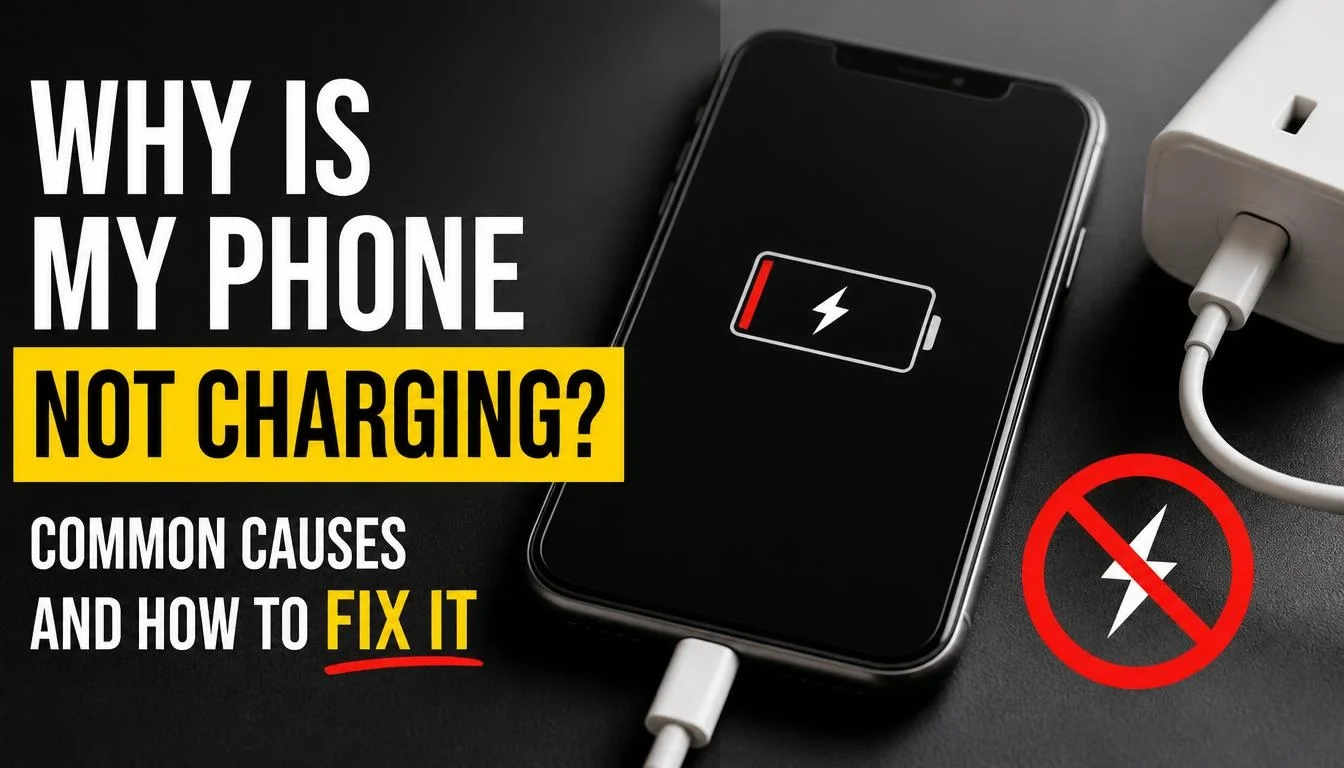
Few things are more frustrating than plugging in your phone and discovering that the battery percentage is not increasing. You might try reconnecting the cable, changing the power outlet, or pressing the power button, but nothing seems to work.
So, why is your phone not charging?
The problem could be something as simple as a damaged charging cable, a faulty power adapter, dust inside the charging port, or a temporary software glitch. In other cases, overheating, moisture detection, battery deterioration, or an internal hardware fault may be responsible.
The good news is that you do not always need a new battery or an expensive repair. A few simple checks can help you identify the problem and decide what to do next.
In this guide, you will learn the most common reasons a phone stops charging and how to troubleshoot them safely, whether you use an iPhone, Samsung Galaxy, Google Pixel, or another Android phone.
Why Is My Phone Not Charging? Quick Answer
If your phone is not charging, start by checking the charging cable, power adapter, wall outlet, and charging port. These are some of the most common places to find a problem.
Other possible causes include a temporary software issue, extreme temperature, moisture inside the charging port, incompatible charging accessories, or a worn-out battery.
Before assuming that your phone needs professional repair, try these basic checks:
- Test the wall outlet with another device.
- Try a different compatible charging cable and power adapter.
- Check whether the charging port contains visible dust or debris.
- Remove the phone case and reconnect the charger.
- Let the phone cool down if it feels unusually warm.
- Restart the phone if it is responsive.
- Leave a completely drained phone connected to a working charger for around 30 minutes.
If none of these steps works, the problem may involve the battery, charging port, display, or internal charging components.
Quick Troubleshooting Guide
| What Happens? | What to Check First |
|---|---|
| Nothing happens when you plug in the charger | Power outlet, cable, adapter |
| Phone shows a charging icon but the battery does not increase | Charger output, cable, phone usage |
| Phone connects and disconnects repeatedly | Loose cable, charging port |
| Phone does not recognize the charger | Accessory compatibility, charging port |
| Phone stops charging at 80% | Battery protection or charge limit |
| Phone gets hot while charging | Temperature and demanding apps |
| Phone has a black screen and will not respond | Battery condition or display problem |
Understanding the exact symptom can save you time because different charging problems require different solutions.
8 Common Reasons Why Your Phone Is Not Charging
A phone can stop charging for several reasons. Some problems are related to external accessories, while others involve the device itself.
Here are eight common causes worth investigating.
1. Your Charging Cable Is Damaged or Faulty
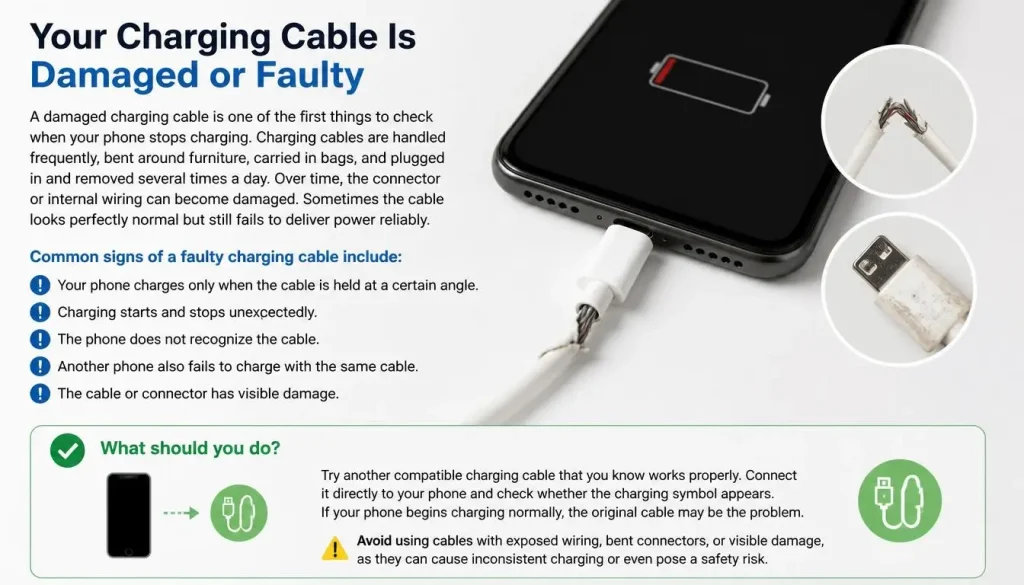
A damaged charging cable is one of the first things to check when your phone stops charging.
Charging cables are handled frequently, bent around furniture, carried in bags, and plugged in and removed several times a day. Over time, the connector or internal wiring can become damaged.
Sometimes the cable looks perfectly normal but still fails to deliver power reliably.
Common signs of a faulty charging cable include:
- Your phone charges only when the cable is held at a certain angle.
- Charging starts and stops unexpectedly.
- The phone does not recognize the cable.
- Another phone also fails to charge with the same cable.
- The cable or connector has visible damage.
What should you do?
Try another compatible charging cable that you know works properly.
Connect it directly to your phone and check whether the charging symbol appears. If your phone begins charging normally, the original cable may be the problem.
Avoid using cables with exposed wiring, bent connectors, melted sections, or loose fittings. A damaged cable is not worth risking your device or personal safety.
2. The Power Adapter or Wall Outlet Is Not Working
Your phone and charging cable may be perfectly fine, but a faulty power adapter or electrical outlet can prevent charging.
A charger needs a reliable power source. If the adapter is damaged or the outlet is not supplying power, your phone may not respond when connected.
This problem can also happen when the charging adapter is not properly connected to the cable or wall socket.
How to identify the problem:
- Try plugging another device into the same wall outlet.
- Test your phone with another compatible power adapter.
- Check whether the adapter has visible damage.
- Make sure the cable is firmly connected to the adapter.
- Try another working wall outlet.
If another device also fails to receive power from the same outlet, the problem may be with the outlet rather than your phone.
Do not open or attempt to repair a damaged mains power adapter yourself. Replace faulty accessories with compatible, reputable alternatives.
3. Dust or Debris Is Blocking the Charging Port
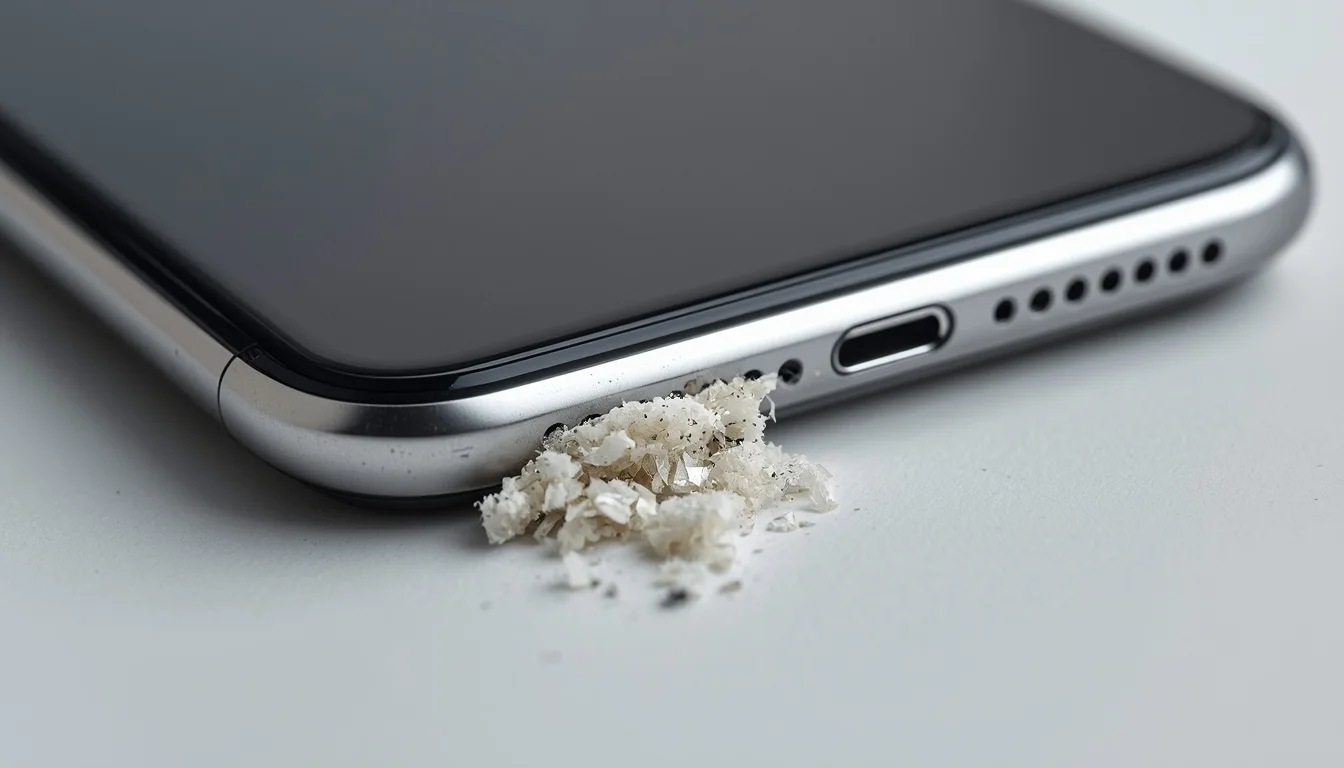
A phone spends much of its life in pockets, handbags, backpacks, and other places where small particles can collect.
Over time, dust, pocket lint, and debris may build up inside the charging port.
This can prevent the charging connector from making a proper connection. Your phone may fail to recognize the charger, or charging may become unreliable.
Signs of a dirty or obstructed charging port:
- The charging cable does not fit properly.
- The connector feels unusually loose.
- Charging works only at certain angles.
- The phone repeatedly disconnects from the charger.
- You can see dust or lint near the port opening.
How to check the charging port safely:
- Disconnect the charging cable.
- Turn off your phone if possible.
- Use a flashlight to inspect the charging port.
- Look for visible dust, lint, or other obstructions.
- If debris is packed inside, arrange professional cleaning rather than forcing something into the port.
Never insert metal pins, needles, paper clips, or other sharp objects into the charging port. Avoid pouring liquids or cleaning solutions into it.
Samsung also recommends inspecting the port and avoiding metal objects or liquids when removing debris. You can read its official guide to Galaxy charging problems.
If the port appears damaged or the cable cannot connect properly, a technician should inspect it.
4. A Temporary Software Glitch Is Preventing Normal Charging
Charging is controlled by both hardware and software.
Although charging problems are often caused by cables, adapters, or physical damage, a temporary software issue can sometimes interfere with normal charging behaviour.
For example, a system process may become unresponsive, a recent update may introduce a temporary bug, or the phone may not respond correctly after a sudden shutdown.
Possible signs of a software-related charging problem include:
- The issue begins unexpectedly.
- The phone behaves strangely after a software update.
- Charging works inconsistently even with working accessories.
- The phone freezes or becomes unresponsive.
- A normal restart improves the situation.
What should you do?
Start with a normal restart if your phone is responsive.
On most Android phones, you can open the power menu and select Restart.
On an iPhone, use the normal restart procedure for your particular model.
If your phone does not respond, check the manufacturer’s instructions for a force restart.
Do not immediately perform a factory reset. It can erase personal data and should not be an early troubleshooting step for a charging problem.
If the problem started after a software update and continues, check for another available update or contact the manufacturer for advice.
5. Your Phone Is Too Hot or Too Cold
Temperature can affect how a smartphone charges.
Modern phones include temperature-monitoring systems that can reduce charging speed or temporarily stop charging when the battery becomes too hot or too cold.
This protection helps prevent battery damage.
For example, your phone may become warm when you:
- Play demanding games while charging.
- Stream videos for extended periods.
- Use navigation with the screen continuously on.
- Leave the phone in direct sunlight.
- Charge it inside a hot car.
- Use an unsuitable or damaged charging accessory.
Cold conditions can also affect battery performance and charging behaviour.
How to fix a temperature-related charging problem:
- Disconnect the charger if the phone is unusually hot.
- Stop gaming or other demanding activities.
- Move the phone away from direct sunlight.
- Remove a thick phone case if it is trapping heat.
- Place the device in a normal, well-ventilated environment.
- Allow it to return to a comfortable temperature before charging again.
Do not put your phone in a refrigerator or freezer to cool it down. Sudden temperature changes can introduce condensation and create additional problems.
If the phone repeatedly becomes extremely hot during ordinary charging, arrange a professional inspection.
6. Moisture or Water Has Entered the Charging Port
Some smartphones automatically disable wired charging when moisture is detected in the charging port.
You may see a warning such as:
- Moisture detected in charging port.
- Liquid detected in connector.
- Unplug charger.
- Charging disabled.
This is a safety feature designed to reduce the risk of corrosion and electrical damage.
Even phones advertised as water-resistant should not be charged through a wet charging port.
What should you do if moisture is detected?
- Disconnect the charging cable immediately.
- Keep the phone away from water and other liquids.
- Gently remove visible moisture from the outside with a clean, soft, dry cloth.
- Leave the device in a dry, well-ventilated place.
- Follow the manufacturer’s instructions before reconnecting a charger.
Do not use a hairdryer, place the phone in rice, or insert cotton buds and other objects into the port.
If the phone was exposed to salt water, sugary drinks, or another liquid, professional inspection may be necessary even after the outside looks dry.
Samsung explains that moisture in the charging port can prevent wired charging and recommends allowing the port to dry before reconnecting a cable. Read its official moisture detection troubleshooting guide.
If your phone supports wireless charging, follow the manufacturer’s guidance before using it. Make sure the phone itself is completely dry and undamaged.
7. Your Phone Battery Is Worn Out or an Internal Component Is Damaged
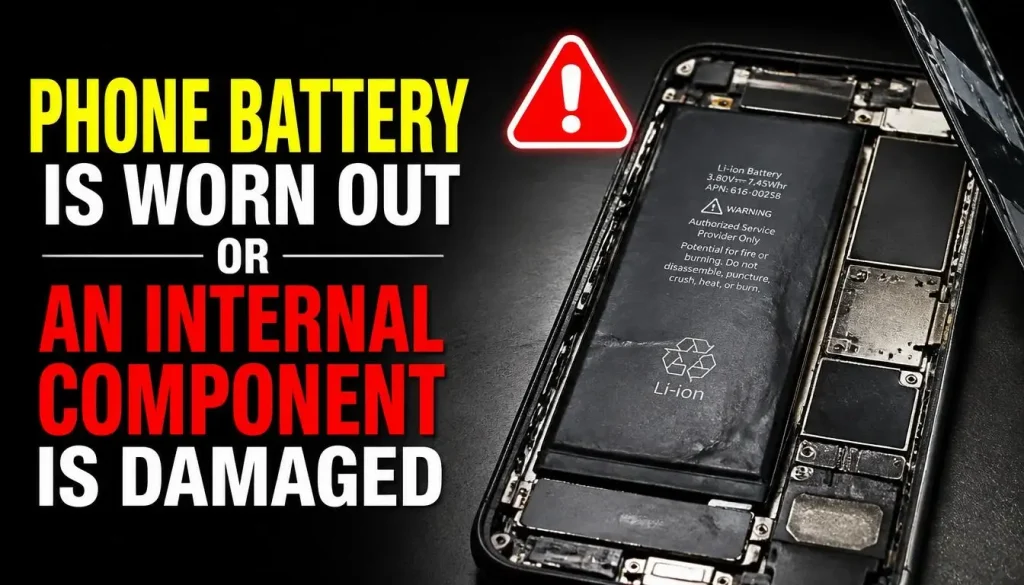
Smartphone batteries gradually lose capacity as they age.
After extended use, a battery may no longer perform as reliably as it did when the phone was new.
In some cases, an aging or damaged battery may contribute to charging problems. An internal charging component, connector, or circuit may also be faulty.
Possible warning signs include:
- The phone shuts down unexpectedly.
- The battery percentage changes unusually quickly.
- The phone struggles to maintain a charge.
- Charging problems continue with multiple working chargers.
- The phone becomes unusually hot.
- The battery appears swollen.
If the battery is swollen, stop using and charging the phone. Do not press, puncture, bend, or attempt to remove the battery yourself. Arrange professional service.
Battery ageing can also cause a different problem: the phone charges normally but loses power unusually quickly after being unplugged.
If that is what you are experiencing, read our guide on why your phone battery is draining so fast.
For more specific instructions, see:
These are battery-drain problems rather than proof that the charging system itself is faulty.
8. Your Charging Accessories Are Incompatible or Charging Settings Are Limiting Power
Not every charging cable and adapter works equally well with every smartphone.
Some accessories may not support the charging standards or power requirements of your device.
In other cases, a phone may display an accessory warning or restrict charging because of a battery protection feature.
For example, an iPhone may use Optimised Battery Charging or a configured Charge Limit. Certain Samsung Galaxy phones also offer Battery protection settings that can limit the maximum charge.
This does not necessarily mean the phone has stopped working.
What should you check?
- Whether the charger is compatible with your phone.
- Whether the cable and adapter support the required charging standard.
- Whether an accessory warning appears on the screen.
- Whether a battery protection or charge limit setting is enabled.
- Whether your phone is overheating.
Use compatible charging accessories and check the manufacturer’s recommendations for your model.
You can find more information in Apple’s official iPhone charging troubleshooting guide.
How to Fix a Phone That Is Not Charging (Step-by-Step)
Now that you understand the possible causes, it is time to troubleshoot the problem.
Follow these steps in order. Start with the simplest checks before considering more complicated repairs.
Step 1. Check Whether Your Wall Outlet Is Working
Start with the power source.
Plug another working device, such as a lamp or another phone charger, into the same outlet.
If the other device also fails to work, try a different outlet.
For a switched outlet, make sure the switch is turned on. Also check that the plug is connected securely.
If you are using a power strip or extension lead, temporarily connect your charger directly to a suitable wall outlet.
What the result tells you:
If the charger works in another outlet, your original power source may be the problem.
If it still does not work, continue to the next step.
Step 2. Test Your Charging Cable and Power Adapter on Another Device
A simple way to identify a faulty accessory is to test it with another compatible phone.
Connect your cable and adapter to another device that supports the same charging connection.
Check whether that device starts charging normally.
If the second phone also fails to charge, the cable or adapter may be defective.
If the other device charges successfully, continue checking your own phone.
Remember that a cable may work with one device but still be unsuitable for another if the charging requirements differ.
Step 3. Try a Known-Working Charger on Your Phone
If your original charger appears to work on another device, test your phone using a different compatible charger and cable.
Use accessories that you know are working and that meet your phone’s charging requirements.
Connect the charger directly to the phone and observe what happens.
There are a few possible results:
- If your phone starts charging, the original accessory may be faulty or incompatible.
- If charging starts and stops, inspect the connection and charging port.
- If nothing happens, investigate the phone itself.
Testing one component at a time makes it easier to identify the actual cause.
Step 4. Inspect the Charging Port Safely
Disconnect the charging cable and examine the charging port with a flashlight.
Look for visible debris, damage, or signs of corrosion.
Do not insert sharp objects or metal tools into the port. If dirt is trapped deep inside, have a qualified technician clean it.
Also check whether the connector fits properly.
A charging cable that repeatedly disconnects or feels unusually loose may indicate a damaged port.
If the port is bent, corroded, or physically damaged, professional repair is the safer option.
Step 5. Remove the Phone Case and Reconnect the Charger
Some phone cases are thick or poorly designed around the charging connector.
They may prevent the charging cable from connecting fully.
Wireless charging cases and magnetic accessories can also interfere with alignment on some devices.
Try the following:
- Remove the phone case.
- Disconnect the charging cable.
- Check that the connector is clean and undamaged.
- Reconnect the charger firmly.
- Observe whether charging starts.
For wireless charging, place the phone carefully in the centre of the charging pad and remove accessories that could interfere with alignment.
Step 6. Let Your Phone Cool Down if It Is Overheating
If your phone feels unusually warm, stop demanding activities and allow it to cool naturally.
Do not keep attempting to charge a device that is showing signs of excessive heat.
Keep it away from direct sunlight, heaters, and enclosed spaces.
Once the phone returns to a normal temperature, try connecting a compatible charger again.
If it repeatedly overheats during normal use or charging, seek professional help.
Step 7. Restart or Force Restart Your Phone
A restart can help when a temporary software problem prevents your phone from responding correctly.
If your device is working normally, use the usual restart option.
If the phone is frozen or unresponsive, the correct force-restart method depends on its model.
For an iPhone, follow Apple’s instructions for your specific generation in its official guide to fixing an iPhone that will not charge.
For Android phones, Google’s official Android charging troubleshooting guide provides additional instructions.
Do not assume that every phone uses the same button combination.
Step 8. Give a Completely Drained Battery Time to Recharge
Sometimes a phone battery becomes so depleted that the device shows no immediate response when connected to a charger.
You may not see a charging icon or vibration straight away.
This does not always mean the phone is permanently damaged.
Try this:
- Connect the phone to a known-working compatible charger.
- Plug the adapter into a working wall outlet.
- Leave the phone connected for approximately 30 minutes.
- Check whether a charging symbol or battery indicator appears.
- Try turning on the device using its normal power button.
Some devices, including certain Google Pixel models, may take several minutes to show a response when the battery is completely depleted.
Google provides model-specific guidance in its official Pixel charging and power troubleshooting guide.
Do not leave a phone connected if it becomes unusually hot, smells burnt, or shows signs of physical damage.
Step 9. Check Charging Notifications and Battery Settings
Look at the screen while the charger is connected.
Your phone may display a warning that explains why charging is not working.
Examples include:
- Check charging accessory.
- Accessory not supported.
- Liquid detected.
- Moisture detected.
- Charging paused because of temperature.
Follow the instructions shown on your device rather than repeatedly reconnecting the same charger.
Also check your battery settings.
An iPhone may have a configured charge limit or Optimised Battery Charging enabled. Samsung Galaxy devices may have Battery protection settings.
If charging repeatedly stops at a particular percentage, the issue may be related to a charging limit rather than a failed charging component.
Do not disable battery protection without first understanding what the setting does.
Step 10. Test Wireless Charging if Your Phone Supports It
If your phone supports wireless charging, try a compatible wireless charging pad.
Make sure the charger is working and that your phone is positioned correctly.
Remove thick cases, magnetic attachments, or other accessories that may interfere with charging.
Wireless charging can also help narrow down a possible wired charging-port problem.
For example, if wireless charging works normally but wired charging repeatedly fails, the cable, adapter, or USB port deserves closer inspection.
However, wireless charging working does not prove that the battery is completely healthy. It only provides another useful diagnostic clue.
What If Your Phone Still Won’t Charge?
If you have tested different charging accessories, checked the outlet, and followed the basic troubleshooting steps without success, the problem may be more serious.
At this stage, it helps to identify which part of the phone may be failing.
Check Whether the Charging Port Is Damaged
A damaged charging port may prevent a cable from connecting properly.
Look for:
- A connector that does not fit securely.
- Visible bending or physical damage.
- Corrosion around the port.
- Repeated disconnections with multiple known-working cables.
Do not attempt to bend the connector back or replace the charging port without the proper tools and experience.
A qualified technician can inspect the port and determine whether it needs repair or replacement.
Check Whether the Battery May Be Faulty
A damaged battery can cause unpredictable power behaviour.
If your phone repeatedly shuts down, becomes unusually hot, or shows unexpected battery percentage changes, the battery may need professional assessment.
On some devices, built-in battery diagnostics can help identify a potential problem.
However, not every smartphone provides the same battery health information.
What If Your Phone Has a Black Screen but Is Still Not Charging?
A black screen does not always mean the phone is completely out of power.
Sometimes the device may be running, but the display is not working.
Try calling your phone from another device.
If it rings, vibrates, or produces notification sounds while the screen remains blank, the issue may involve the display rather than the charging system.
You can also follow the manufacturer’s instructions for checking an unresponsive phone.
Google explains this diagnostic approach in its Android guide to phones that will not charge or turn on.
If the phone appears to be running but the display remains black, arrange professional inspection instead of repeatedly trying different chargers.
When Should You Visit a Repair Centre?
Professional repair is recommended when:
- The phone does not charge with multiple working accessories.
- The charging port is physically damaged.
- The battery may be swollen.
- The device overheats repeatedly.
- Charging problems started after a drop or liquid exposure.
- The phone does not respond to the manufacturer’s recommended troubleshooting steps.
If the device is still under warranty, contact the manufacturer or authorised service provider before attempting repairs elsewhere.
Does Phone Charging Troubleshooting Differ by Brand?
The basic charging checks are similar across most smartphones, but some settings and troubleshooting procedures differ by manufacturer.
Here are a few things worth knowing.
iPhone Charging Troubleshooting
If your iPhone is not charging, start by checking the charging cable, adapter, and power outlet.
Apple recommends restarting the device, inspecting the charging port, using a suitable power source, and allowing the phone time to charge before trying again.
Also check for charging-related alerts.
If your iPhone stops at 80%, look at Optimised Battery Charging, the configured Charge Limit, or temperature-related charging protection before assuming the battery is faulty.
For additional instructions, read Apple’s official iPhone charging support guide.
Samsung Galaxy Charging Troubleshooting
Samsung Galaxy phones include charging and battery protection features that can affect normal charging behaviour.
If your Samsung phone is not charging:
- Test another compatible Samsung charging cable and adapter.
- Check for debris in the USB-C port.
- Look for moisture detection notifications.
- Check the Battery and Battery protection settings.
- Use Samsung Members diagnostics if available on your device.
Samsung also explains how to troubleshoot charging interruptions, incompatible accessories, and temperature-related charging problems.
See its official Samsung Galaxy charging troubleshooting guide.
Google Pixel and Other Android Phone Charging Troubleshooting
Android charging settings and procedures can differ between manufacturers.
For Google Pixel phones, Google recommends checking the charging cable, adapter, outlet, charging port, and screen response.
If your Pixel displays a charging accessory warning, the accessory may be damaged or incompatible.
Other Android manufacturers may provide their own battery diagnostics, restart procedures, and charging settings.
For general Android instructions, visit Google’s official guide to fixing an Android device that will not charge.
For Pixel-specific instructions, see Google’s Pixel charging and power troubleshooting guide.
When Should You Stop Trying to Charge Your Phone?
Not every charging problem should be handled through repeated troubleshooting.
Certain warning signs indicate that continuing to charge the device may be unsafe.
Stop using and charging your phone if you notice:
- A swollen or visibly deformed battery.
- A burning smell coming from the phone or charger.
- Smoke, hissing, or unusual sounds.
- A melted charging connector.
- Severe overheating.
- Visible battery damage.
- Liquid exposure accompanied by unusual heat or electrical behaviour.
If the charger or phone shows signs of electrical damage, disconnect the power source if it is safe to do so.
Never attempt to open, press, puncture, or repair a swollen battery yourself.
Arrange professional inspection through the manufacturer or a qualified repair provider.
Your safety is more important than getting the phone working again immediately.
Frequently Asked Questions
Why Did My Phone Suddenly Stop Charging?
A phone may suddenly stop charging because of a damaged cable, faulty adapter, blocked charging port, software glitch, overheating, moisture detection, or battery problem.
Start by testing a different compatible charger and checking the wall outlet. Then inspect the charging port and look for any warning messages.
If the problem continues with working accessories, professional inspection may be necessary.
Can a Software Update Cause Charging Problems?
A software update can sometimes introduce temporary bugs or changes in how a phone manages charging.
However, a charging problem that appears after an update is not necessarily caused by the update itself.
Check for available updates, restart the device if appropriate, and test with a known-working charger.
If the problem continues, contact the manufacturer for model-specific guidance.
Can Apps or Malware Prevent a Phone From Charging?
An ordinary app or mobile malware infection is not a common direct cause of a phone refusing to charge.
However, demanding apps, games, and background processes can consume power while your phone is connected to a charger.
If the charger supplies less power than the phone is consuming, the battery percentage may increase very slowly or even decrease during heavy use.
Try charging the phone while the screen is off and demanding activities are paused.
If you suspect a software problem, investigate unusual app behaviour rather than installing unknown battery repair or cleaning applications.
Why Is My New Phone Not Charging?
A new phone may fail to charge because of an incompatible adapter, damaged cable, faulty outlet, or charging accessory issue.
First, use a compatible charger recommended for your model.
If the phone has a completely depleted battery, leave it connected to a working charger for around 30 minutes and check again.
If it still does not respond, contact the retailer or manufacturer while your return or warranty options are available.
Avoid attempting to open or repair a new phone yourself.
Why Is My Phone Not Charging After Dropping It?
A hard drop can damage the charging port, internal connectors, battery, or other components.
If your phone stopped charging immediately after falling, the problem may be physical rather than software-related.
Check for visible damage, but do not force a charging cable into the port.
If different working chargers produce the same result, arrange a professional inspection.
Can a Phone Stop Charging After Screen Replacement or Repair?
Yes. A phone may develop charging problems after a repair if an internal connector, charging component, or another part was disturbed or damaged during the process.
If the problem started immediately after a screen replacement or other repair, contact the repair provider.
Avoid repeatedly connecting and disconnecting the charger if the port or internal components may be damaged.
How Long Should I Charge a Completely Dead Phone?
A completely depleted phone may need several minutes before showing a charging icon or responding to the power button.
Try connecting it to a working compatible charger and leaving it connected for approximately 30 minutes.
Some models may take longer to show a response, depending on their condition.
If the phone remains completely unresponsive after the recommended charging period, follow the manufacturer’s troubleshooting instructions.
Does a Phone That Won’t Charge Always Need a New Battery?
No. A phone that will not charge does not automatically need a battery replacement.
The cause may be a damaged cable, adapter, charging port, moisture detection warning, software issue, or incompatible accessory.
Test the charging accessories and power source first.
If the problem continues, have the phone inspected so the actual faulty component can be identified before paying for a repair.
Conclusion: How to Get Your Phone Charging Again
When your phone stops charging, it is easy to assume that the battery has failed or that you need to replace the device. However, the problem may be much simpler.
A faulty charging cable, damaged adapter, dirty charging port, software glitch, or temperature-related charging restriction can all interfere with normal charging.
Start with the basics. Check the power outlet, test another compatible cable and adapter, inspect the charging port safely, and restart your phone if necessary.
Pay attention to warning messages, especially those related to moisture, temperature, and incompatible accessories.
If your phone still will not charge after these checks, the battery, charging port, or another internal component may need professional inspection.
The important thing is to identify the actual cause rather than replacing parts unnecessarily.
With a careful troubleshooting process, you can often narrow down the problem, avoid unnecessary repair costs, and make a better decision about what to do next.

“The right smartphone can make a bigger difference than you think.”
Hi, I’m Ethan Collins, a technology writer and smartphone enthusiast at PhoneProSolve.com.
My interest in smartphones started with a simple question: How do you know which phone is actually right for your needs?
With so many brands, models, features, specifications, operating systems, accessories, and price ranges available today, choosing the right phone can quickly become confusing. And when a phone starts overheating, charging slowly, draining its battery, running slowly, or developing other problems, finding a clear solution can be just as frustrating.
I created PhoneProSolve.com to make that process easier.
Through this website, I share practical smartphone guides, product comparisons, buying advice, troubleshooting tips, how-to guides, accessory information, and solutions to common phone problems.
I focus on turning complicated technical information into clear, practical, and easy-to-understand guidance that everyday readers can actually use.
Whether you’re searching for a smartphone with better battery life, a powerful device for gaming, a reliable camera phone, useful accessories, or simply trying to figure out why your current phone isn’t working properly, my goal is to help you find the information you need before making a decision.
I believe good recommendations should be based on careful research, real-world considerations, honest pros and cons, and the specific needs of the user—not simply marketing claims.
Through PhoneProSolve.com, I’m committed to helping readers understand their smartphones, solve common phone problems, choose useful products, and make smarter purchasing decisions with confidence.
— Ethan CollinsAuthor & Technology WriterPhoneProSolve.com